This translation is awaiting language review. Application screenshots and interface labels are in Turkish. The downloadable PDF is also in Turkish.
1. Open the Purchase and Consignment Tracking list
- Open Products and Purchases (Ürünler ve Alışlar) in the left menu, then switch to Purchase and Consignment Tracking (Alış ve Konsinye Takibi).
- Search by product name, barcode, or RFID. Use Filters (Filtreler) to narrow the list and Refresh (Yenile) to update it.
- Check the transaction type, status, and supplier in the relevant row. Compare the quantities under Received (Teslim alınan), Remaining stock (Kalan stok), and Return (İade).
- Review Purchase cost (Alış maliyeti) and Debt / credit (Borç / alacak). Purchase details (Alış ayrıntısı) opens the entry details, while Open account (Hesabı aç) opens the relevant person’s account. New entry (Yeni giriş) starts another transaction.
No products left in stock (Stokta ürün kalmadı) does not mean the account is settled. In the screenshot, remaining stock is zero but Price pending (1 için bedel bekleniyor) appears: the amount due for a sale has not yet been determined.
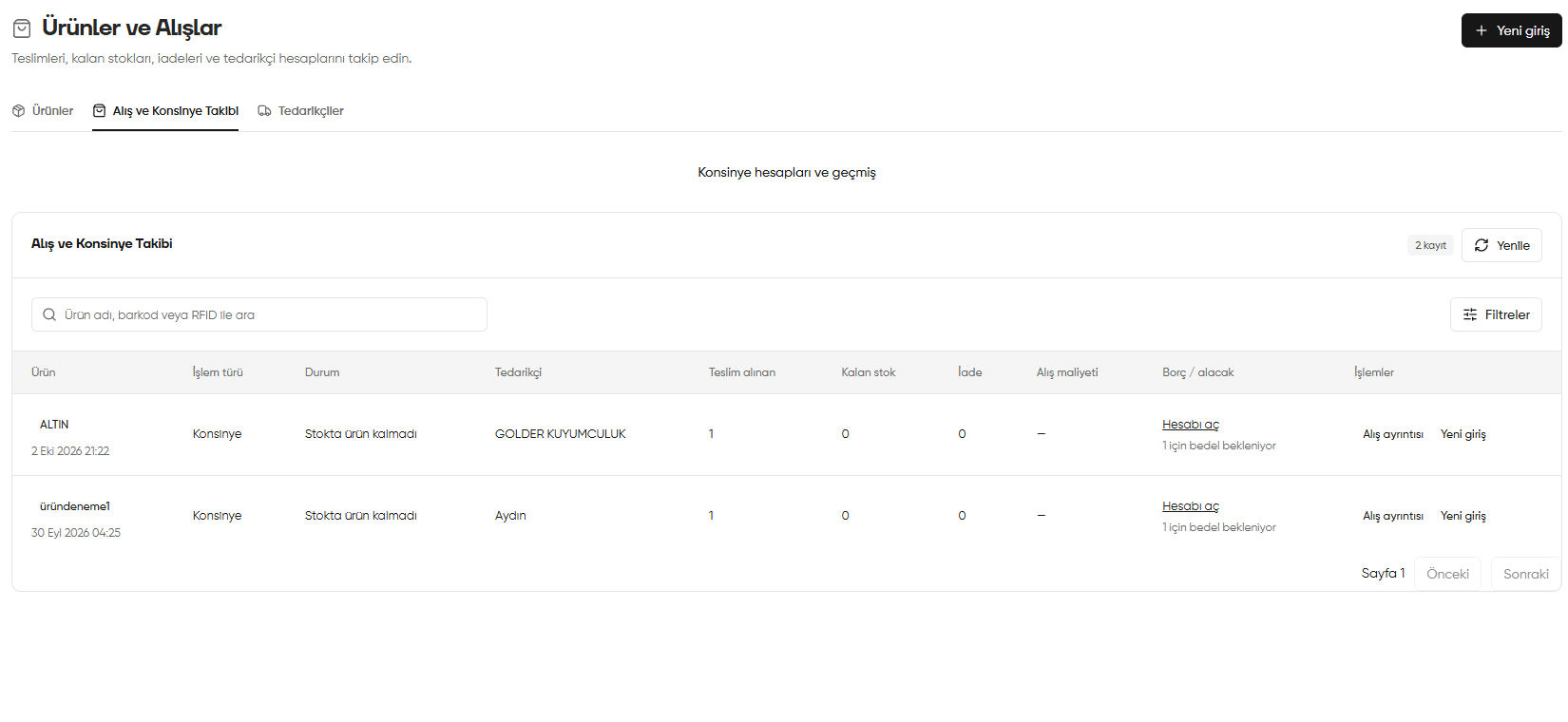
Purchase and Consignment Tracking: received quantities, remaining stock, returns, and account details
2. Review the consignment product details
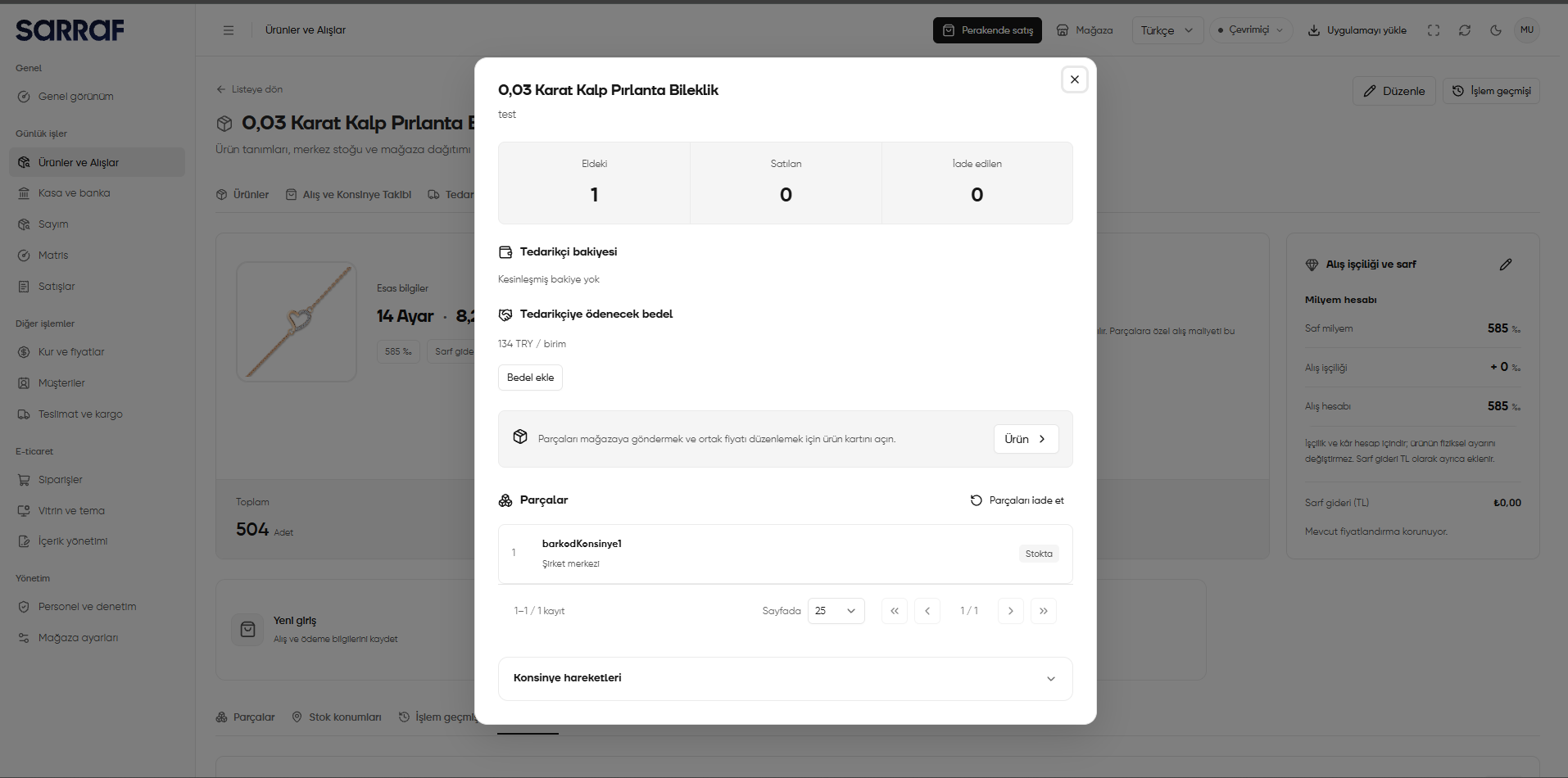
On the relevant consignment record in the tracking list, click Purchase details (Alış ayrıntısı). The Consignment details (Konsinye ayrıntısı) window opens over the product card.- Read the On hand (Eldeki), Sold (Satılan), and Returned (İade edilen) counts separately. The screenshot shows 1 piece on hand, 0 sold, and 0 returned.
- Supplier balance (Tedarikçi bakiyesi) shows the current finalized payable or receivable balance. No finalized balance (Kesinleşmiş bakiye yok) does not mean that the Amount payable to supplier (Tedarikçiye ödenecek bedel) is missing: the recorded amount is 134 TRY / unit. Receiving goods on consignment alone does not create a payment or a finalized debt; the amount for a sold piece is posted to the supplier account.
- Add amount (Bedel ekle) opens a form for setting the payment currency, amount, and number of pieces to which it applies. This button does not pay the supplier.
- The Product (Ürün) link opens the product card. Send pieces to a store and change their shared sale price from the product card.
- Under Pieces (Parçalar), check each barcode, stock location, and piece status. Return pieces (Parçaları iade et) opens a supplier return form for selected pieces that are still in stock; check the selection and reason before saving.
- Expand Consignment movements (Konsinye hareketleri) to review movements for this record, if any. No consignment movements yet (Henüz konsinye hareketi yok) means there are no movements to list here.
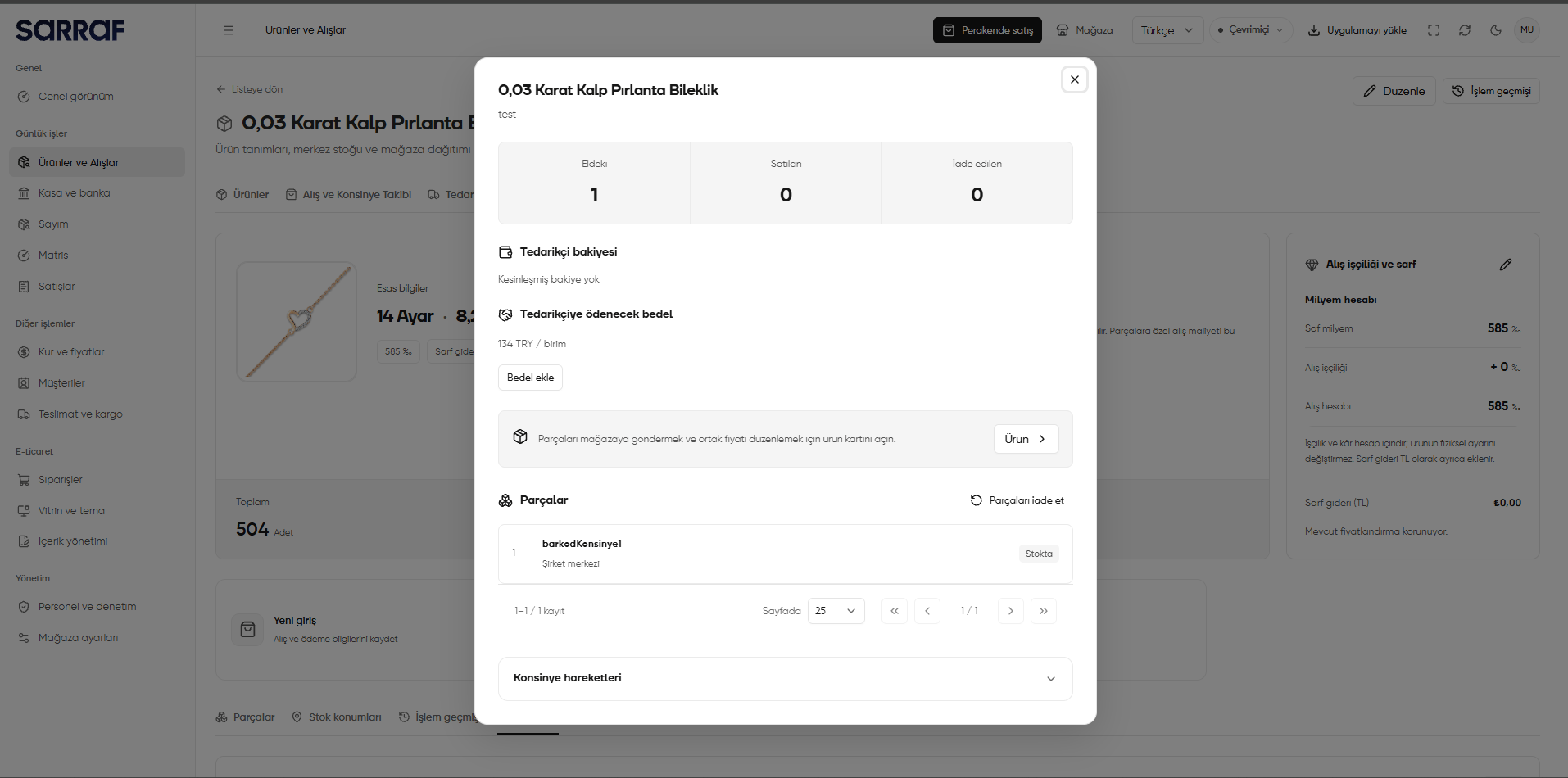
Consignment product details: quantities, supplier amount, pieces, and movements
3. Open consignment accounts and view products on hand
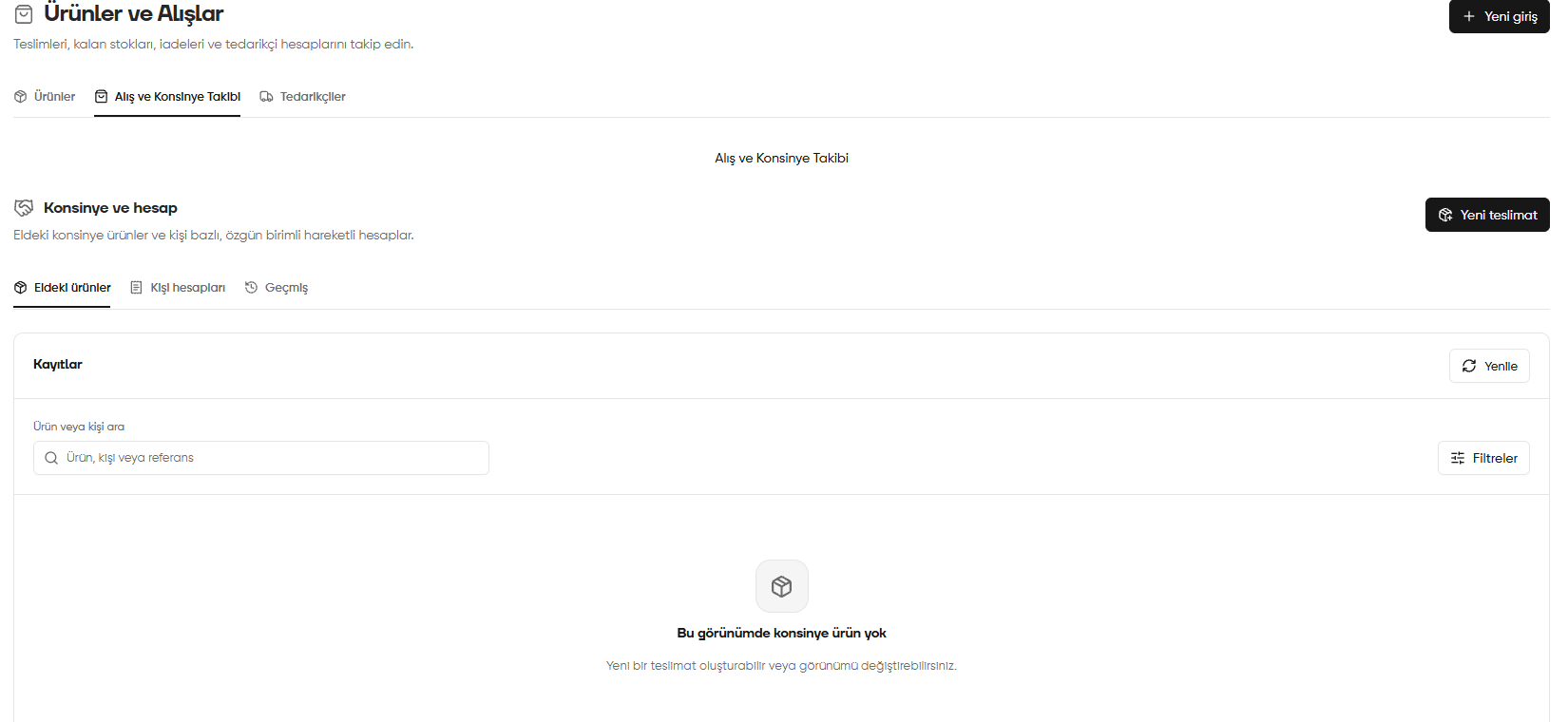
Click Consignment accounts and history (Konsinye hesapları ve geçmiş) above the list. The Consignment and account (Konsinye ve hesap) area contains Products on hand (Eldeki ürünler), Personal accounts (Kişi hesapları), and History (Geçmiş) tabs.- Under Products on hand (Eldeki ürünler), examine the consigned products still held. Search by product, person, or reference, or use Filters (Filtreler).
- If No consigned products in this view (Bu görünümde konsinye ürün yok) appears, there are no products to list in the current view. Check the search and filters as well.
- Use New delivery (Yeni teslimat) to start another delivery. Use Purchase and Consignment Tracking (Alış ve Konsinye Takibi) above to return to the tracking list.
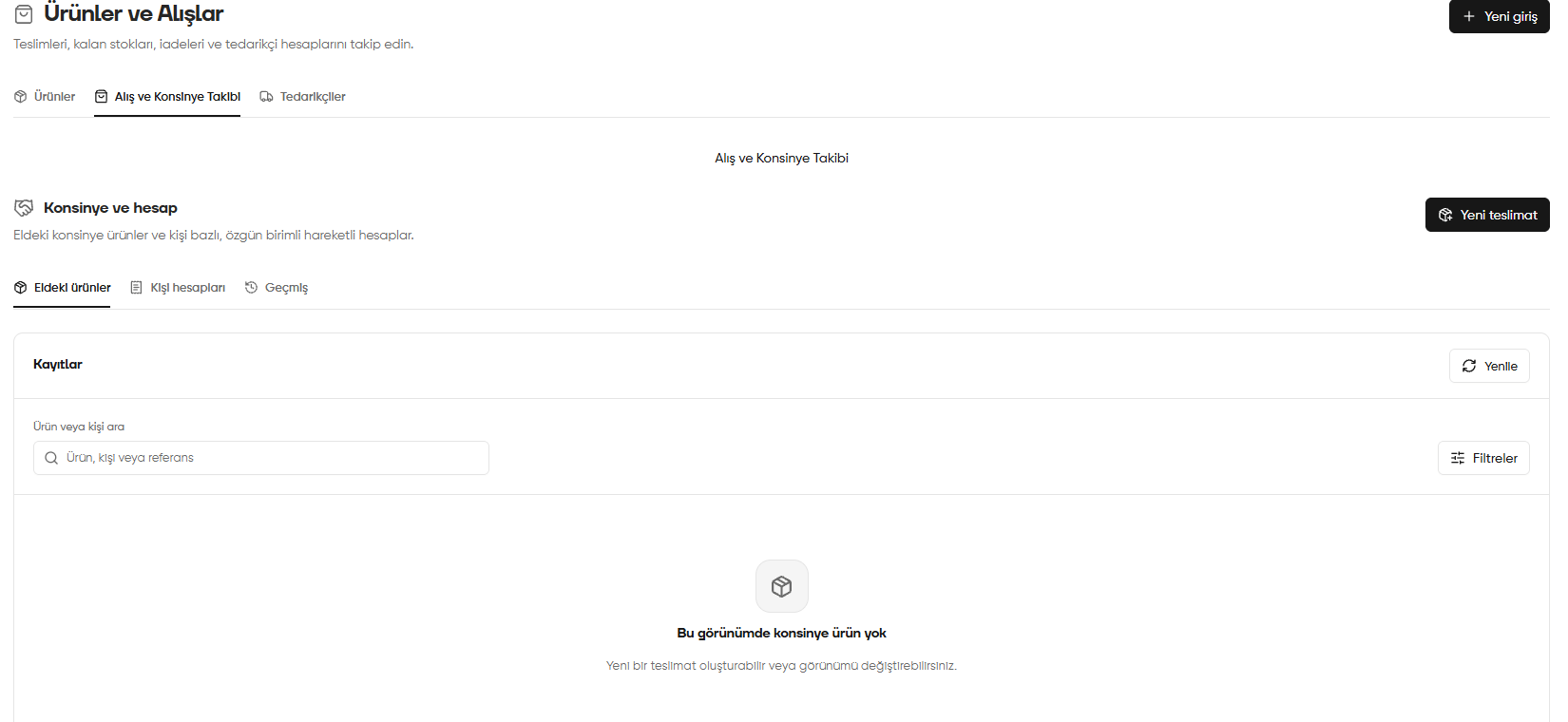
Products on hand tab in Consignment and account
4. Review personal accounts
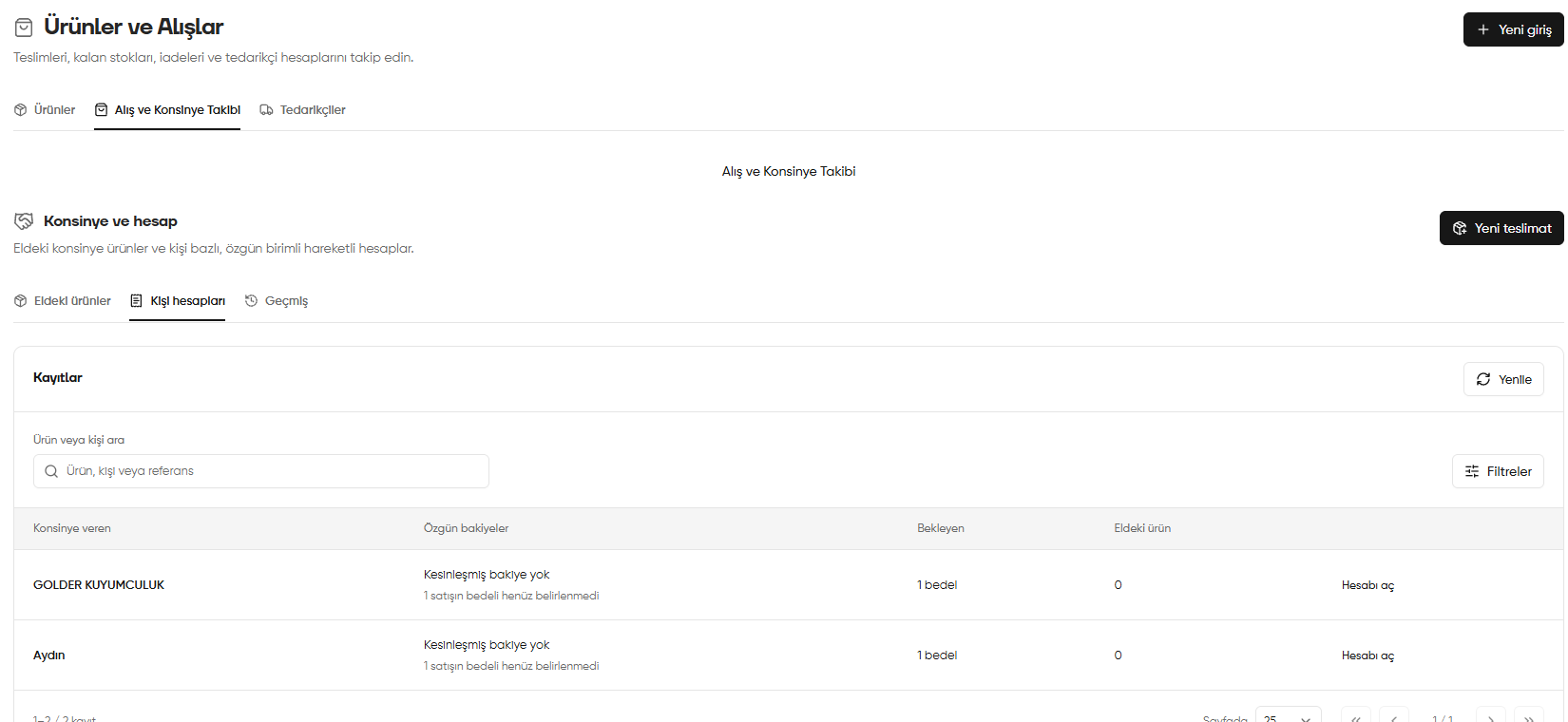
Switch to Personal accounts (Kişi hesapları). Each consignor has Original balances (Özgün bakiyeler), Pending (Bekleyen), and Products on hand (Eldeki ürün) information. Original balances (Özgün bakiyeler) are balances held in their original asset units. Read No settled balance (Kesinleşmiş bakiye yok) together with the explanation below it: in the screenshot, one sale has no determined price yet, so Pending amount (1 bedel) appears under Pending (Bekleyen). Click Open account (Hesabı aç) in the relevant row for details.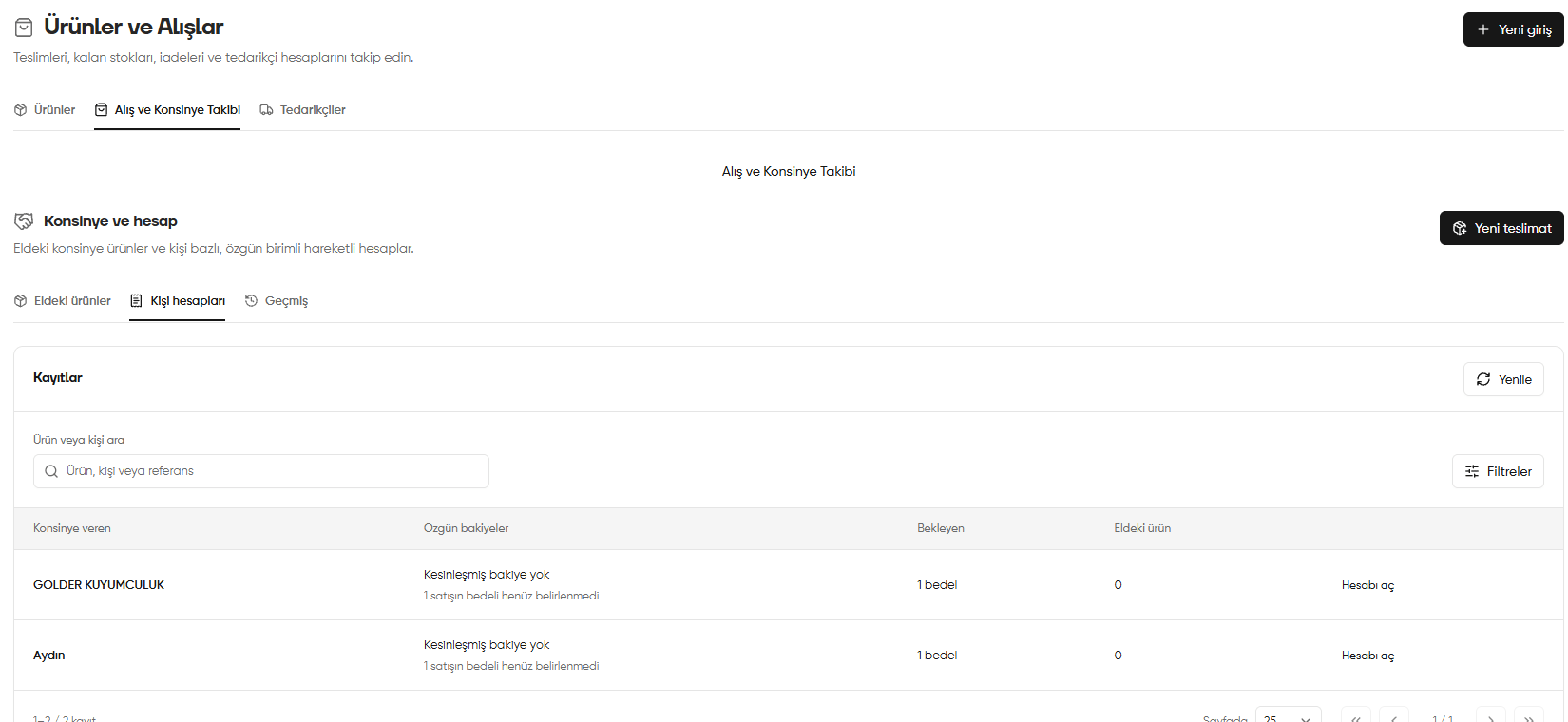
Personal accounts: balances, sales awaiting a price, and products on hand
5. Review historical records
Under History (Geçmiş), follow recorded transactions such as deliveries and sales. Compare Transaction (İşlem), Person (Kişi), Account effect (Hesap etkisi), and Date (Tarih) in each row. Use search and filters to find a record. The screenshot shows Received (Teslim alındı) and Sale (Satış) records. Do not treat a dash under Account effect (Hesap etkisi) as a payment amount; check the amount and balance in the relevant personal account.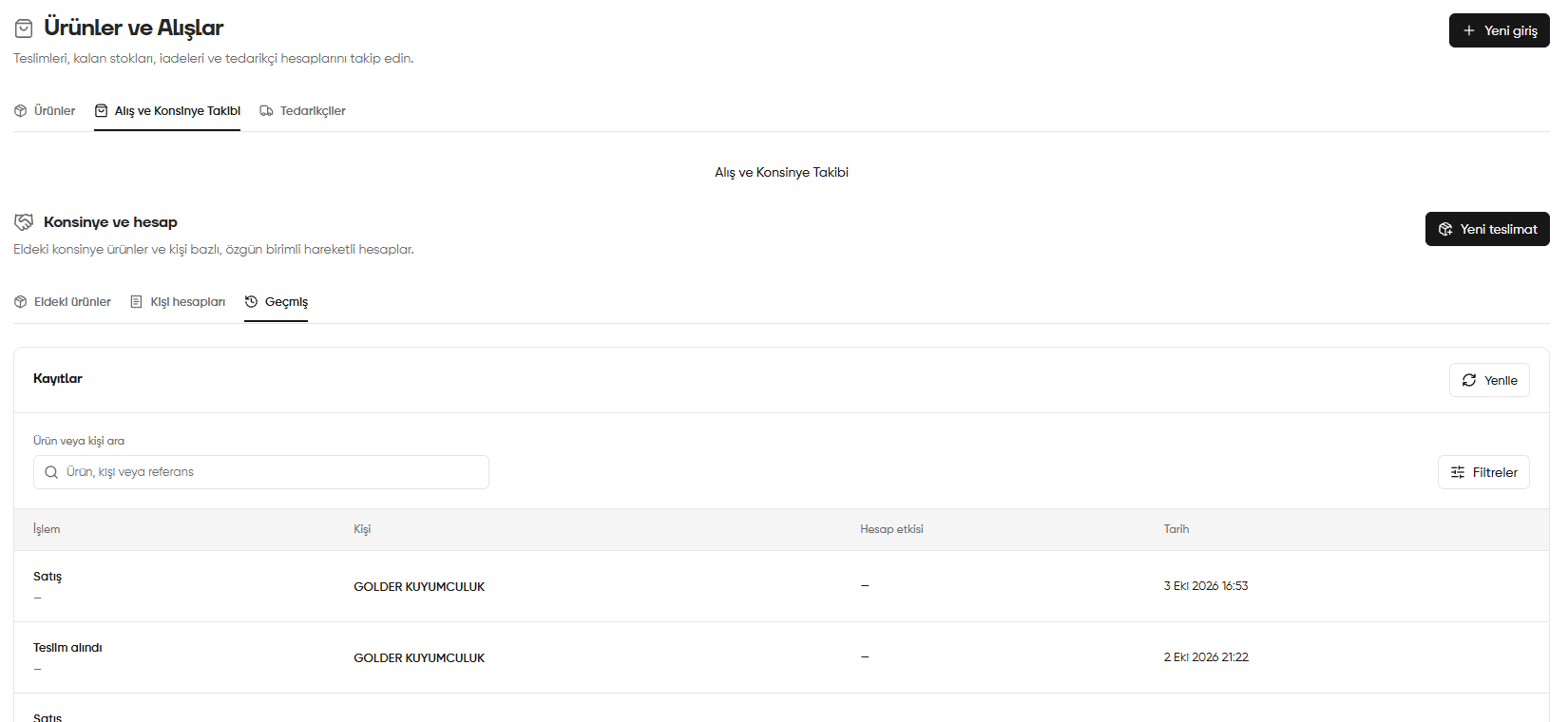
Delivery and sale records in consignment history
6. View personal account details with Open account
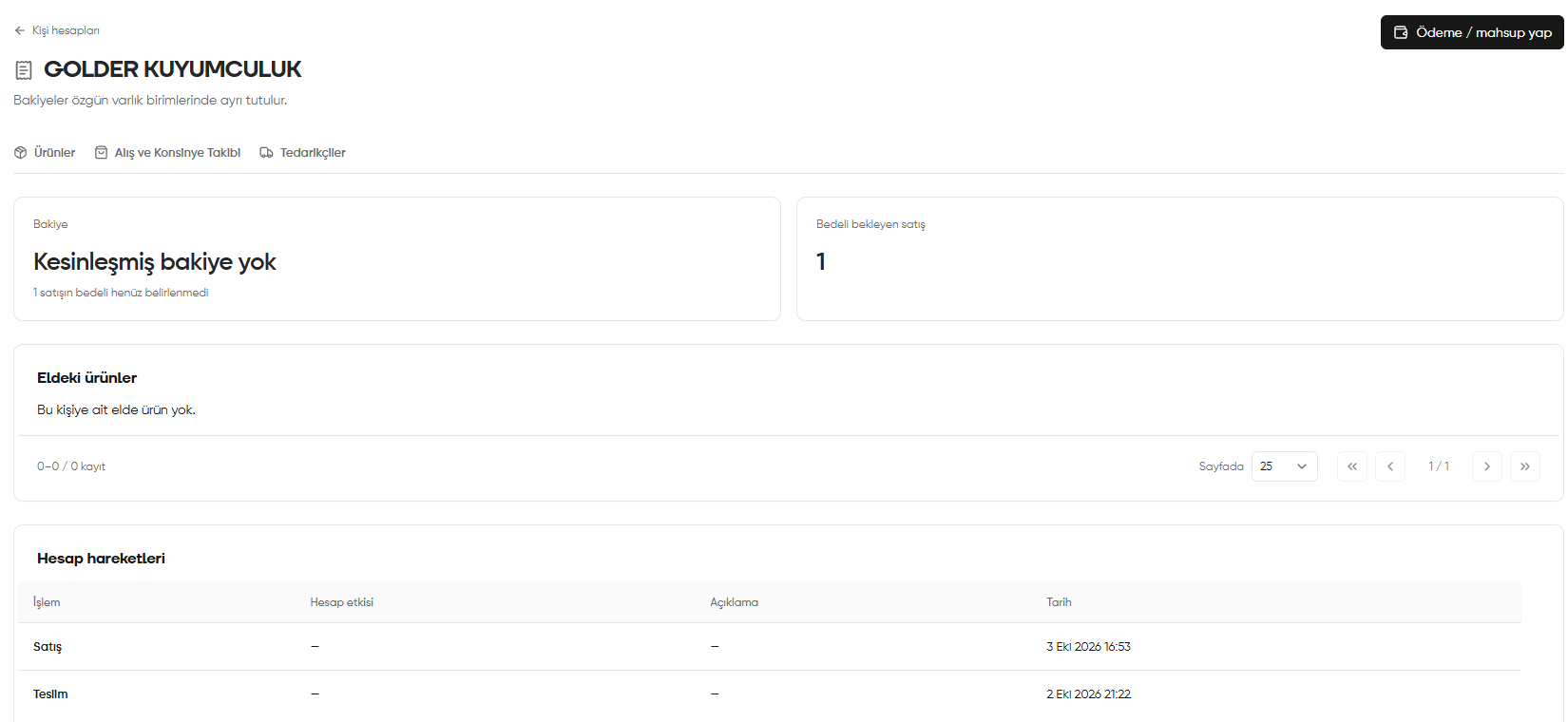
Open account (Hesabı aç) opens the selected person’s account page.- Check the Balance (Bakiye) and Sale awaiting a price (Bedeli bekleyen satış) cards at the top. Balances are held separately in their original asset units.
- Under Products on hand (Eldeki ürünler), review products held for this person.
- In Account movements (Hesap hareketleri), check the transaction, account effect, description, and date.
- To record a payment or offset, click Make payment / offset (Ödeme / mahsup yap) at the top right.
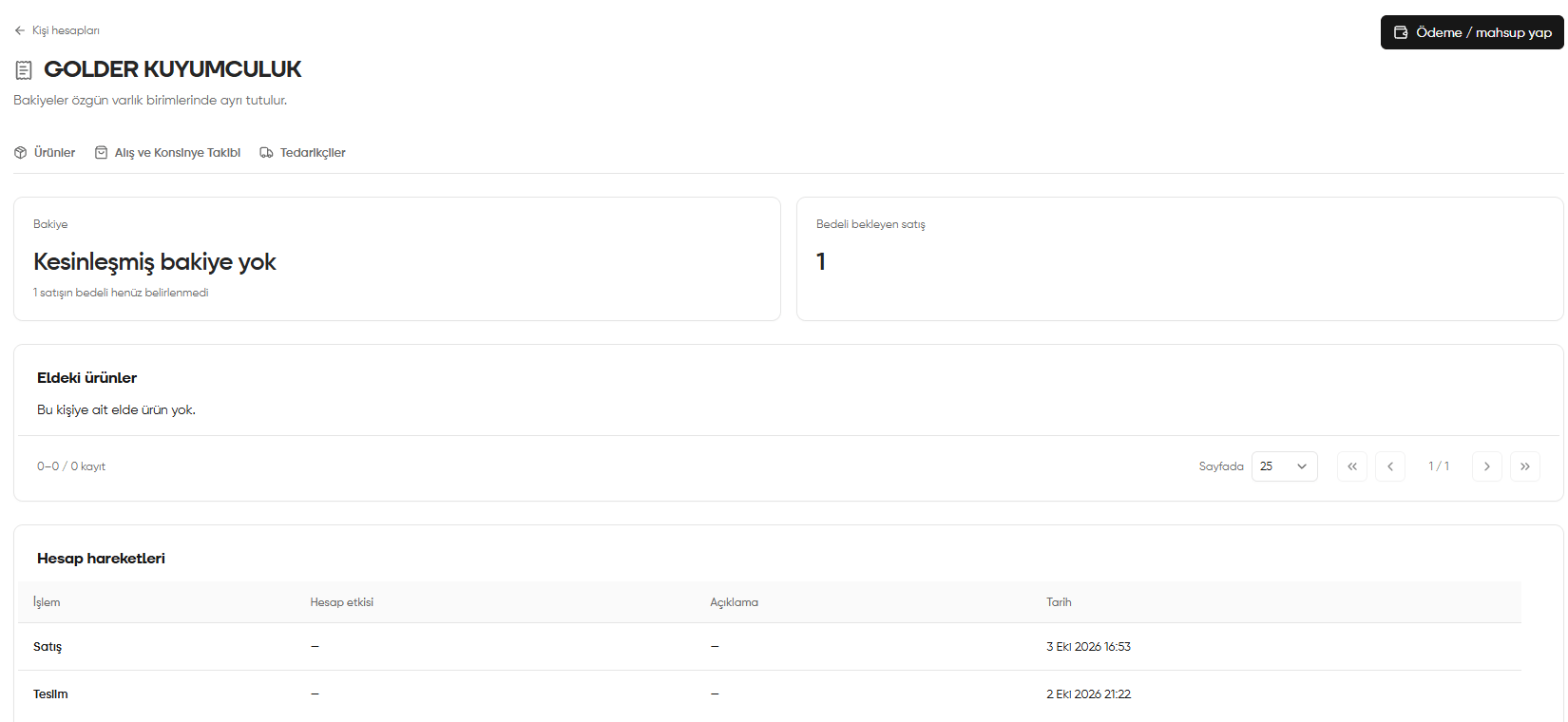
Balance, pending sales, and movements in a personal account
7. Record a payment or offset
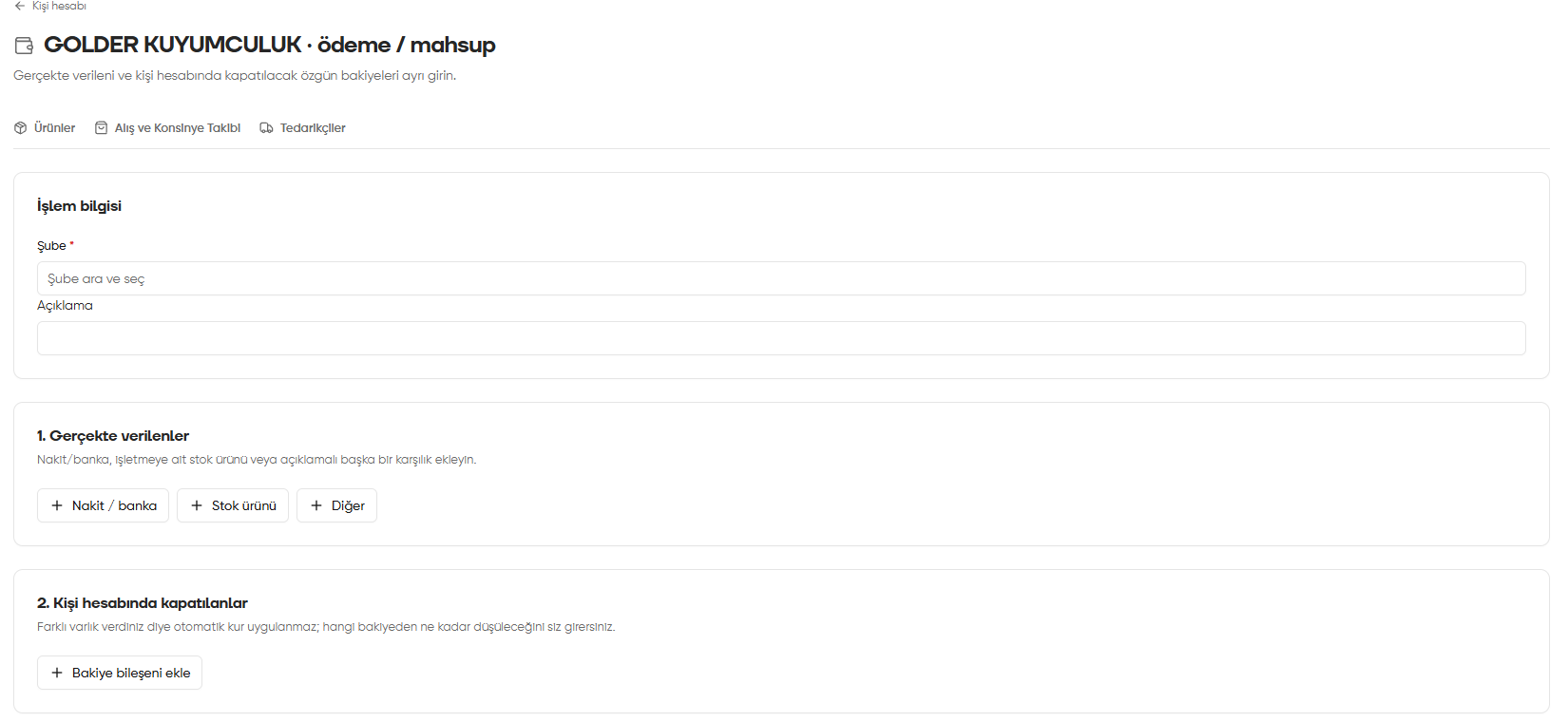
In this form, enter what you actually gave separately from how much of which balance in the person’s account you are settling.- Select Branch (Şube) under Transaction information (İşlem bilgisi); add a Description (Açıklama) if needed.
- Under What was actually given (Gerçekte verilenler), choose Cash / bank (Nakit / banka), Stock product (Stok ürünü), or Other (Diğer) according to the transaction. Enter the money, company-owned stock product, or other consideration actually given.
- Under Settled in the personal account (Kişi hesabında kapatılanlar), click Add balance component (Bakiye bileşeni ekle). Specify how much to deduct and from which balance unit.
- Use Preview (Önizle) at the bottom to check the information. If what was given and the balance to settle are correct, click Save settlement (Hesaplaşmayı kaydet).
No exchange rate is applied automatically when you pay with a different asset. For example, if you give TL to settle a balance in another unit, enter the TL given and the balance amount to close separately according to your agreement.
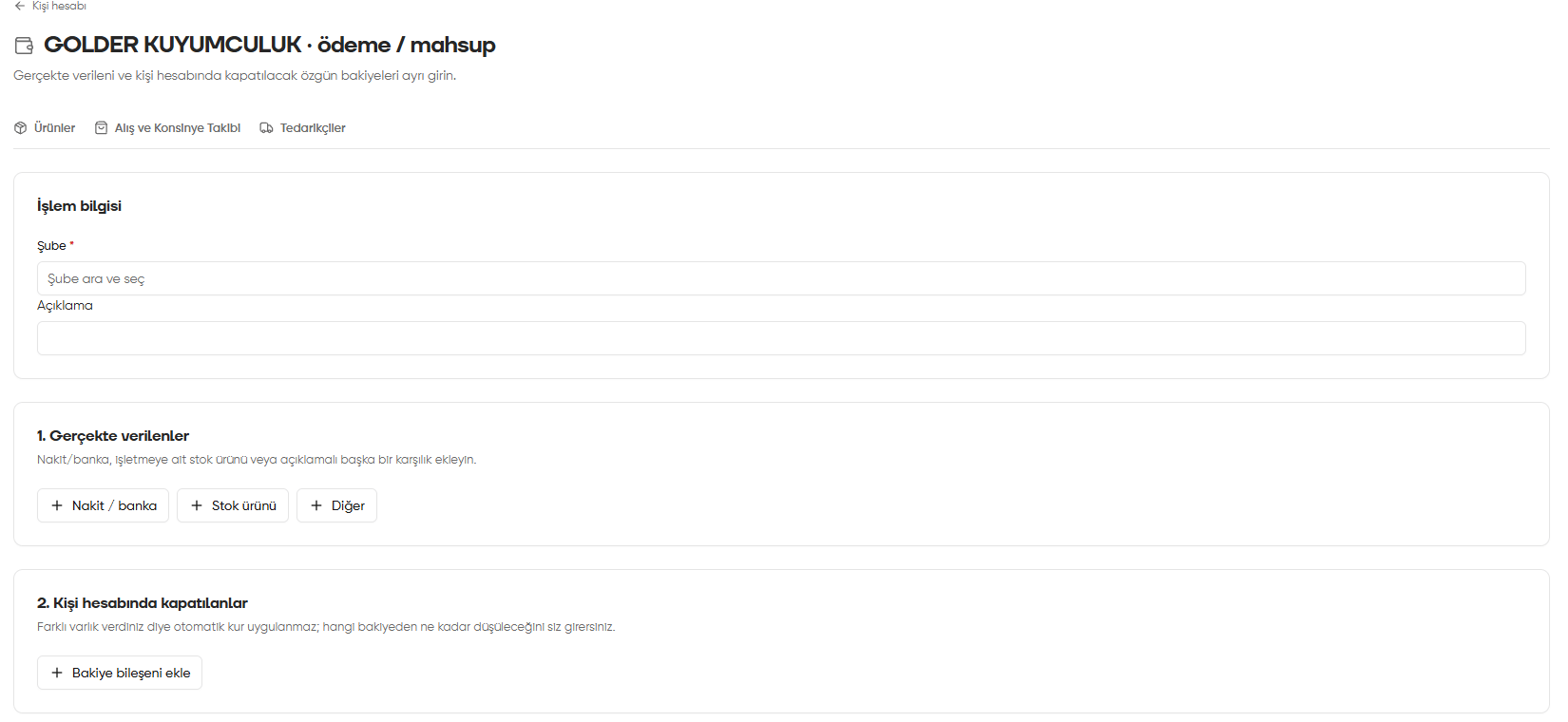
Transaction details, what was given, and balances settled in the payment / offset form