

This translation is awaiting language review. Application screenshots and interface labels are in Turkish. The downloadable PDF is also in Turkish.
1. Opening Make a purchase from the product’s action menu
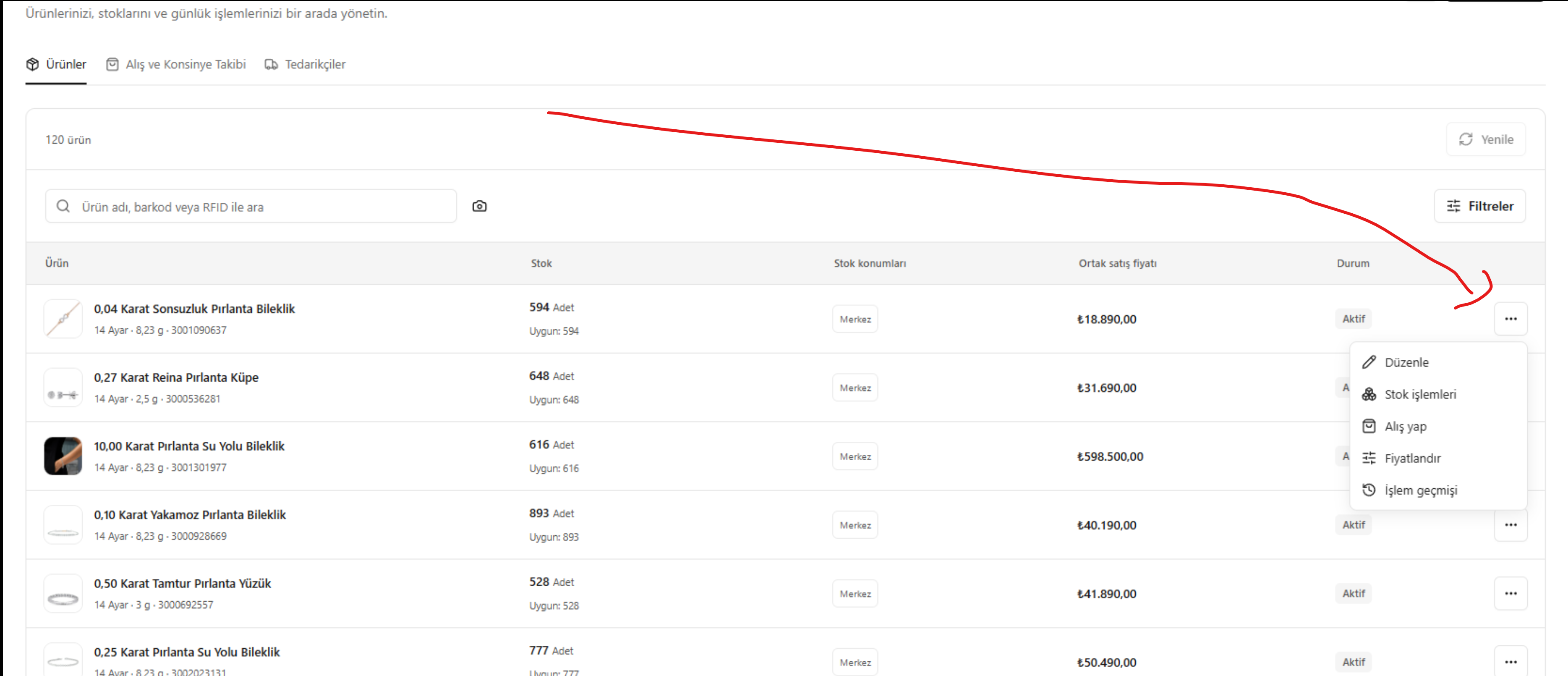
- Open Products and purchases (Ürünler ve Alışlar) in the left menu and find the relevant product in the Products (Ürünler) list.
- Click the three-dot (…) button at the far right of the product row.
- Choose Make a purchase (Alış yap) from the action menu.
- Check the product name and record in the form that opens. Confirm that the transaction type is Make a purchase (Alış yap). Complete the quantity and piece information for the selected product without clicking New product (Yeni ürün) or Existing stock records (Mevcut stok kartları).
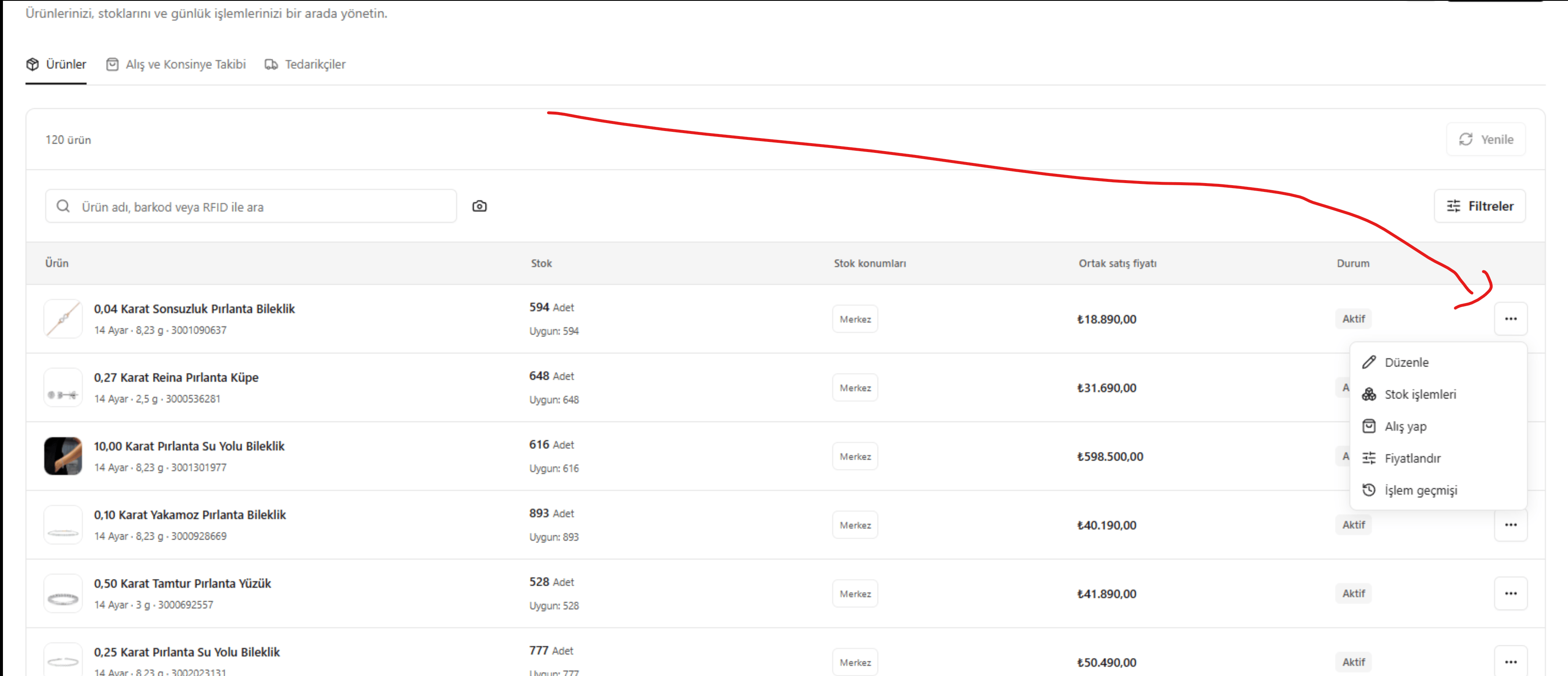
Select Make a purchase from the product row's three-dot action menu
The form is titled New entry (Yeni giriş) in the screenshot below. The starting point described here is Make a purchase (Alış yap) in an existing product’s action menu. Check that the correct product is selected in the form.
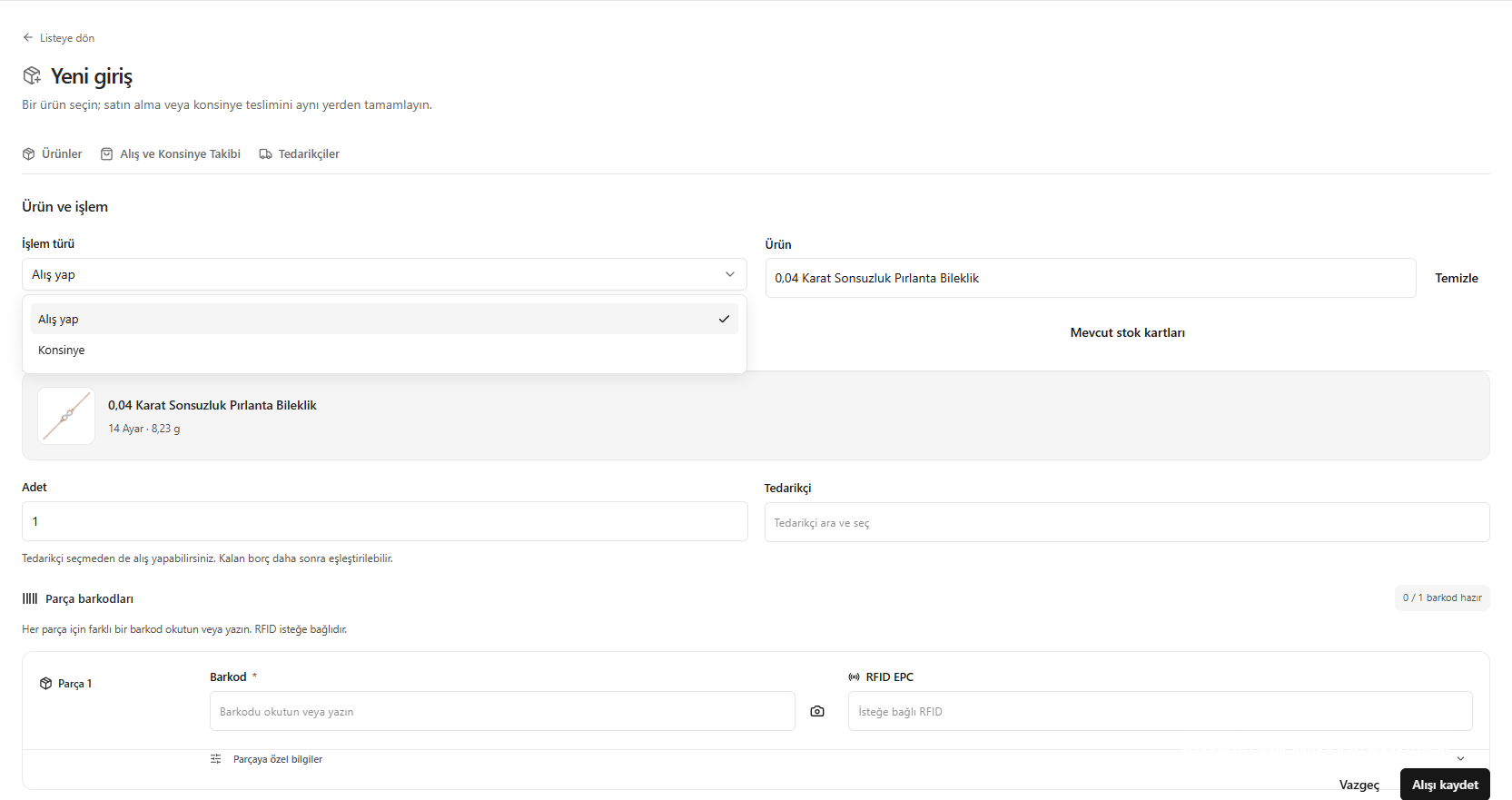
Checking the transaction type and selected product in the purchase form
2. Purchase quantity and piece information
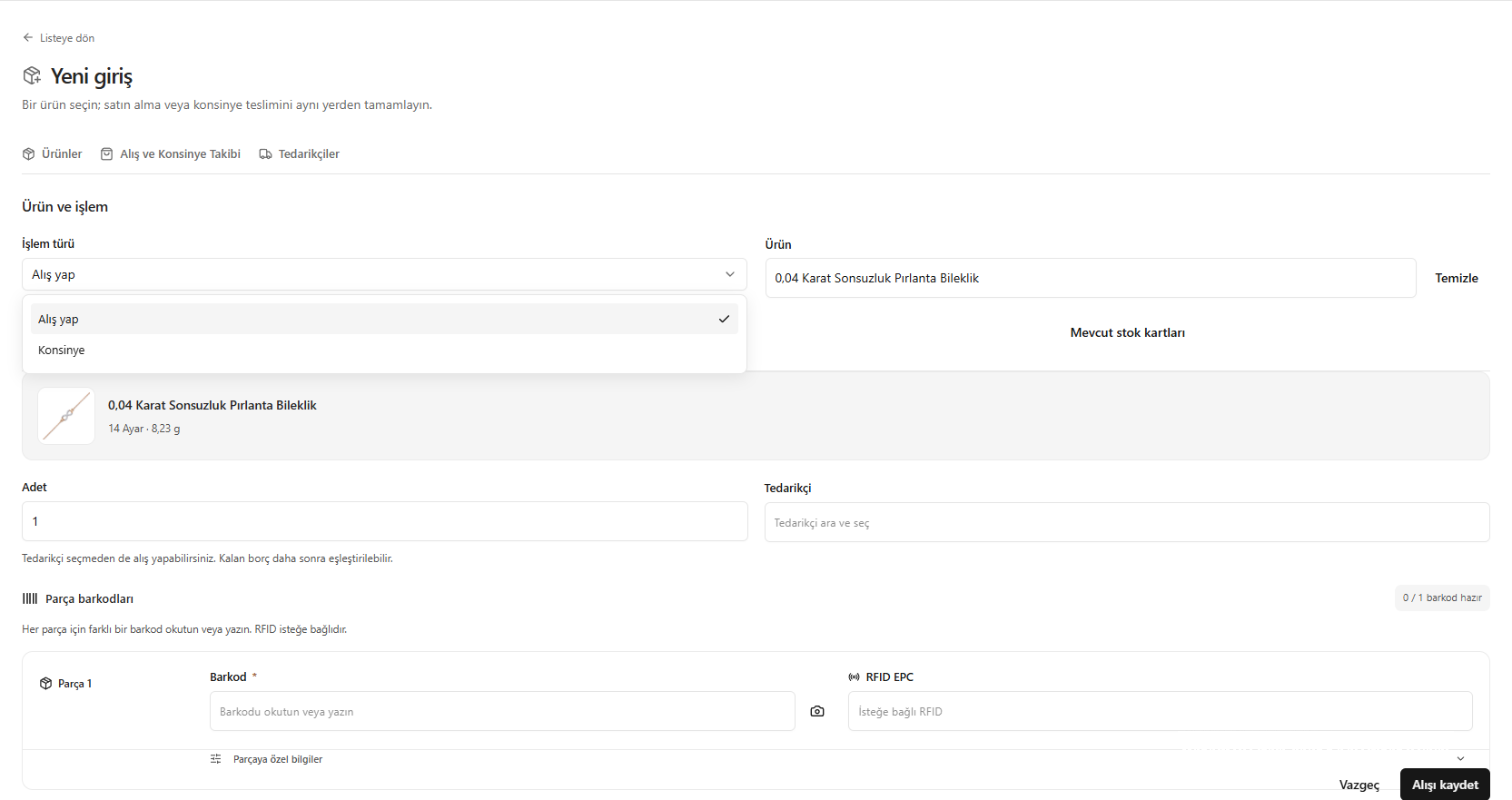
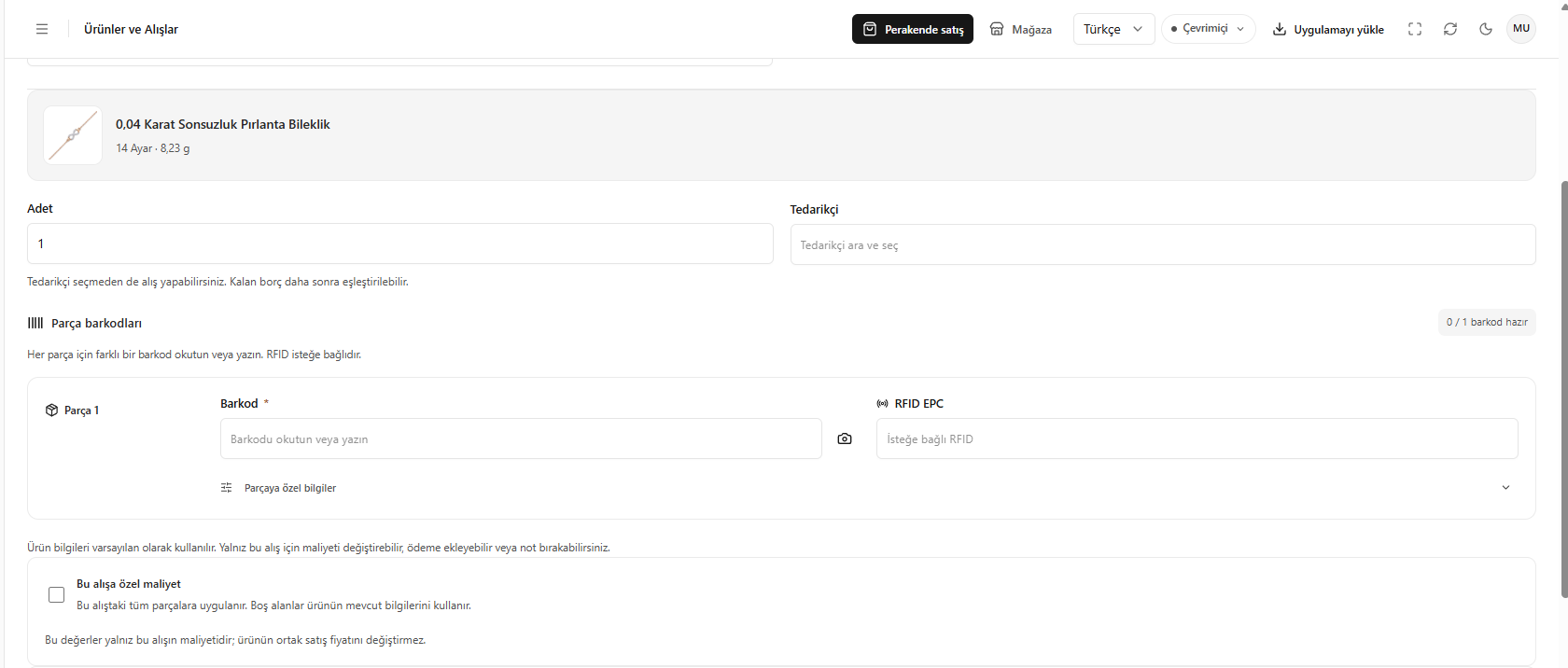
- In Quantity (Adet), enter how many pieces of this product to purchase. You can search for and select a record in Supplier (Tedarikçi). The on-screen explanation says that a purchase can also be made without selecting a supplier; the remaining debt can be matched later.
- In Piece barcodes (Parça barkodları), enter or scan a different barcode for each piece. RFID EPC is optional.
- Enter the barcode manually or use the camera icon. Open Piece-specific information (Parçaya özel bilgiler) if needed.
- Check the required piece information and continue to the cost section.
The camera scans barcodes. RFID information is obtained with a suitable reader or entered manually.
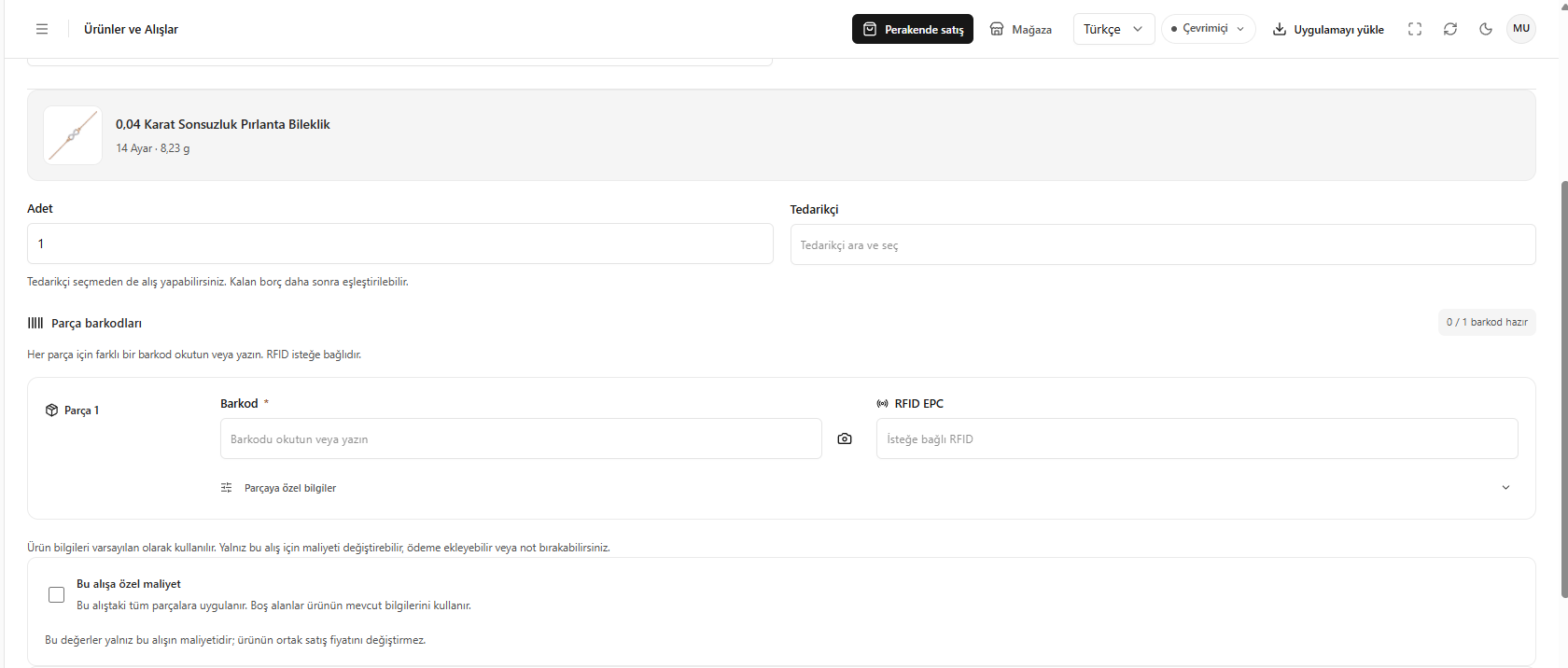
Purchase quantity and piece information
Piece-specific information
Click Piece-specific information (Parçaya özel bilgiler) below the piece whose barcode you entered. Use this area only when that piece requires different supplier or cost information.- If Use the general supplier (Genel tedarikçiyi kullan) is selected under Supplier (Tedarikçi), the purchase’s general supplier is used. Select a different supplier here if needed for this piece.
- Select Enter a custom cost (Özel maliyet gir) if the piece has a different cost.
- Enter the piece-specific values in Fine gold price (Has altın fiyatı (TL/g)) and Grams (Gram). Fields left empty use the shared cost information for this purchase.
- Keep Use purchase information (Alış bilgilerini kullan) selected when continuing with the shared purchase information. Check the fields that open when making changes for a particular piece.
- Enter the piece’s Consumables cost (Sarf gideri (TL)), if any. Check the other pieces, then continue to Cost specific to this purchase (Bu alışa özel maliyet).
The cost in Piece-specific information (Parçaya özel bilgiler) affects only that piece. The following Cost specific to this purchase (Bu alışa özel maliyet) section sets the shared cost of the purchase. These values do not change the product’s shared selling price.
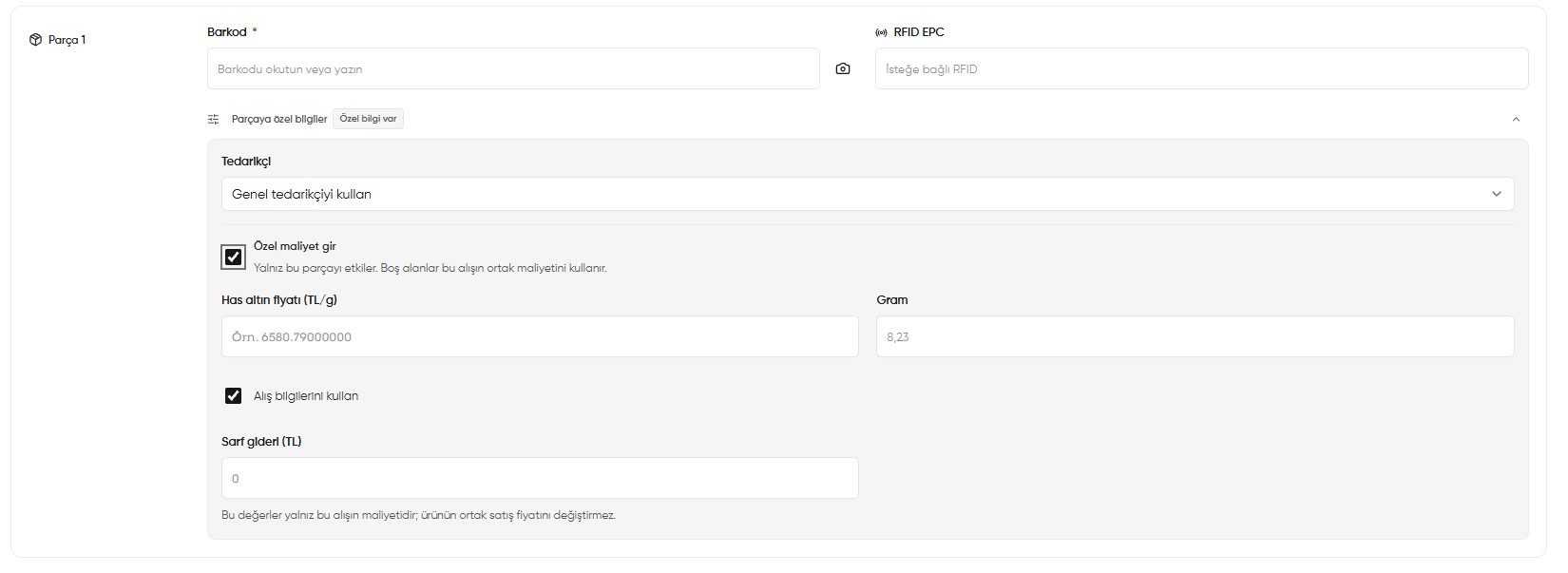
Piece-specific supplier, fine gold price, grams and consumables cost
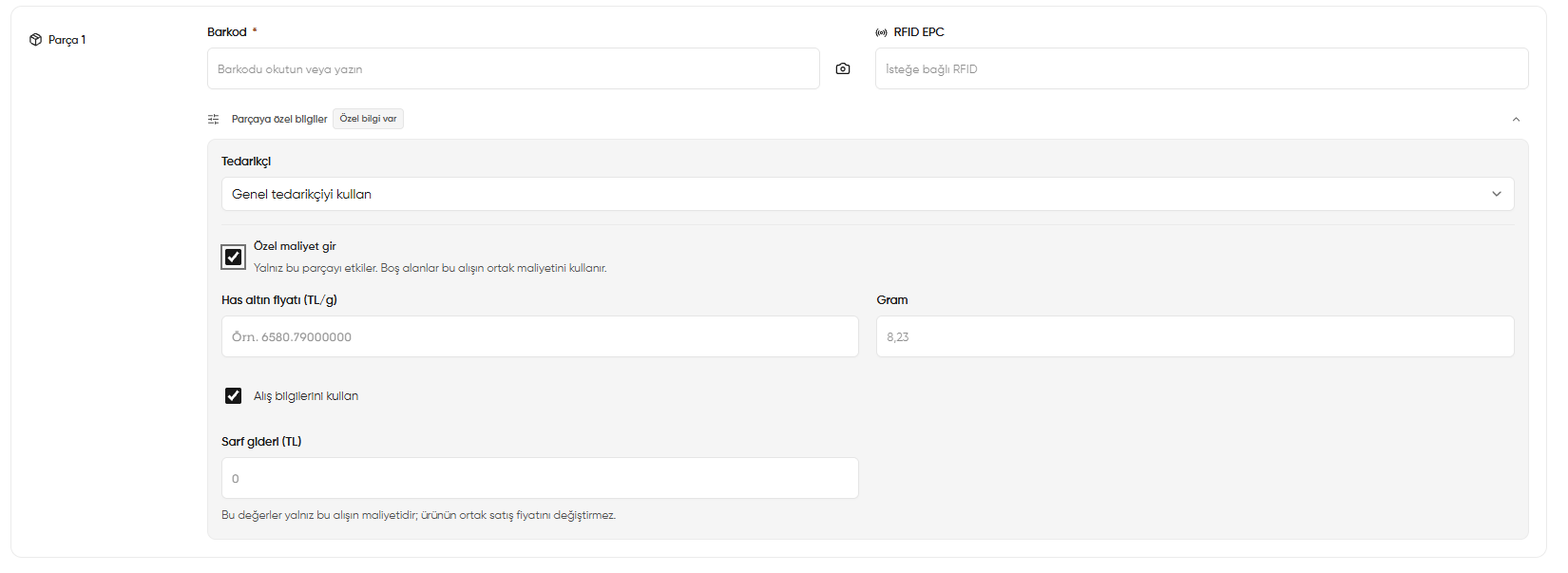
3. Cost specific to this purchase
- Open Cost specific to this purchase (Bu alışa özel maliyet).
- Check the gold fineness and weight in grams that apply to this purchase.
- Select the purchase workmanship difference method and enter its value.
- Add any consumables cost and check the calculated cost.
Changing the cost of this purchase does not change the product’s shared selling price.
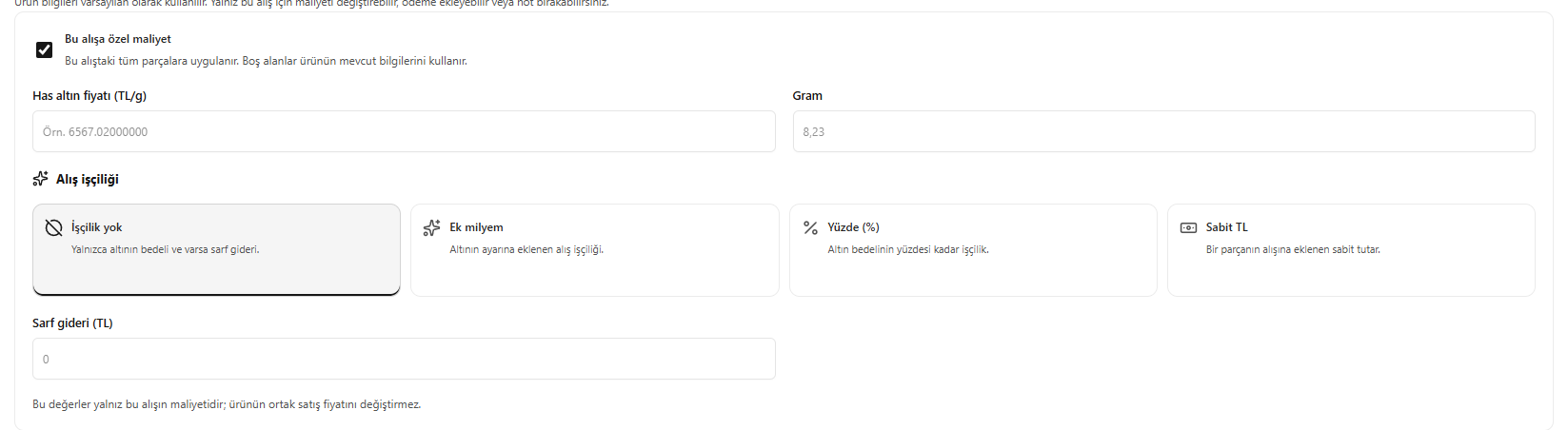
Cost specific to this purchase
4. Purchase payment and remaining debt
- Select the currency in which to track the remaining debt.
- If making a payment, enter the cash account, payment unit and amount under Add payment (Ödeme ekle).
- Add payment rows if there is more than one payment.
- Check the amount paid and the remaining debt to the supplier.
The debt unit and payment unit may differ; verify the calculations and totals on screen.
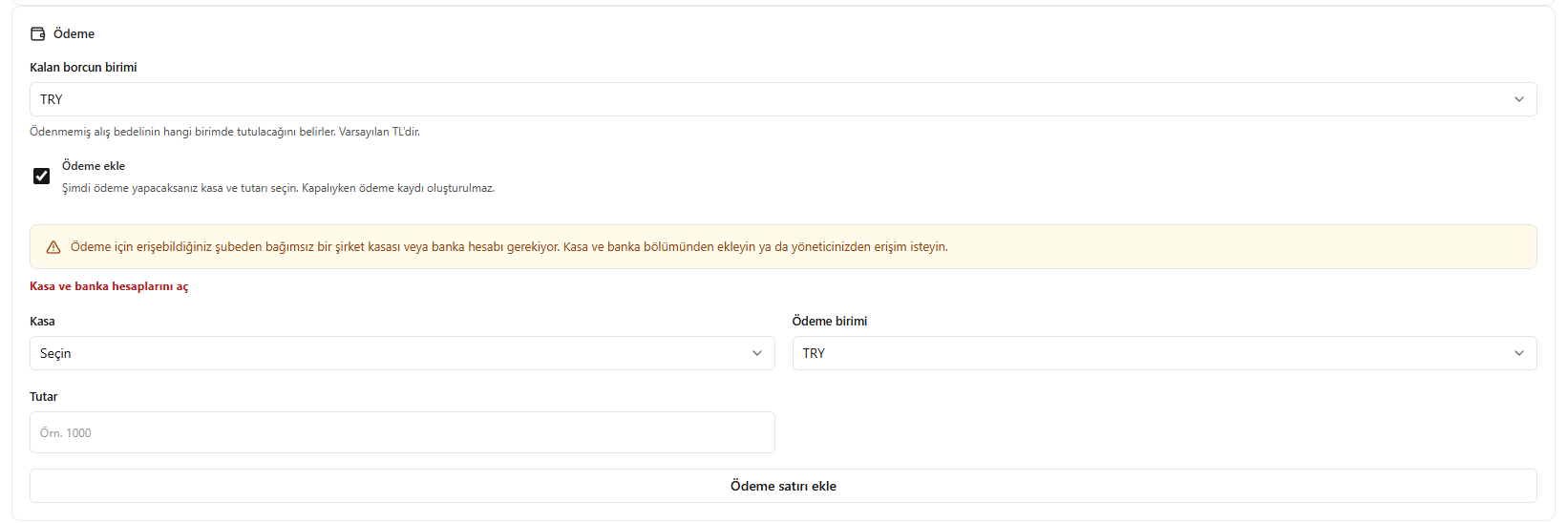
Purchase payment and remaining debt
5. Checking and saving the purchase
- Enter an explanation of the transaction in Note (Not).
- Compare current stock with the stock quantity after the transaction.
- Check the total cost, payment and remaining debt in the purchase and payment summary.
- If correct, click Save purchase (Alışı kaydet).
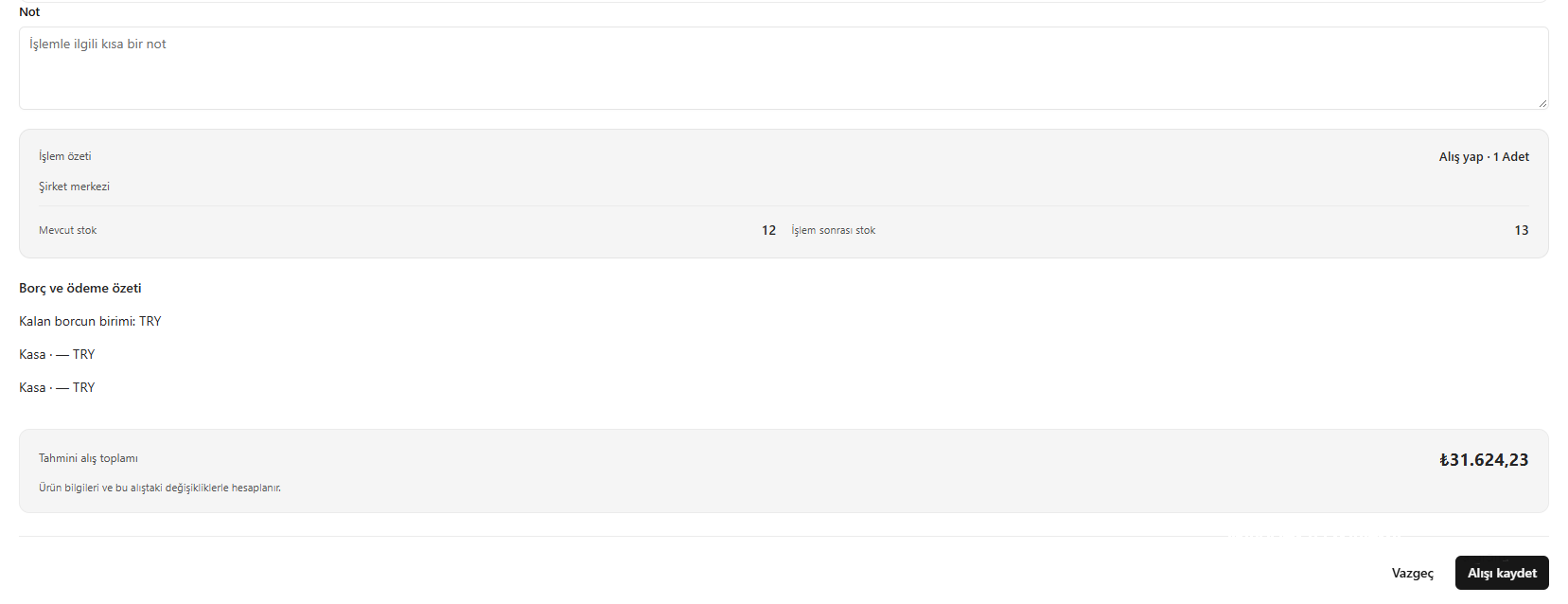
Checking and saving the purchase
Alternative path: New product button
The flow above continues with the selected product. If you click New product (Yeni ürün) on the Make a purchase (Alış yap) screen instead, the product record form below opens. Use this path when you need a new product record.Product properties and purchase workmanship
- Select Gold fineness (Ayar) and enter the weight of one physical piece in grams in Product weight (Ürün gramı).
- Optionally complete Product name (Ürün adı) and Category (Kategori). If the name is empty, a name is generated from the gold fineness and weight.
- Choose the appropriate method under Purchase workmanship charge (Alış işçiliği):
- No workmanship charge (İşçilik yok): Uses only the gold value and any consumables cost.
- Additional per mille (Ek milyem): Purchase workmanship added to the gold fineness.
- Percentage (Yüzde (%)): Workmanship calculated as a percentage of the gold value.
- Fixed amount (Sabit TL): A fixed amount added to the purchase of one piece.
- Complete the fields opened by your chosen method. If applicable, enter the total cost of stones, findings, packaging or similar items for one piece in Consumables cost (Sarf gideri (TL)).
- Check gold fineness, weight and product name in Product card preview (Ürün kartı önizlemesi) on the right.
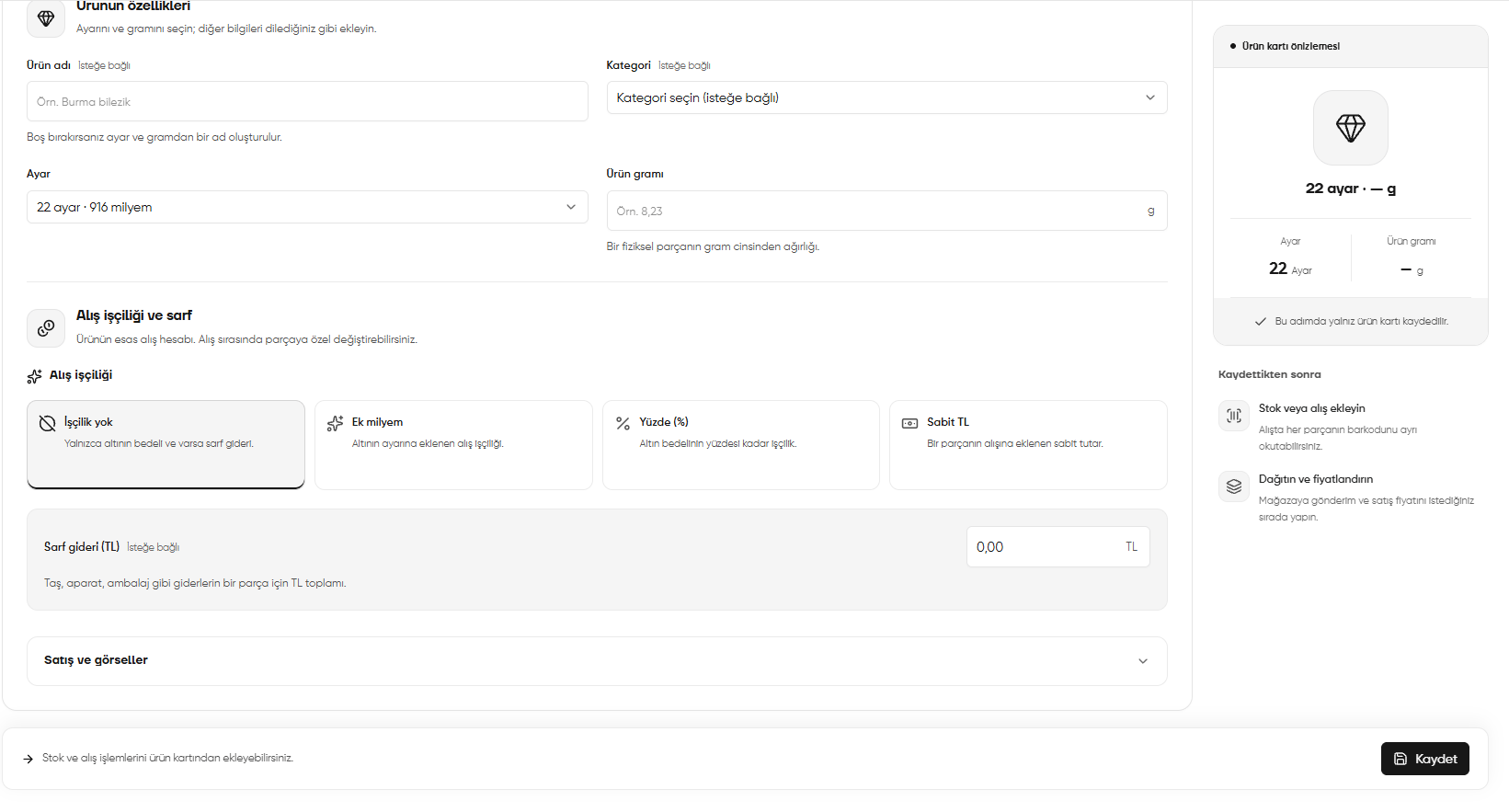
New product: properties, purchase workmanship and consumables cost
Completing Sales and images and saving the product record
- Open Sales and images (Satış ve görseller) and check Sales channel (Satış kanalı) and Withdrawal condition (Cayma koşulu).
- Optionally enter a Product link (Ürün bağlantısı). It is generated automatically if left empty.
- Complete Short description (Kısa açıklama) and Description (Açıklama). In Tags (Etiketler), enter up to 20 tags separated by commas.
- Add photos using Select images (Görselleri seç). JPG, PNG and WebP are supported; each image can be up to 15 MB. You can select multiple files and choose a cover image.
- Check the preview and click Save (Kaydet).
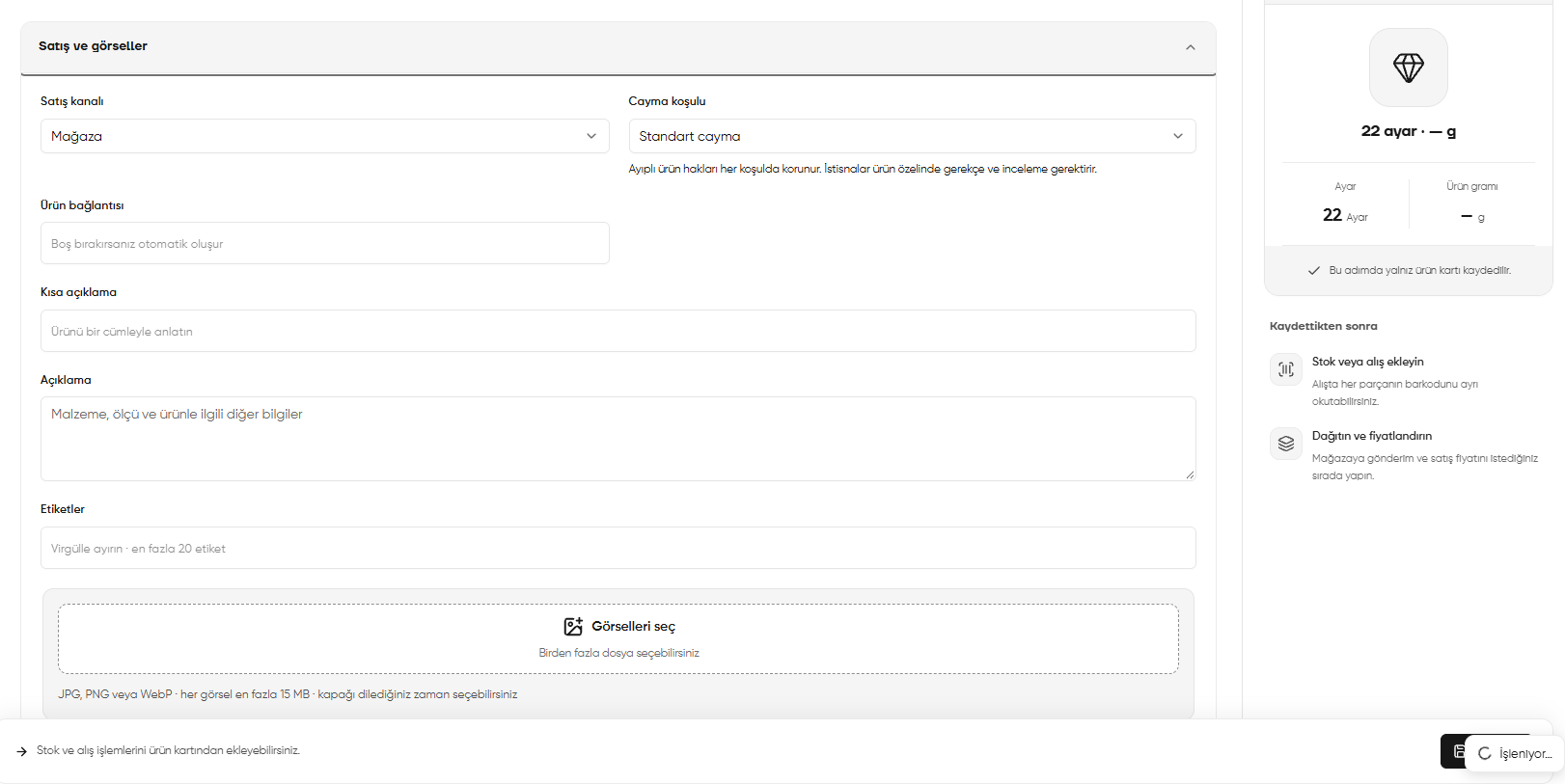
New product: sales channel, descriptions, tags and image upload
Save (Kaydet) here creates only the product record; it does not complete the purchase. After saving, start a stock or purchase transaction from the product record and complete its quantity, cost and payment information.
Alternative path: Existing stock records button
When you click Existing stock records (Mevcut stok kartları) on the Make a purchase (Alış yap) screen and select a record, the step-by-step Stock operations (Stok işlemleri) screen opens as shown below. This path proceeds separately from the direct form described in the first five steps above. Check the product name and code. Follow the on-screen instructions in this order:- Supplier (Tedarikçi): Complete the supplier information for the purchase.
- Quantity / grams (Miktar / gram): Enter the number of pieces or weight in grams requested by the screen. In the image, Quantity in pieces (Miktar (adet)) is open for stock tracked by count.
- Purchase cost (Alış maliyeti): Complete the cost information for this purchase and check the calculated amount.
- Payment (Ödeme): Check the payment made and any remaining debt.
- Review (Kontrol): Review the product, quantity, cost, payment and effect on stock, then finish using the on-screen save or confirmation action.
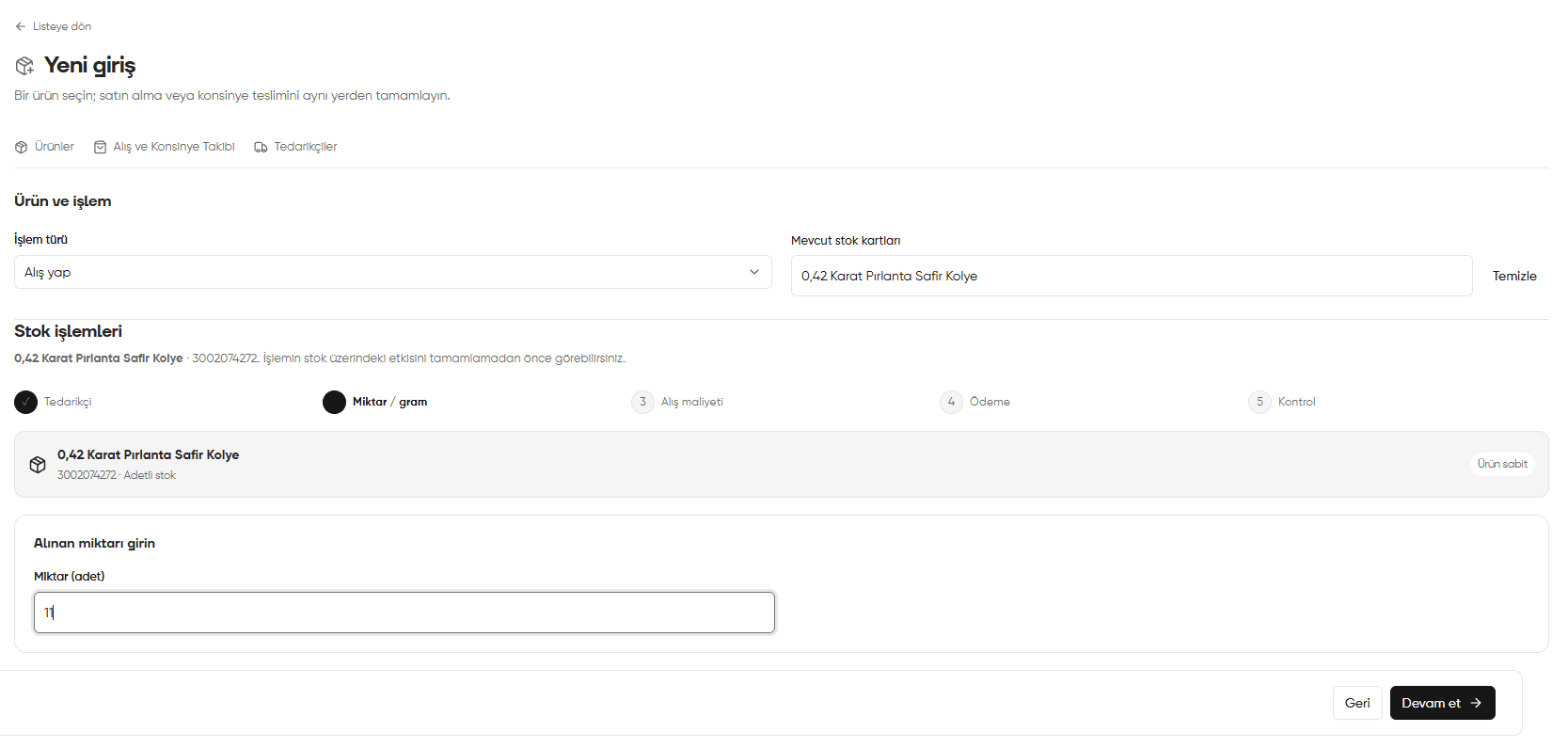
Purchase using existing stock records: quantity entry and subsequent steps
Alternative transaction: Receiving a consignment
In the same form, open Transaction type (İşlem türü) and select Consignment (Konsinye) instead of Make a purchase (Alış yap). The form changes to let you enter the consigned product’s information and the amount agreed with the supplier. The final button becomes Receive consignment (Konsinye al).1. Product, quantity and piece information
- Check that the correct product is selected in Product (Ürün).
- Check Stock tracking (Stok takibi). Individual product (Tekil ürün) is selected in the image; the barcode instructions below apply to this choice.
- Enter the consignment quantity in Quantity (Adet), then search for and select the consignor in Supplier (Tedarikçi).
- In Piece barcodes (Parça barkodları), scan or enter a different barcode for each piece. You can also use the camera icon beside the barcode field.
- Enter RFID EPC information if available; this field is optional.
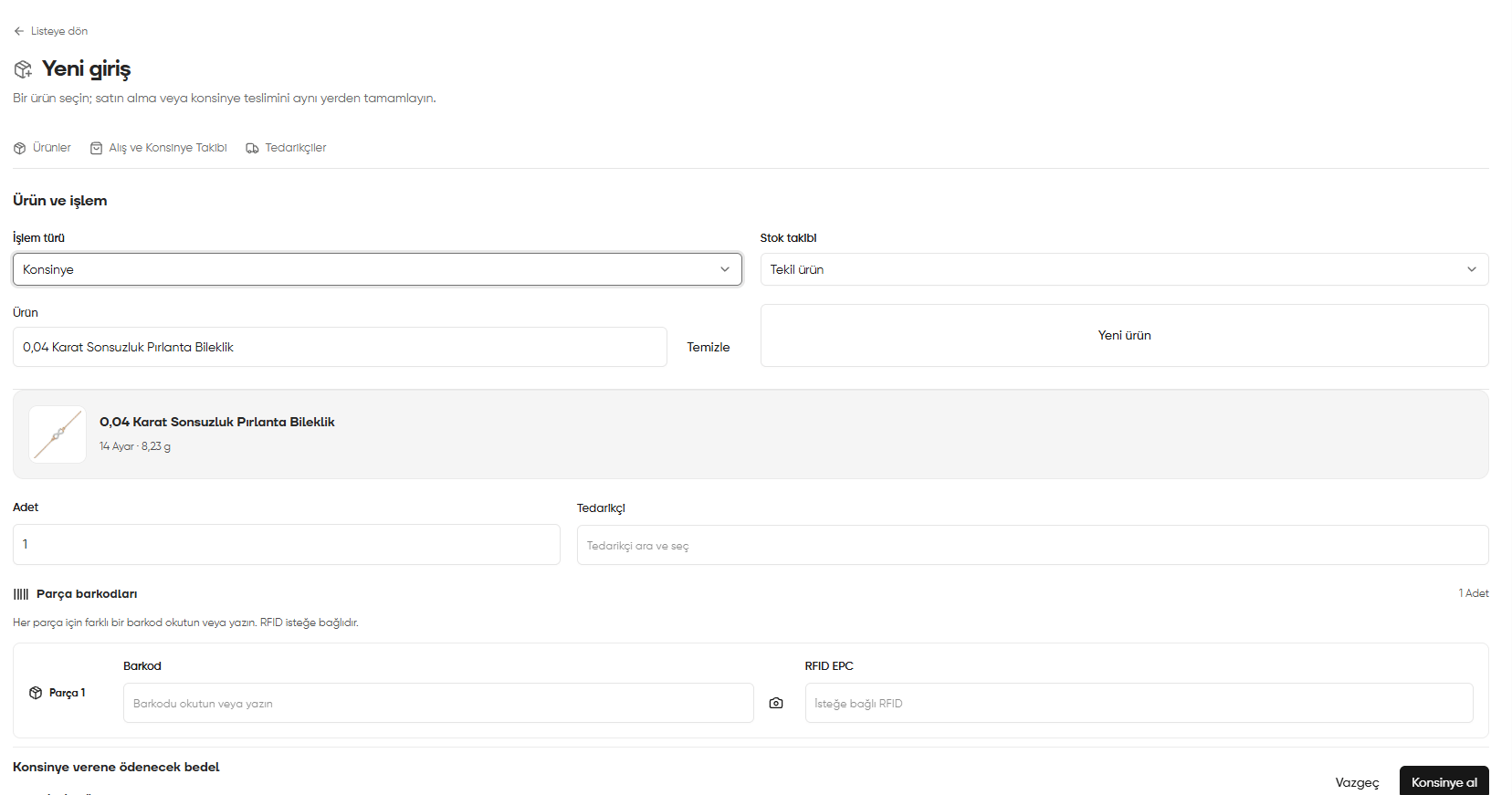
Consignment selected: product, stock tracking, quantity, supplier and piece barcodes
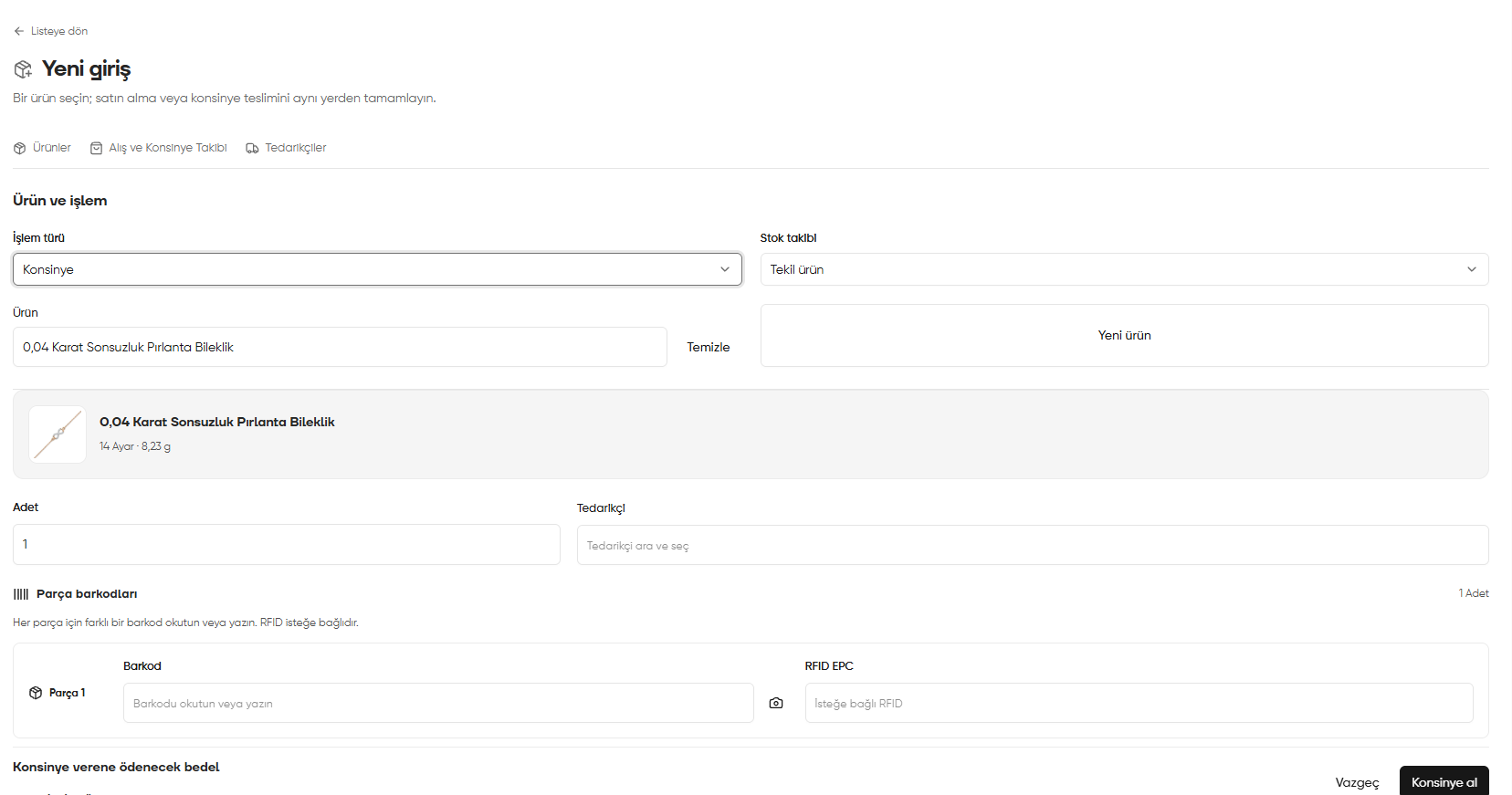
2. Creating a new product with Consignment selected
If you need a new record for the consigned product, select Consignment (Konsinye), then click New product (Yeni ürün) beside it. The product form is the same as the one in Alternative path: New product button earlier on this page. Complete gold fineness, weight, optional product name and category, purchase workmanship, consumables cost, sales information and images in the same order, then save the product record. Return to the consignment form, check the product and Consignment (Konsinye) transaction type, then complete quantity, supplier, barcode and agreed amount.Save (Kaydet) in the new product form saves the product record. To complete receiving the consignment, also click Receive consignment (Konsinye al) at the end of the consignment form.
3. Setting the amount payable to the supplier
Scroll down to Amount payable to the consignor (Konsinye verene ödenecek bedel) and enter the amount agreed with the supplier.- Select its unit in Payment unit (Ödeme birimi). TRY is selected in the image.
- Enter the agreed amount in Amount (Miktar). This is a value in the selected unit, not the number of product pieces.
- In What is this amount for? (Bu bedel ne için?), check the quantity covered by the amount. Per piece (Her 1 adet için) is selected in the image; with this selection, the entered amount applies to one piece.
- Use Add amount (Bedel ekle) if your agreement has additional amount rows. Remove an incorrect row with the trash icon on its right.
- Enter a short transaction note in Reason (Gerekçe).
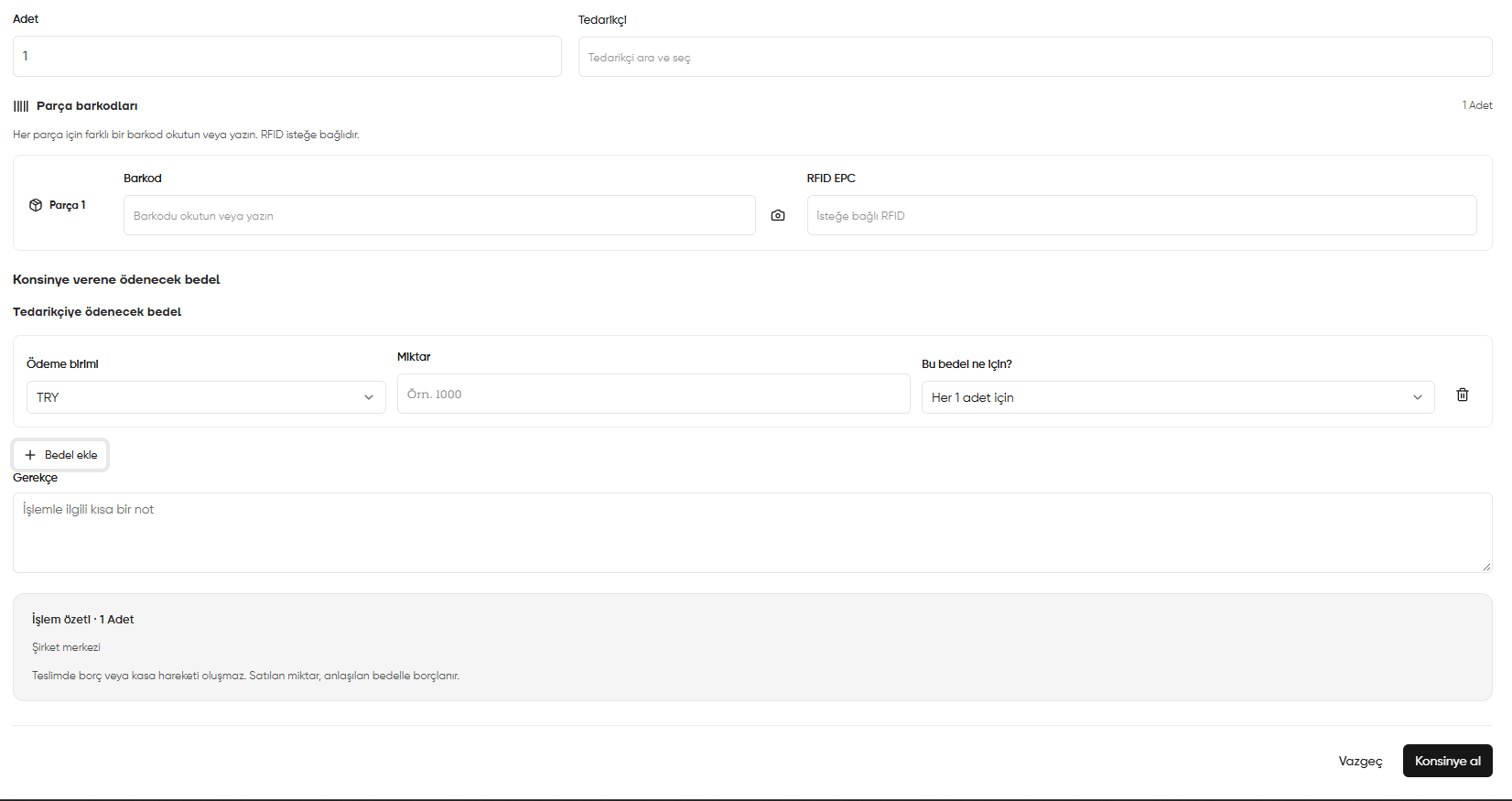
Consignment amount: payment unit, amount, scope and transaction summary
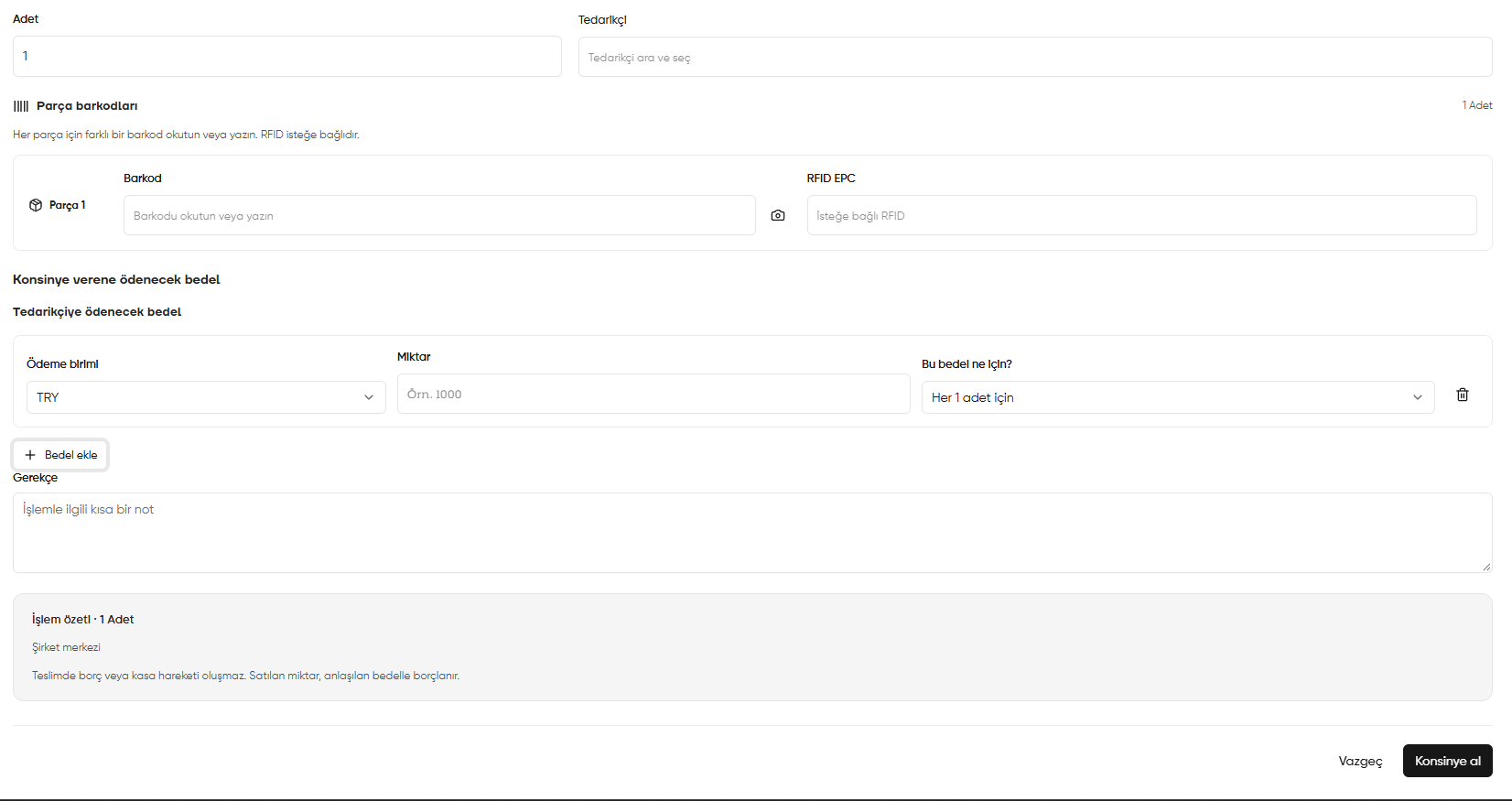
4. Checking the summary and completing receipt of the consignment
Check the quantity and transaction location in Transaction summary (İşlem özeti). If the product, supplier, piece barcodes and agreed amount are correct, click Receive consignment (Konsinye al) at the bottom right and check the on-screen result.According to the on-screen summary, receiving a consignment does not create a debt or cash account movement. The quantity sold incurs debt at the agreed amount. The amount entered here must therefore not be treated as a payment made at delivery.