

This translation is awaiting language review. Application screenshots and interface labels are in Turkish. The downloadable PDF is also in Turkish.
Opening the New entry screen
Click New entry (Yeni giriş) at the top right of the Products and purchases (Ürünler ve Alışlar) list. The button is marked with a red arrow in the image below.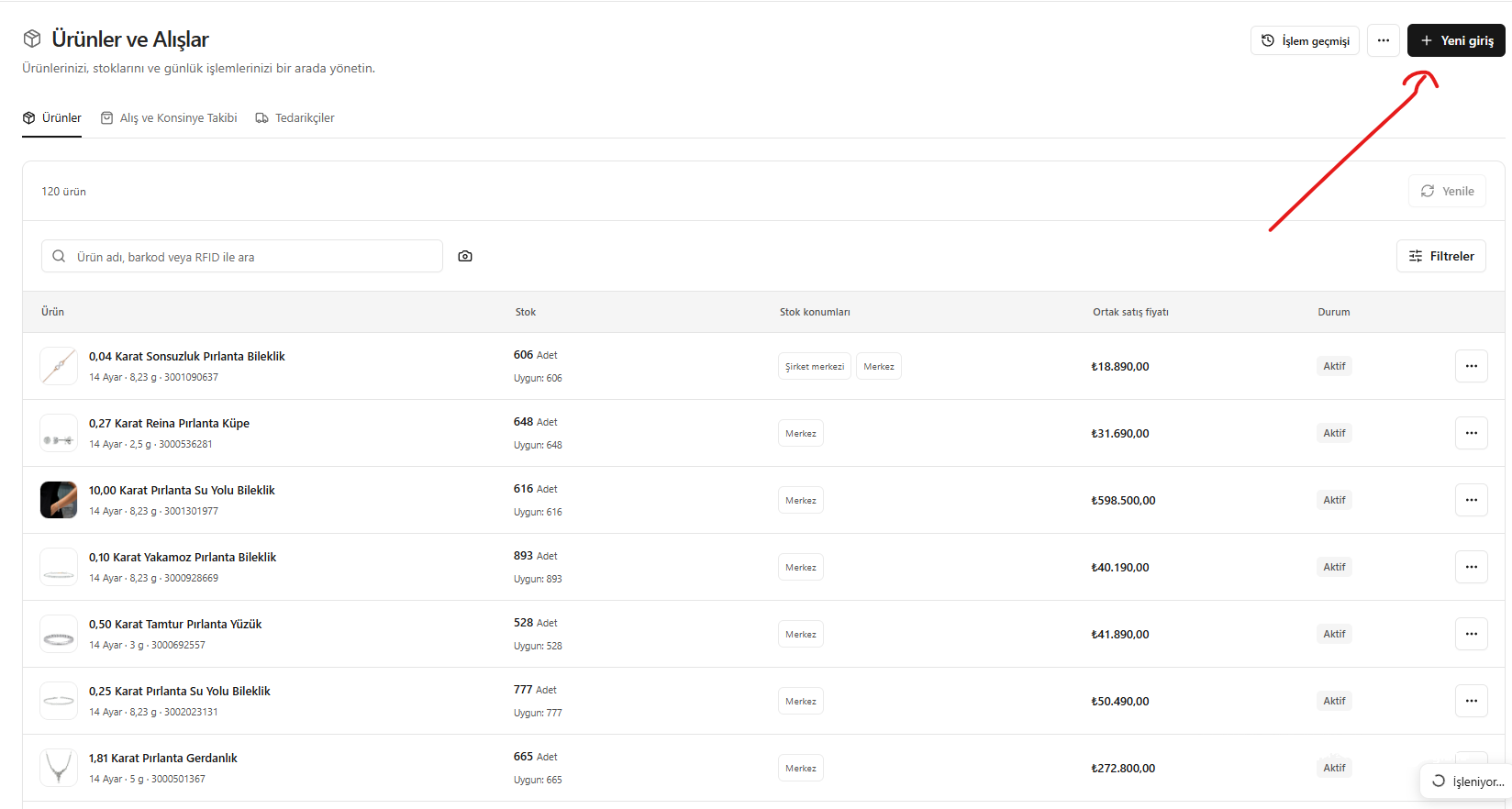
New entry button at the top right of the product list
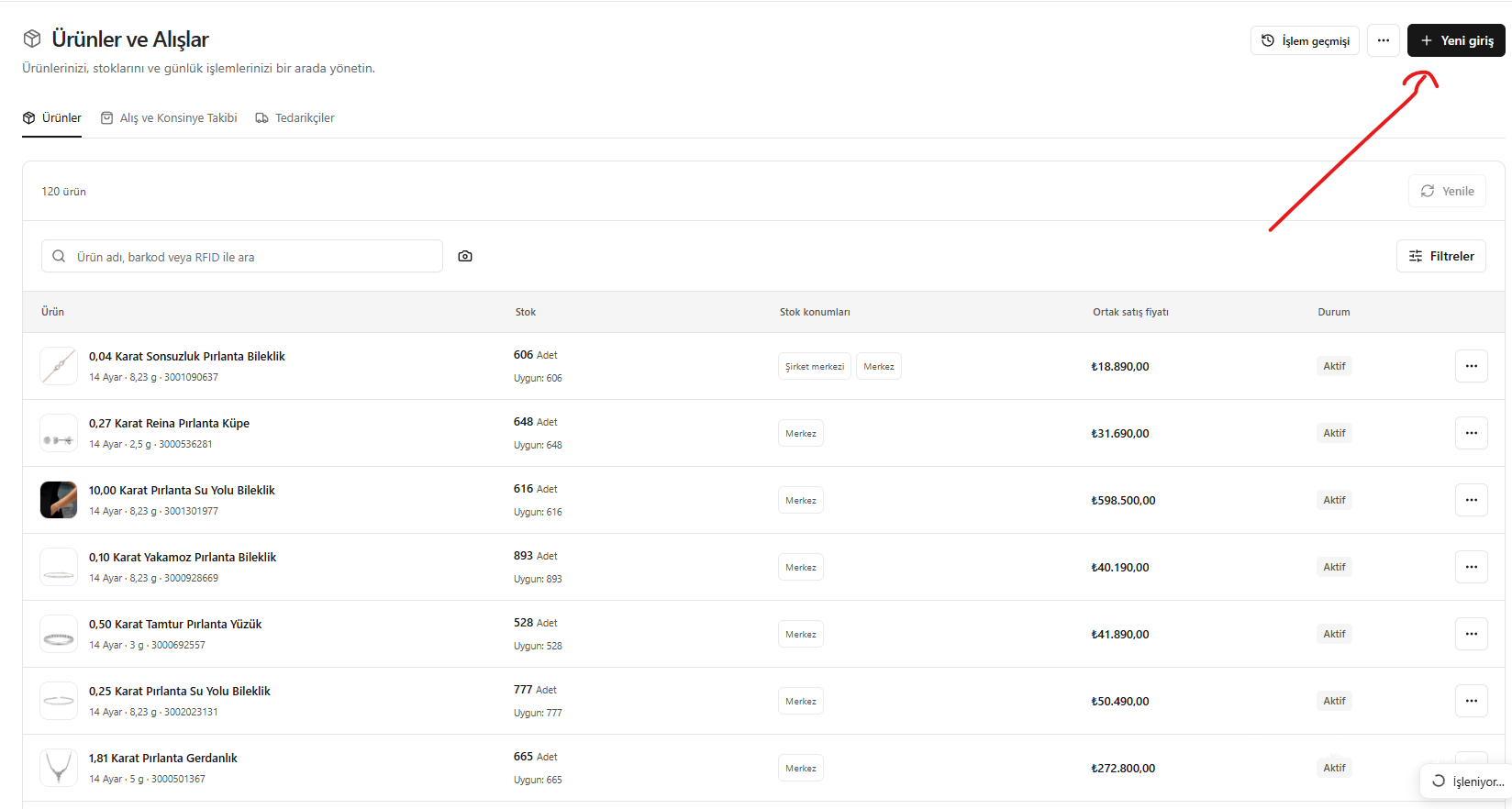
Continuing from the screen that opens
The button opens the New entry (Yeni giriş) screen below. It contains Transaction type (İşlem türü), Product (Ürün), New product (Yeni ürün) and Existing stock records (Mevcut stok kartları). In the image, Make a purchase (Alış yap) is selected as the transaction type, and no product has been selected yet.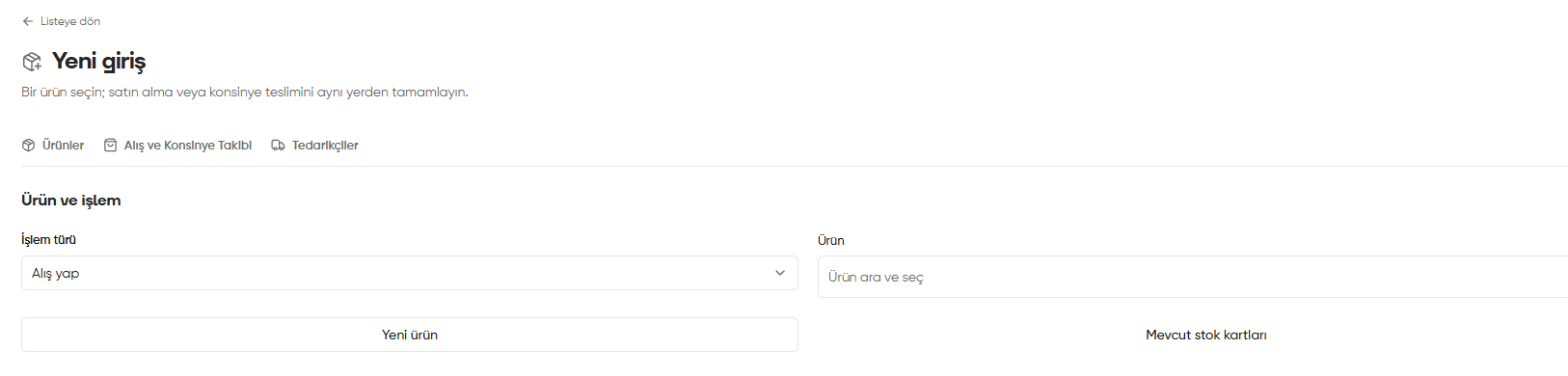
Product selection screen opened by the New entry button
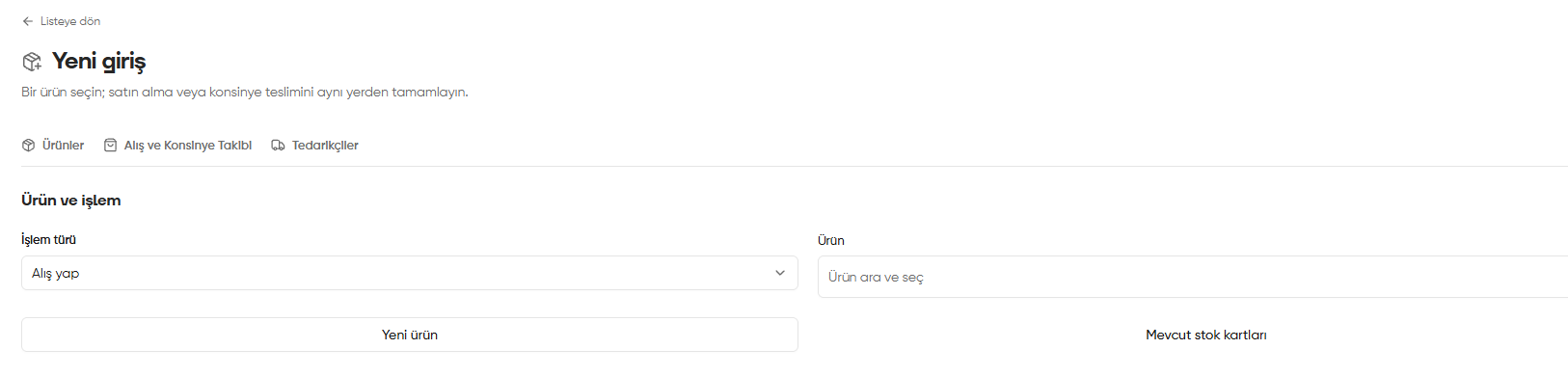
- New product (Yeni ürün): Click this button to create a product record and follow the steps for creating a new product. Complete and save its properties, workmanship and images, then complete the purchase.
- Existing stock records (Mevcut stok kartları): Click this button to continue with a saved stock record and follow the purchase steps for existing stock records. Complete the supplier, quantity, cost, payment and review steps in order.
Saving a new product record does not complete the purchase. Also complete the stock or purchase steps that follow your chosen path.