This translation is awaiting language review. Application screenshots and interface labels are in Turkish. The downloadable PDF is also in Turkish.
1. Reviewing product details
- Click the product’s name in the product list.
- Check gold fineness, weight in grams, the shared selling price and stock distribution.
- Choose New entry (Yeni giriş), Distribute (Dağıt) or a direct stock operation as needed.
- Review details in Pieces (Parçalar), Stock locations (Stok konumları), Transaction history (İşlem geçmişi) and Consignment (Konsinye).
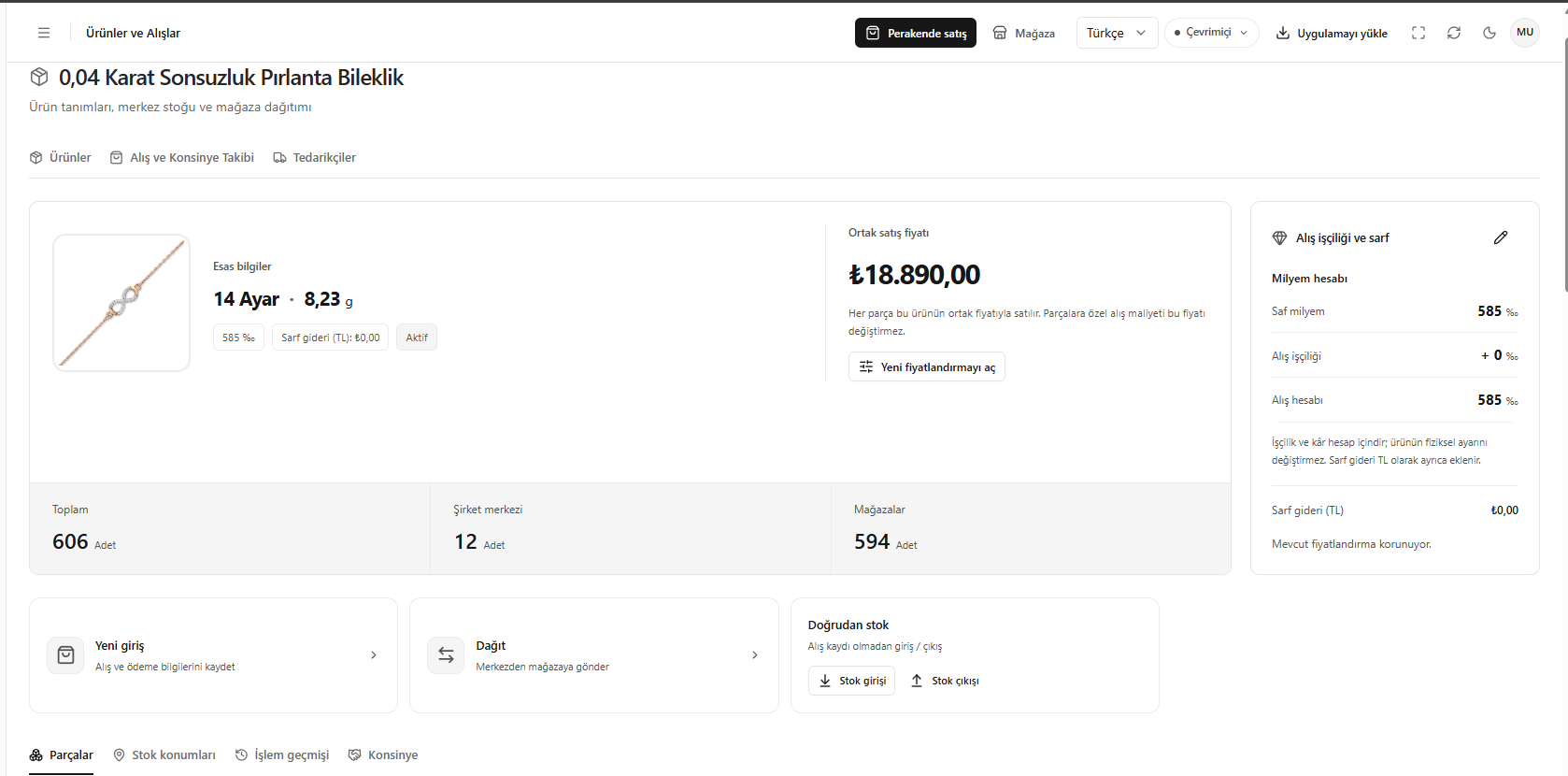
Reviewing product details
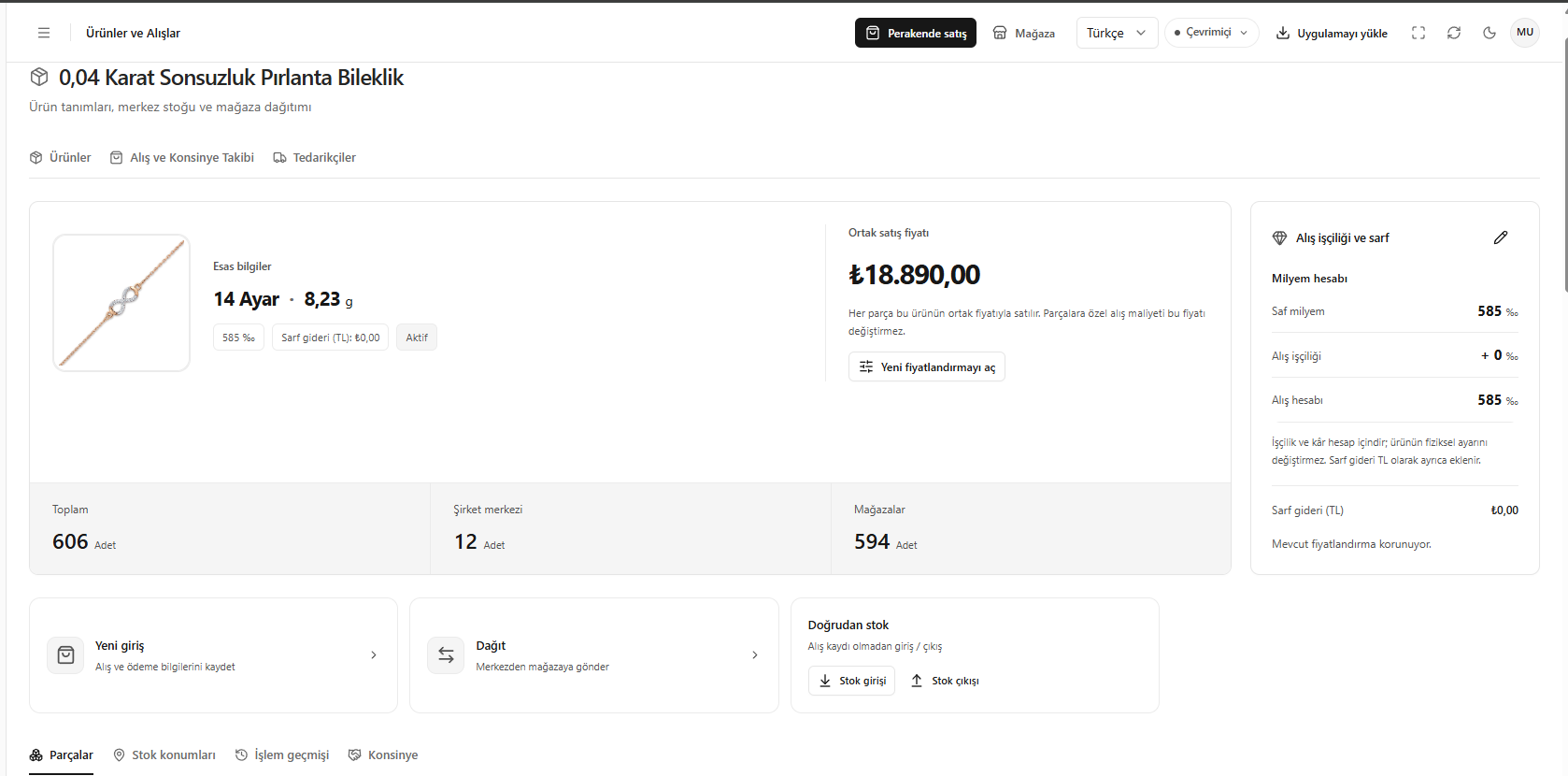
2. Viewing stock locations
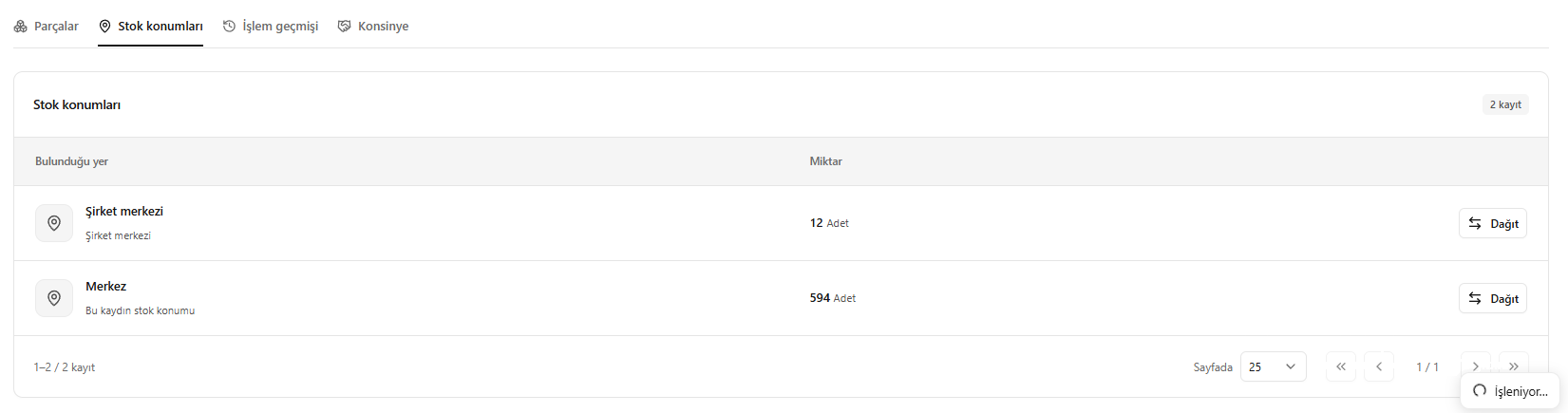
- Open Stock locations (Stok konumları) in the product details.
- Check the number of pieces at each location.
- Use Distribute (Dağıt) if a location change is needed.
- Review related movements in Transaction history (İşlem geçmişi) and consignment records in Consignment (Konsinye).
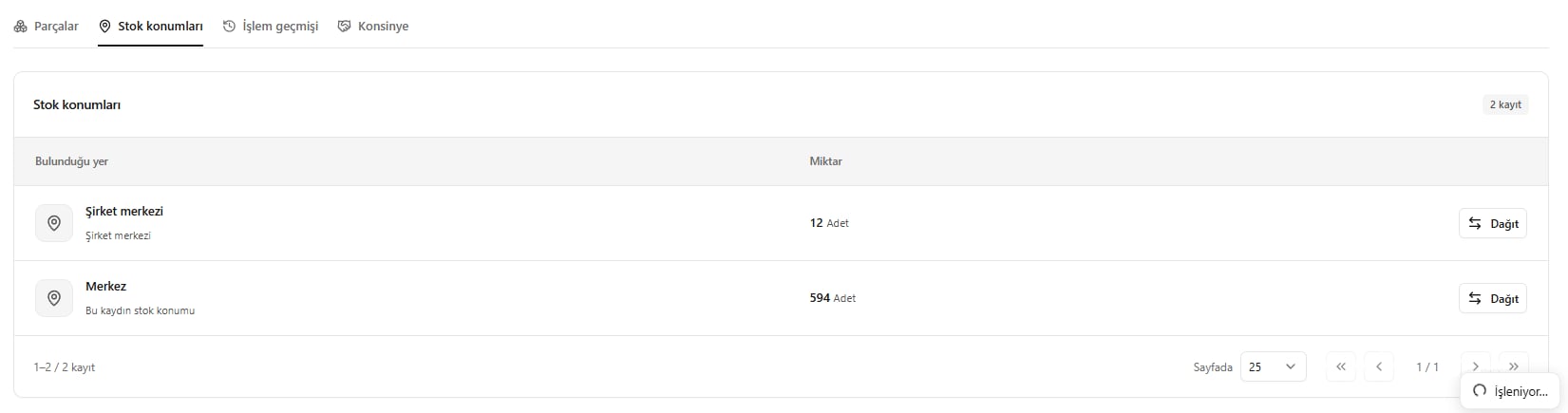
Viewing stock locations
3. Tracking stock by piece
- Open the Pieces (Parçalar) tab in the product details.
- Review the piece’s barcode, RFID information, location and stock status.
- Find the relevant piece using search and filters.
- Use Edit labels (Etiketleri düzenle) to change its codes.
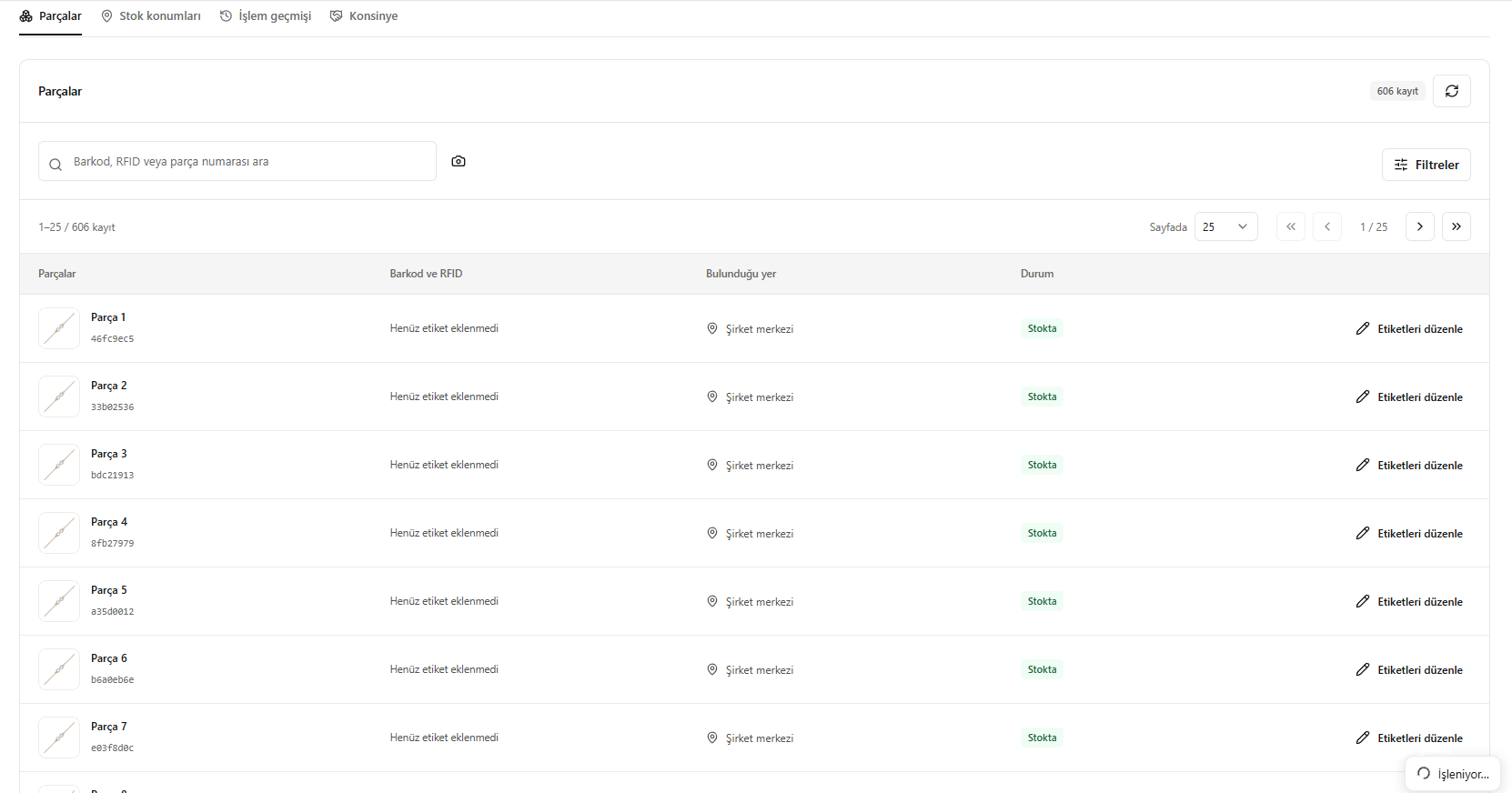
Tracking stock by piece
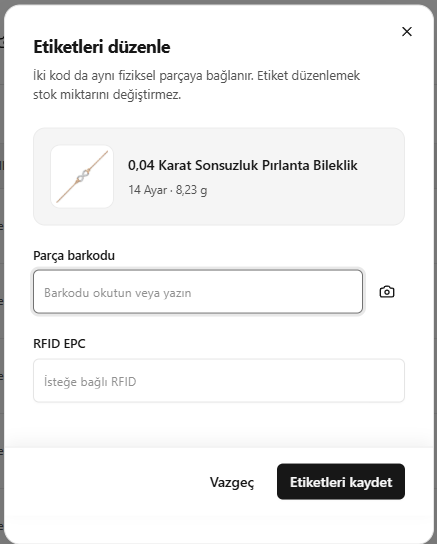
4. Editing barcode and RFID labels
- Open Edit labels (Etiketleri düzenle) for the relevant piece.
- Enter the piece barcode or scan it with the camera.
- Enter its RFID EPC information.
- Click Save labels (Etiketleri kaydet).
Editing labels does not change the stock quantity.
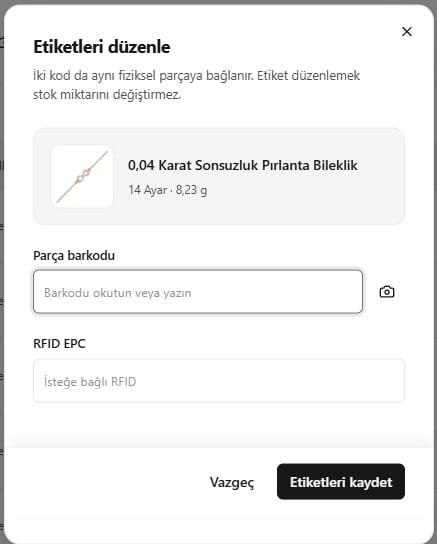
Editing barcode and RFID labels
5. Distributing between locations
- Click Distribute (Dağıt) in the product details.
- Select the quantity to move, the source location and the destination location.
- Check current stock and stock after the transaction.
- Before saving, continue to Selecting pieces to distribute and saving below.
Distribution changes the pieces’ locations; it does not create a new purchase or payment.
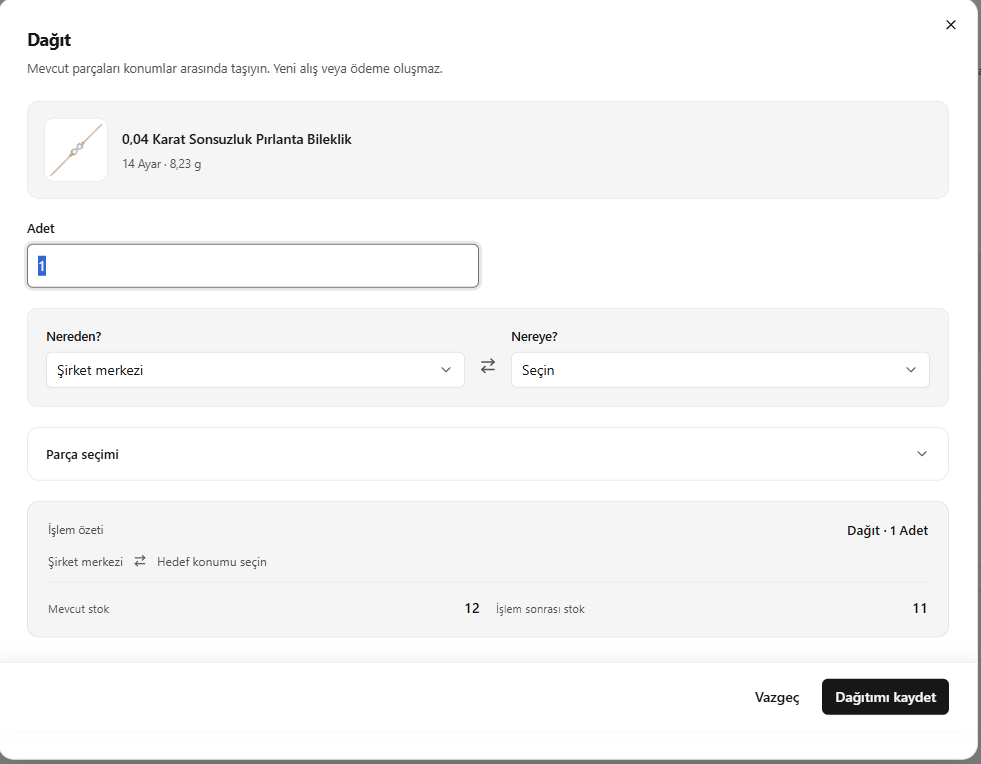
Distributing between locations
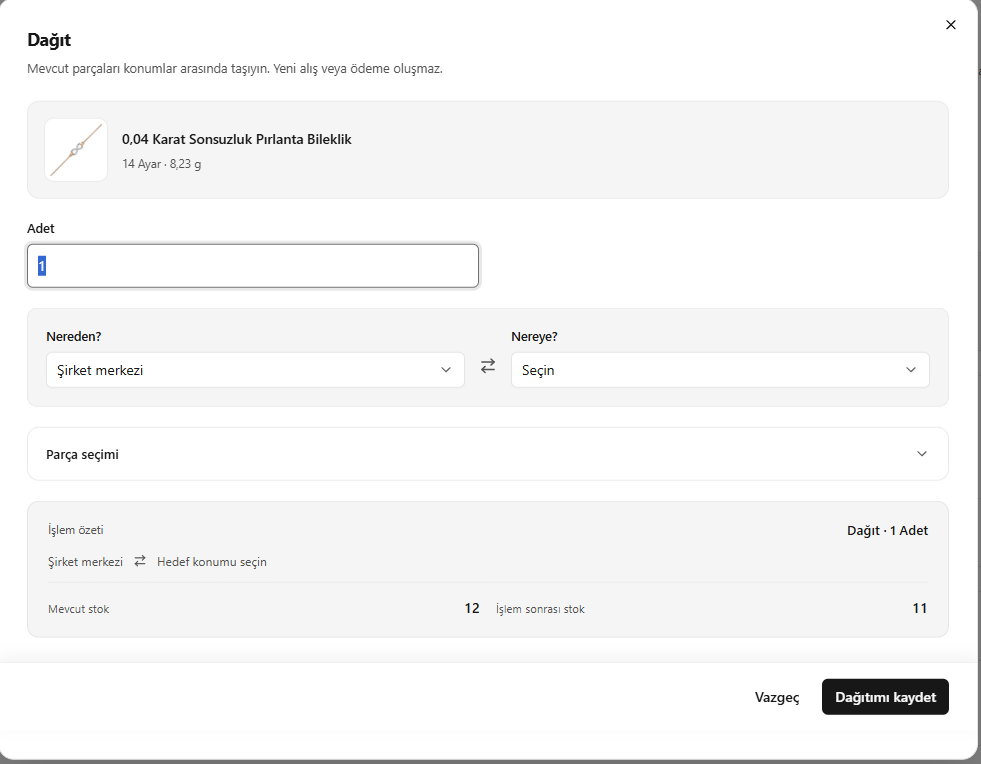
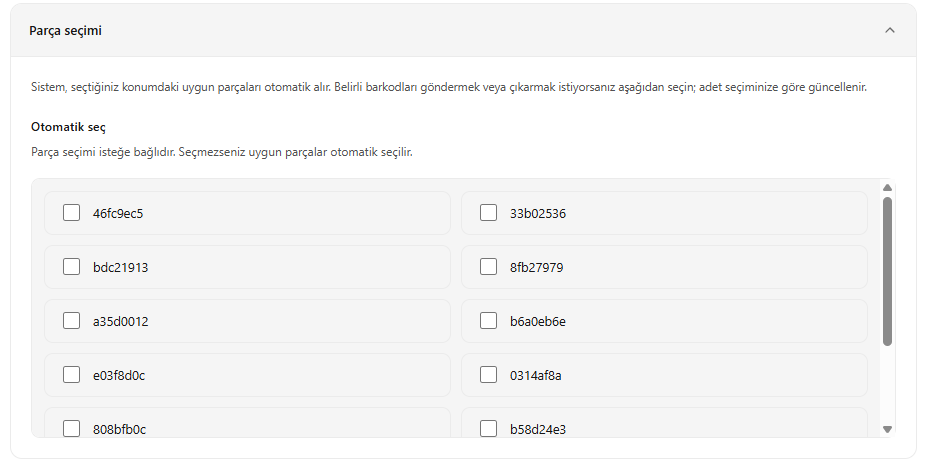
Selecting pieces to distribute and saving
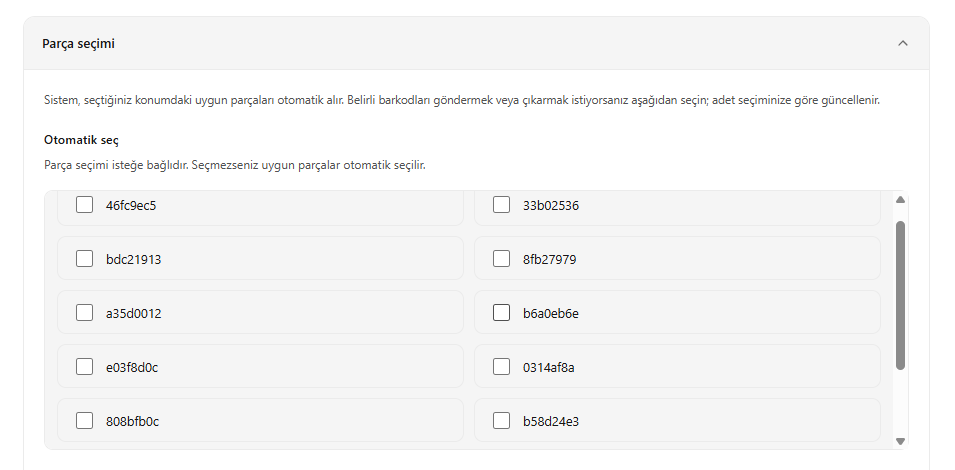
- Open Piece selection (Parça seçimi) on the distribution screen.
- Select the relevant barcodes if you want to move specific pieces.
- If you make no selection, eligible pieces are selected automatically.
- Check the quantity and destination location, then save the distribution.
When pieces are selected manually, the quantity is updated to match your selection.
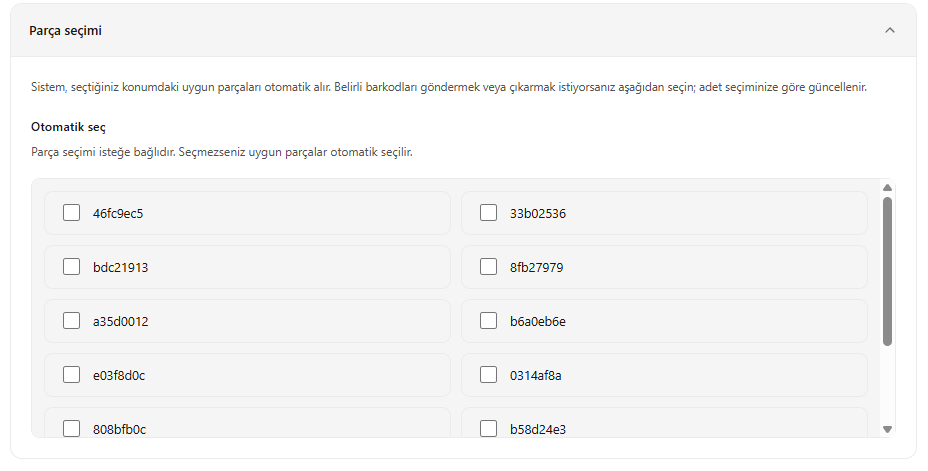
Selecting pieces to distribute
6. Stock removal
- Open the stock removal screen from the product details.
- Select the quantity to remove and the location holding the pieces.
- Check the current and resulting stock quantities.
- Before saving, continue to Selecting pieces to remove and saving below.
This operation does not create a sale or purchase; the stock movement is still recorded.
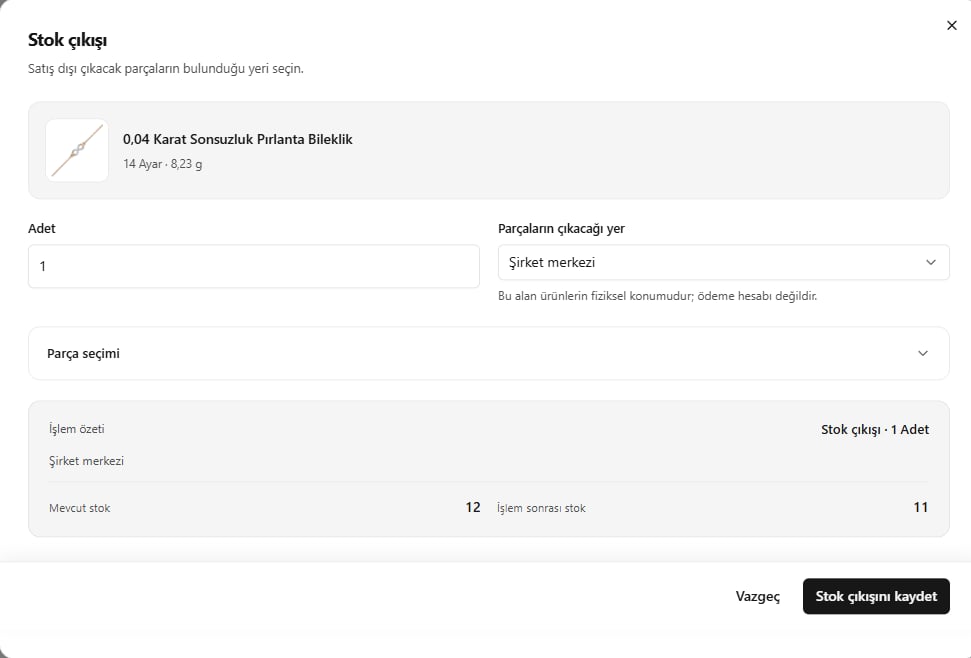
Direct stock removal
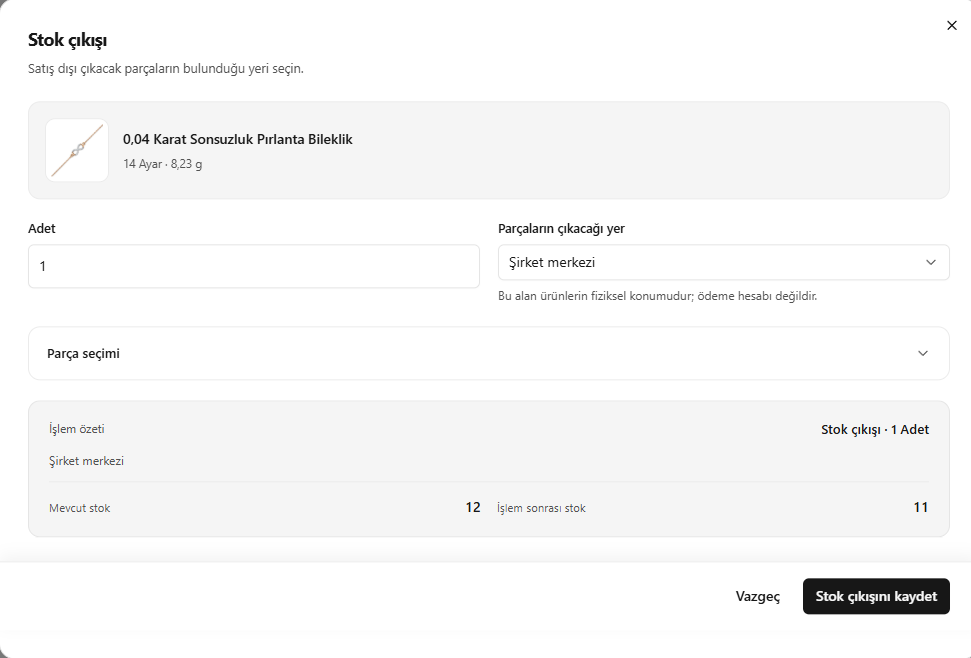
Selecting pieces to remove and saving
- Open Piece selection (Parça seçimi).
- Select the relevant records if you know which pieces to remove.
- If none are selected, the system selects eligible pieces automatically.
- Verify the selected pieces and quantity, then click Save stock removal (Stok çıkışını kaydet).
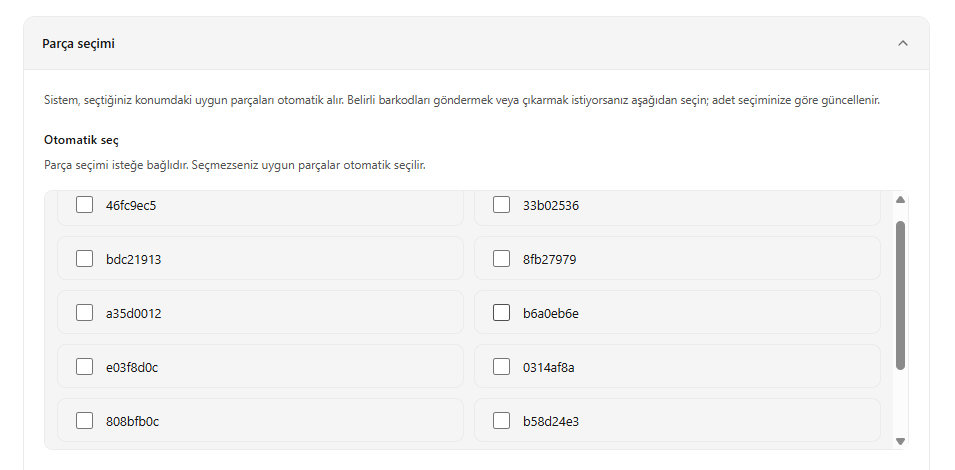
Selecting pieces for stock removal