This translation is awaiting language review. Application screenshots and interface labels are in Turkish. The downloadable PDF is also in Turkish.
1. Selecting the stock location and preparing the count
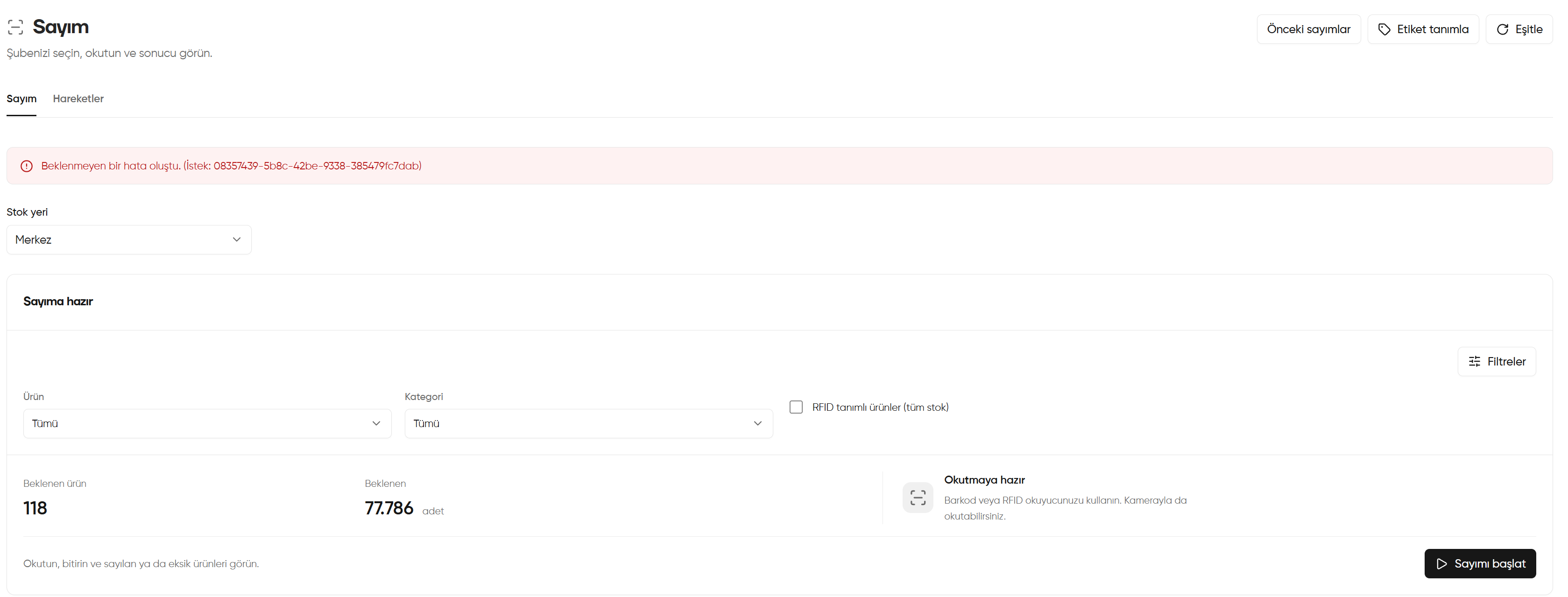
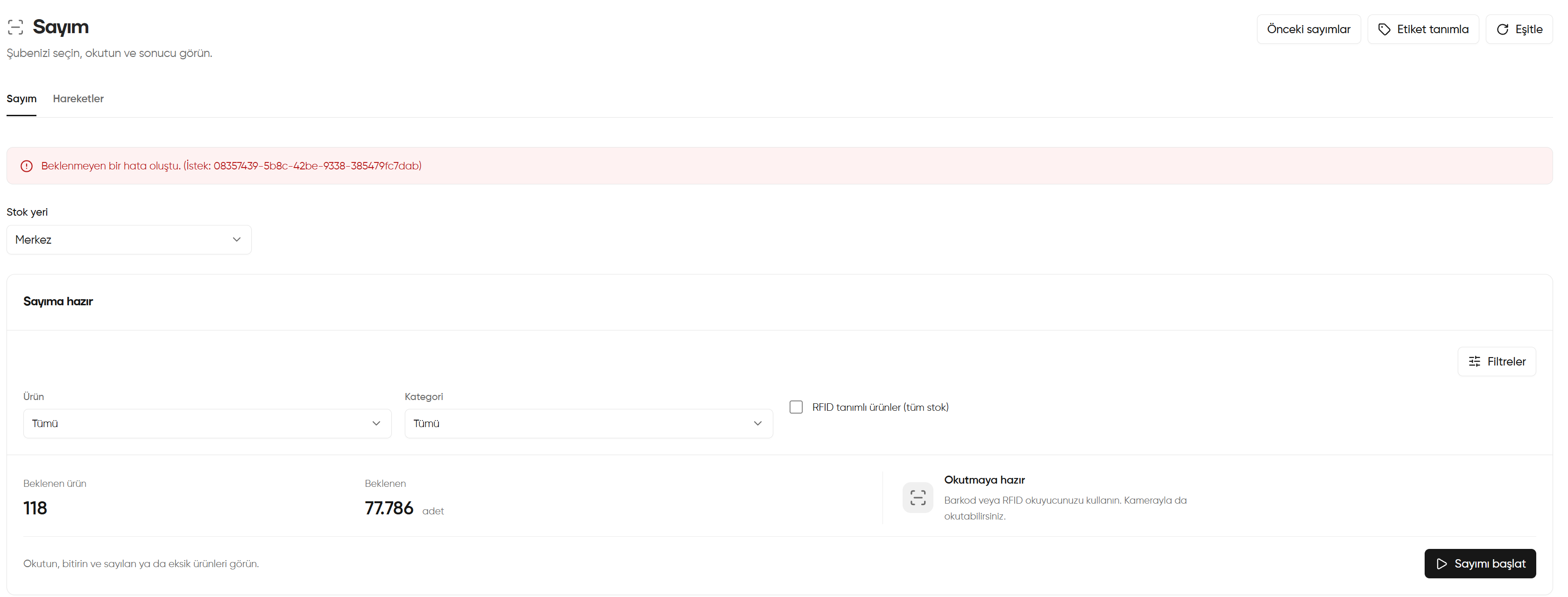
- Switch to the Stock count (Sayım) tab. In Stock location (Stok yeri), select the branch or location you will count; Head office (Merkez) is selected in the screenshot.
- Click Filters (Filtreler) to open the scope fields. Set the count scope with Product (Ürün) and Category (Kategori). All (Tümü) does not narrow the corresponding filter.
- If you need an RFID-related scope, check the Products with RFID assigned, all stock (RFID tanımlı ürünler (tüm stok)) box. After making your selection, review the expected values on the screen again.
- Evaluate Expected products (Beklenen ürün) and Expected … pieces (Beklenen … adet) separately: one shows the number of products and the other the expected stock quantity. The screenshot shows 118 products and 77.786 pieces; these are not quantities that have already been counted.
- With the correct stock location and scope selected, click Start count (Sayımı başlat).
- On the count screen that opens, scan with a barcode or RFID reader. A camera can be used for barcodes. After completing the checks, follow the on-screen step to finish the count.
The red An unexpected error occurred (Beklenmeyen bir hata oluştu) notification in this screenshot is not a normal count step. If you see this warning, do not assume the transaction succeeded; check the screen again. If the error persists, note the Request (İstek) code in the notification for support.
Selecting the stock location and preparing the count