This translation is awaiting language review. Application screenshots and interface labels are in Turkish. The downloadable PDF is also in Turkish.
1. Assigning a tag and moving to the next piece
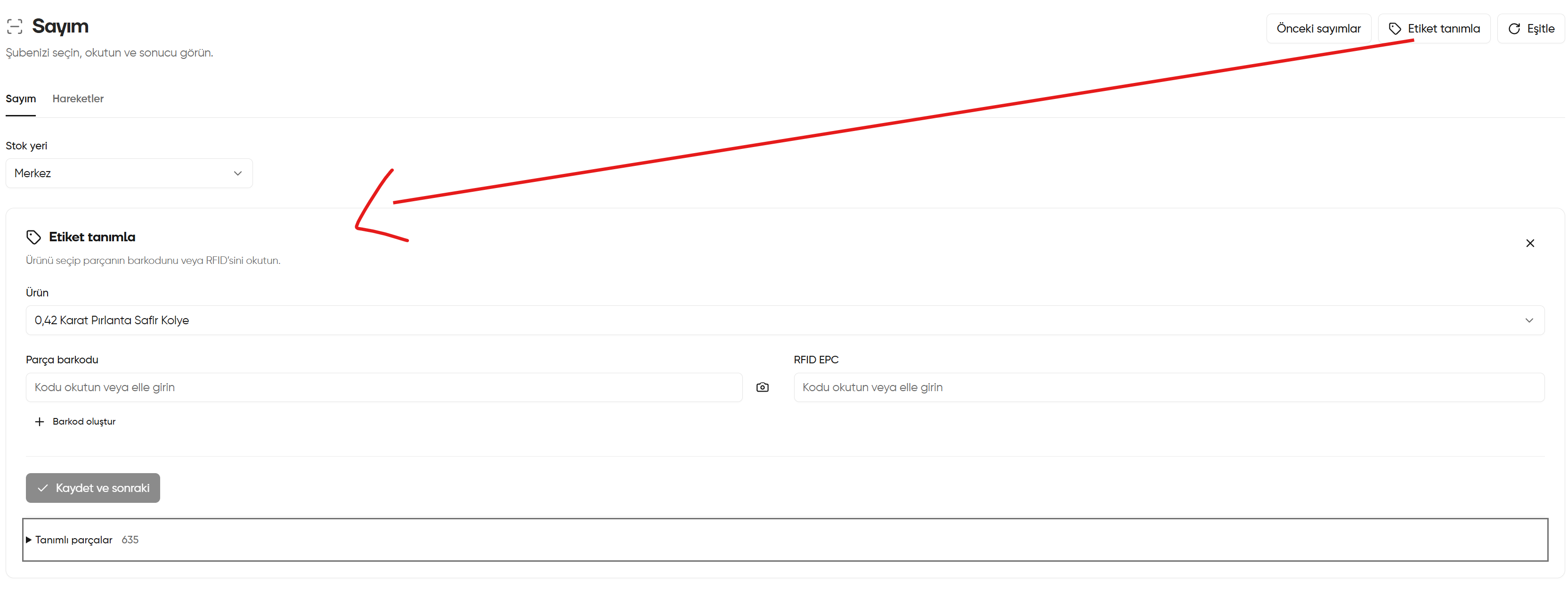
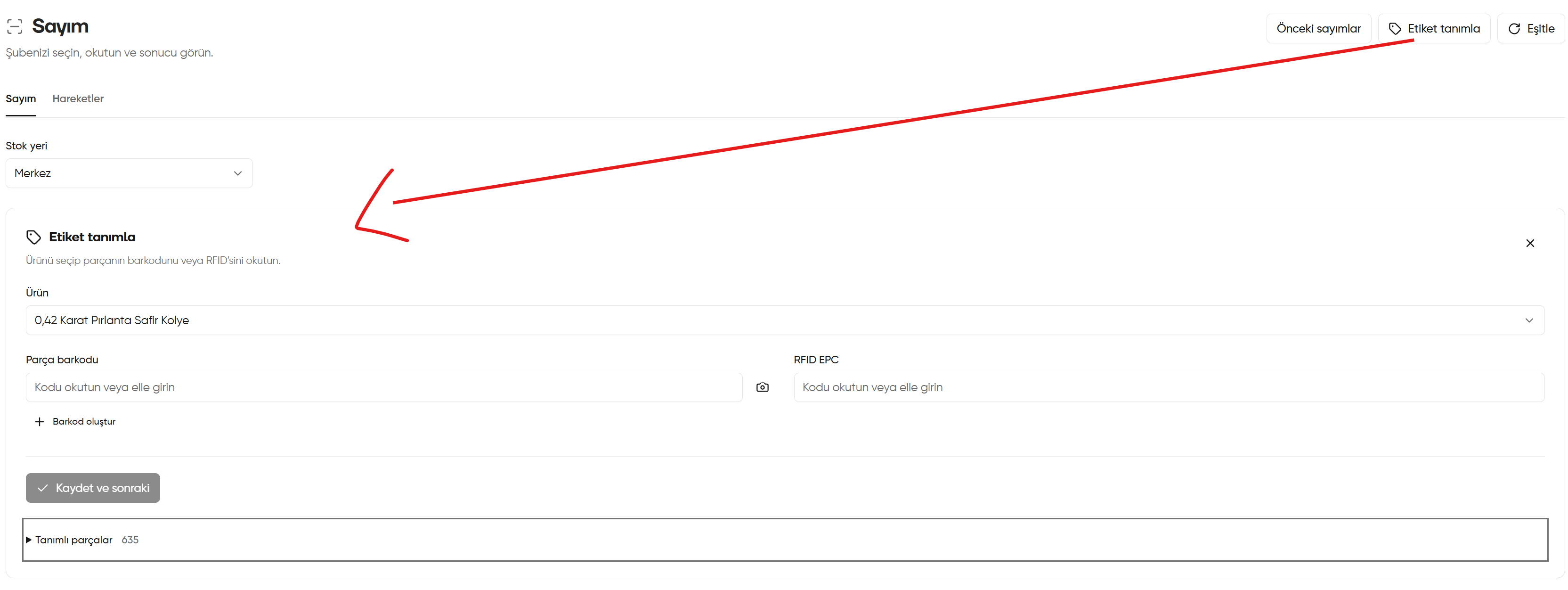
- Click Assign tag (Etiket tanımla) at the top right. The red arrow points to the form that opens.
- Check the Stock location (Stok yeri) selection and select the product whose tag you will assign from Product (Ürün).
- Scan the piece’s code into Piece barcode (Parça barkodu) or enter it manually. The camera icon reads barcodes. You can use Generate barcode (Barkod oluştur) to create a new barcode.
- If you use an RFID tag, enter the code in RFID EPC with a suitable reader or manually.
- Check the product and codes, then click Save and next (Kaydet ve sonraki). If the button is disabled, check the required fields and on-screen warnings.
- Continue with the next piece’s details. Open Assigned pieces (Tanımlı parçalar) to review the records; the number beside it shows how many pieces have tags assigned.
- When finished, close the area with × at the top right of the form.
The camera does not read RFID; the camera icon is for barcodes. Assigning tags and starting a count are separate transactions.
Assigning a tag and moving to the next piece