This translation is awaiting language review. Application screenshots and interface labels are in Turkish. The downloadable PDF is also in Turkish.
1. Reading previous count cards
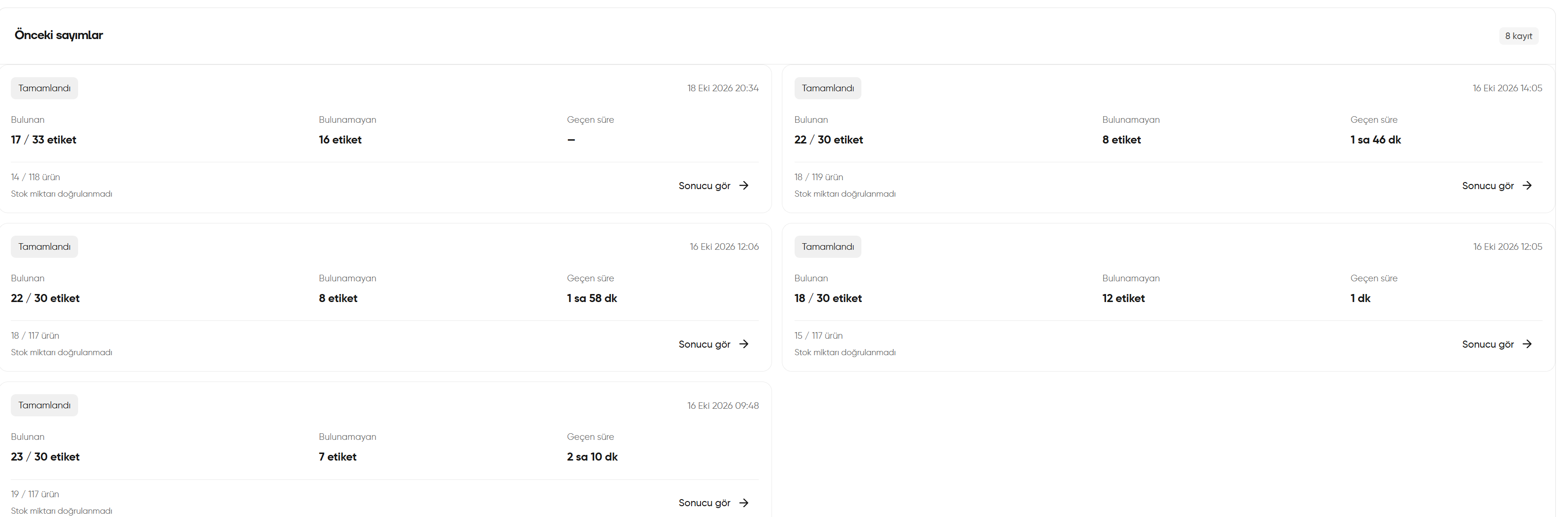
Open Stock count (Sayım) from the left menu. The Previous counts (Önceki sayımlar) area at the bottom of the page shows earlier counts as cards.- Status and date: The count’s status and time appear at the top of the card.
- Found (Bulunan): Shows the number of tags found alongside the total number of tags. In the example, 17 / 33 tags have been found.
- Not found (Bulunamayan): In the example, 16 tags have not yet been found. This number alone should not be interpreted as a confirmed stock loss.
- Elapsed time (Geçen süre): Appears here if the record includes a duration; a dash means no duration is shown for that record.
- Product information: A product summary is shown separately from the tag count; the screenshot reads 14 / 118 products.
- View result (Sonucu gör): Opens the result for that count.
Even if the card says Completed (Tamamlandı), a Stock quantity not verified (Stok miktarı doğrulanmadı) warning may appear below it. Completing a count and verifying the stock quantity are different things. Open the result and check the details.
Reading previous count cards
2. Opening the previous counts window
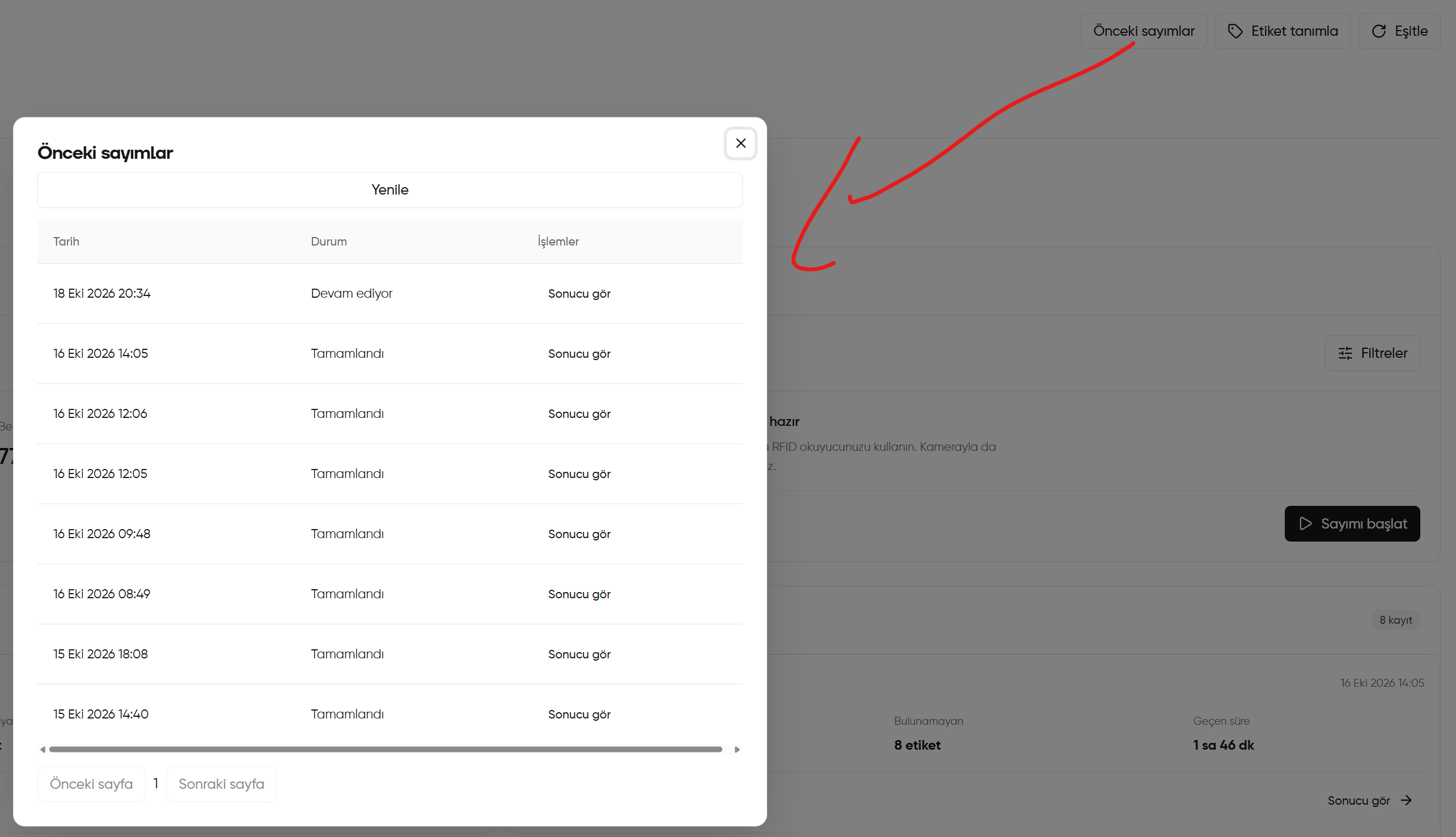
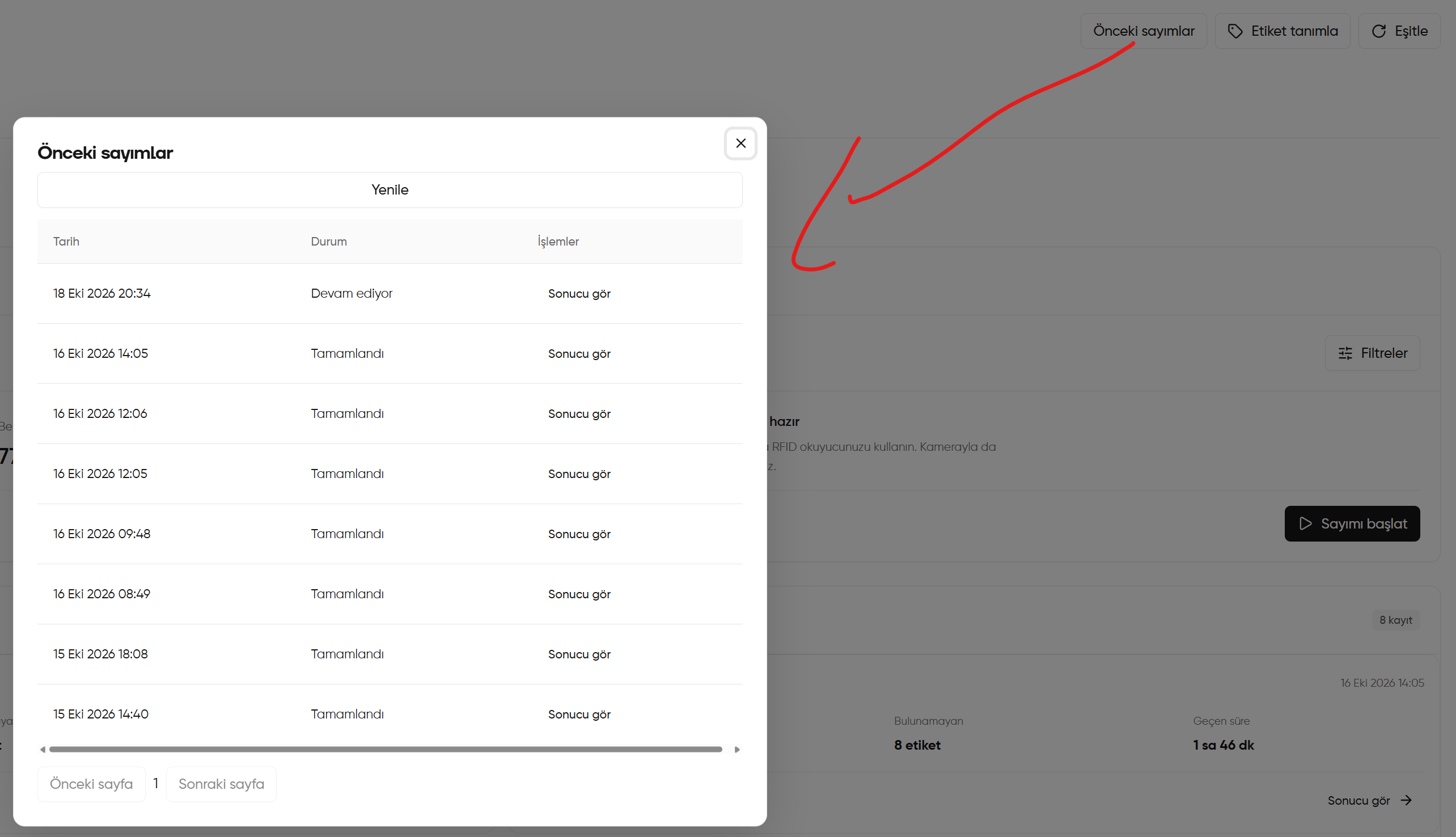
- Click Previous counts (Önceki sayımlar) at the top right of the count screen. The red arrow in the screenshot points to the window opened by this button.
- Find the record you want to review using the Date (Tarih) and Status (Durum) columns. Distinguish between In progress (Devam ediyor) and Completed (Tamamlandı).
- Open that count’s details with View result (Sonucu gör) in the relevant row.
- Use Refresh (Yenile) to reload the list.
- If there are multiple pages, move between them with Previous page / Next page (Önceki sayfa / Sonraki sayfa). Close the window with × at the top right.
Opening the previous counts window
After opening the result
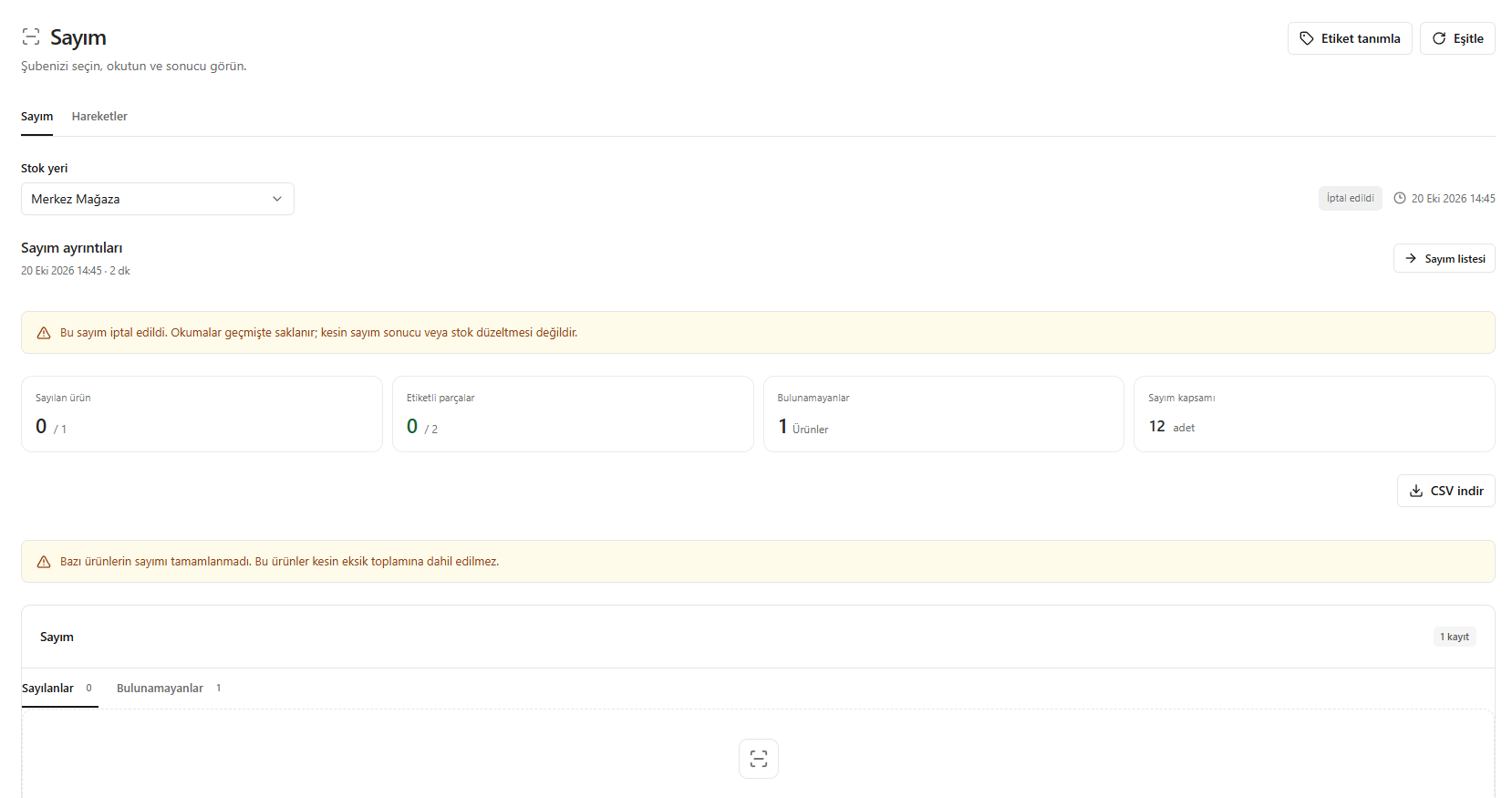
Check the count’s status and time. Review the summary and piece list; if available on screen, export the result with Download CSV (CSV indir). The earlier result example below belongs to a cancelled count. Do not treat the result of an unfinished count as a confirmed stock difference or a stock adjustment.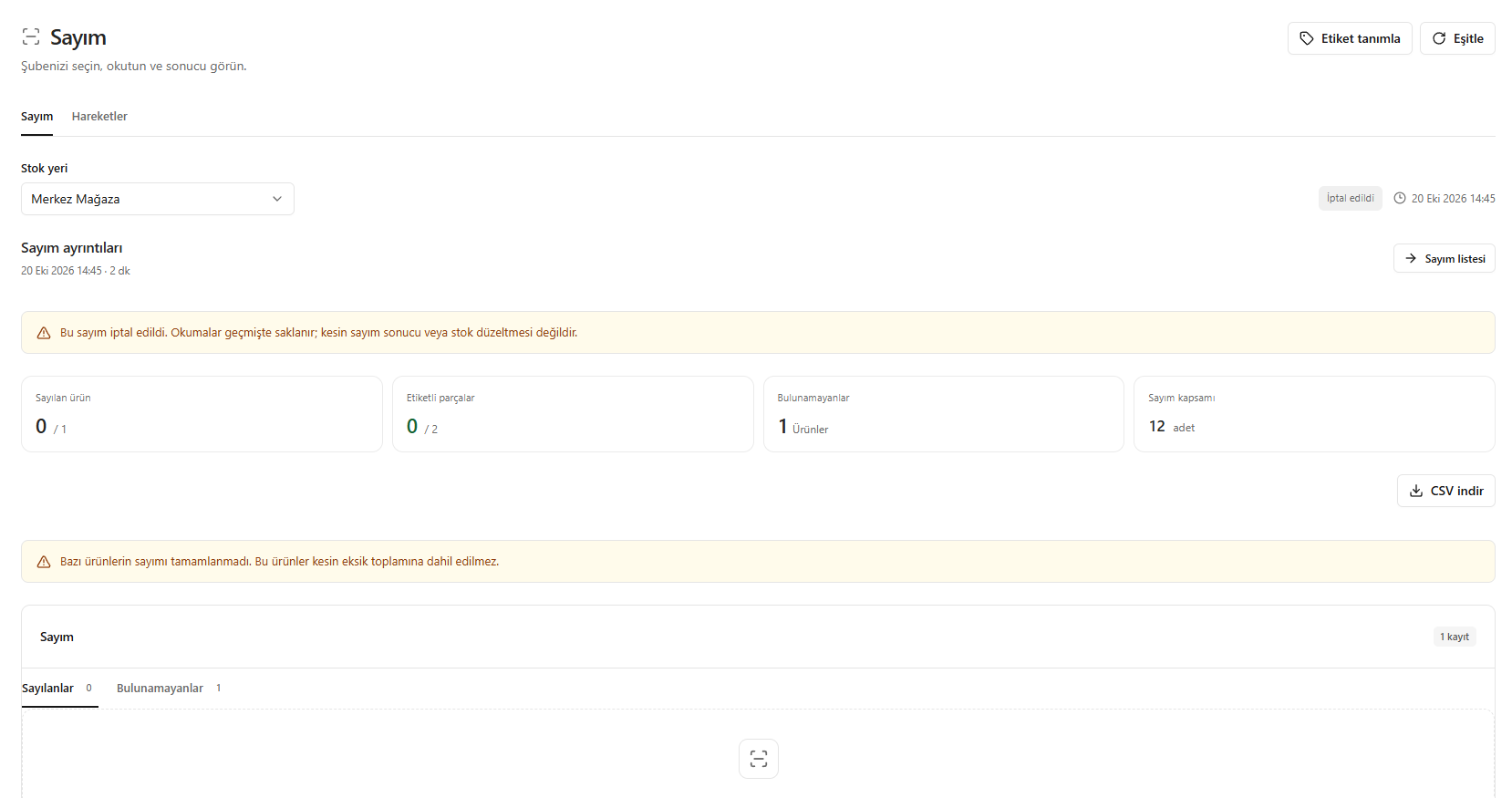
Count details opened with View result (Sonucu gör): cancelled count example