

This translation is awaiting language review. Application screenshots and interface labels are in Turkish. The downloadable PDF is also in Turkish.
1. Reading previous count cards
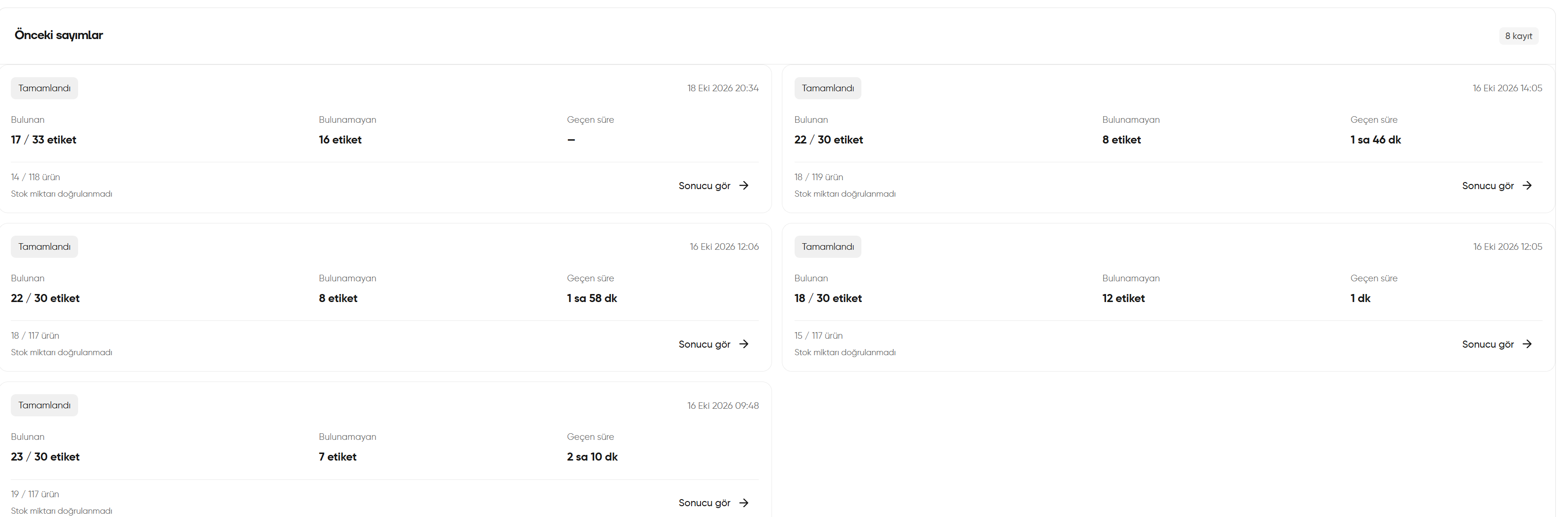
Open Stock count (Sayım) from the left menu. The Previous counts (Önceki sayımlar) area at the bottom of the page shows earlier counts as cards.- Status and date: The count’s status and time appear at the top of the card.
- Found (Bulunan): Shows the number of tags found alongside the total number of tags. In the example, 17 / 33 tags have been found.
- Not found (Bulunamayan): In the example, 16 tags have not yet been found. This number alone should not be interpreted as a confirmed stock loss.
- Elapsed time (Geçen süre): Appears here if the record includes a duration; a dash means no duration is shown for that record.
- Product information: A product summary is shown separately from the tag count; the screenshot reads 14 / 118 products.
- View result (Sonucu gör): Opens the result for that count.
Even if the card says Completed (Tamamlandı), a Stock quantity not verified (Stok miktarı doğrulanmadı) warning may appear below it. Completing a count and verifying the stock quantity are different things. Open the result and check the details.
Reading previous count cards
2. Selecting the stock location and preparing the count
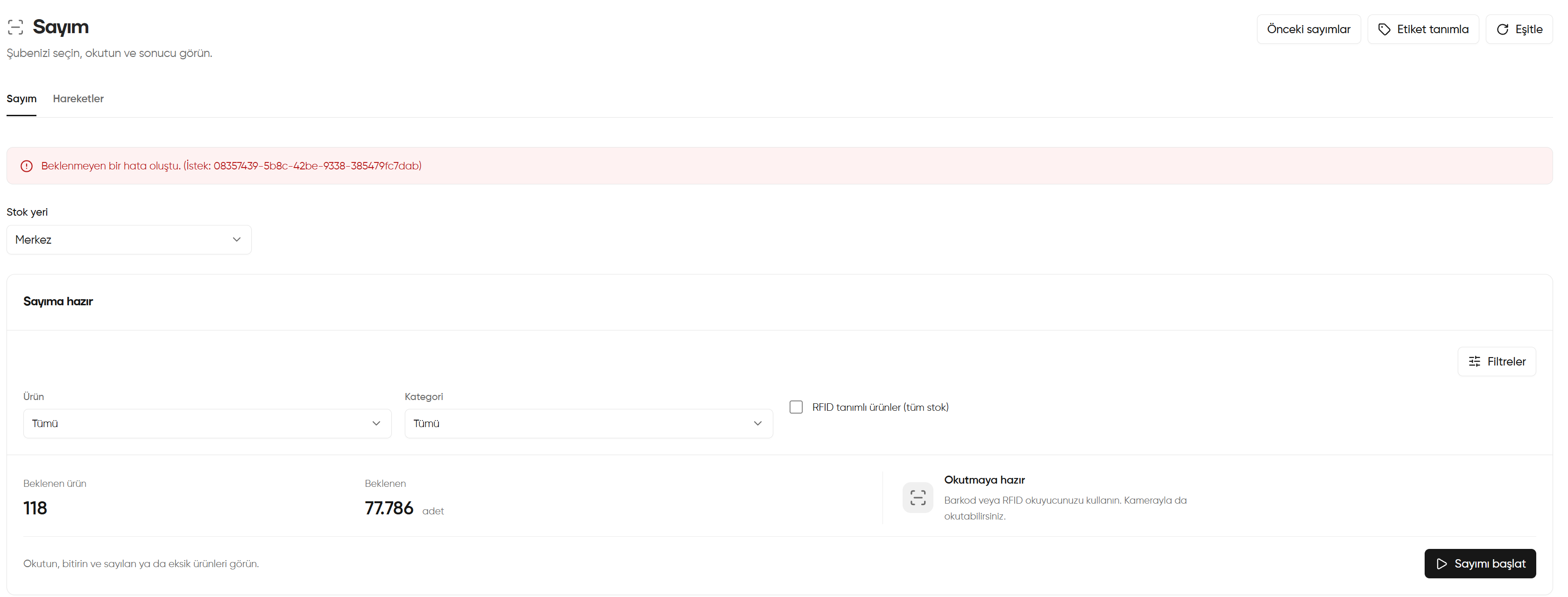
- Switch to the Stock count (Sayım) tab. In Stock location (Stok yeri), select the branch or location you will count; Head office (Merkez) is selected in the screenshot.
- Click Filters (Filtreler) to open the scope fields. Set the count scope with Product (Ürün) and Category (Kategori). All (Tümü) does not narrow the corresponding filter.
- If you need an RFID-related scope, check the Products with RFID assigned, all stock (RFID tanımlı ürünler (tüm stok)) box. After making your selection, review the expected values on the screen again.
- Evaluate Expected products (Beklenen ürün) and Expected … pieces (Beklenen … adet) separately: one shows the number of products and the other the expected stock quantity. The screenshot shows 118 products and 77.786 pieces; these are not quantities that have already been counted.
- With the correct stock location and scope selected, click Start count (Sayımı başlat).
- On the count screen that opens, scan with a barcode or RFID reader. A camera can be used for barcodes. After completing the checks, follow the on-screen step to finish the count.
The red An unexpected error occurred (Beklenmeyen bir hata oluştu) notification in this screenshot is not a normal count step. If you see this warning, do not assume the transaction succeeded; check the screen again. If the error persists, note the Request (İstek) code in the notification for support.
Selecting the stock location and preparing the count
3. Opening the previous counts window
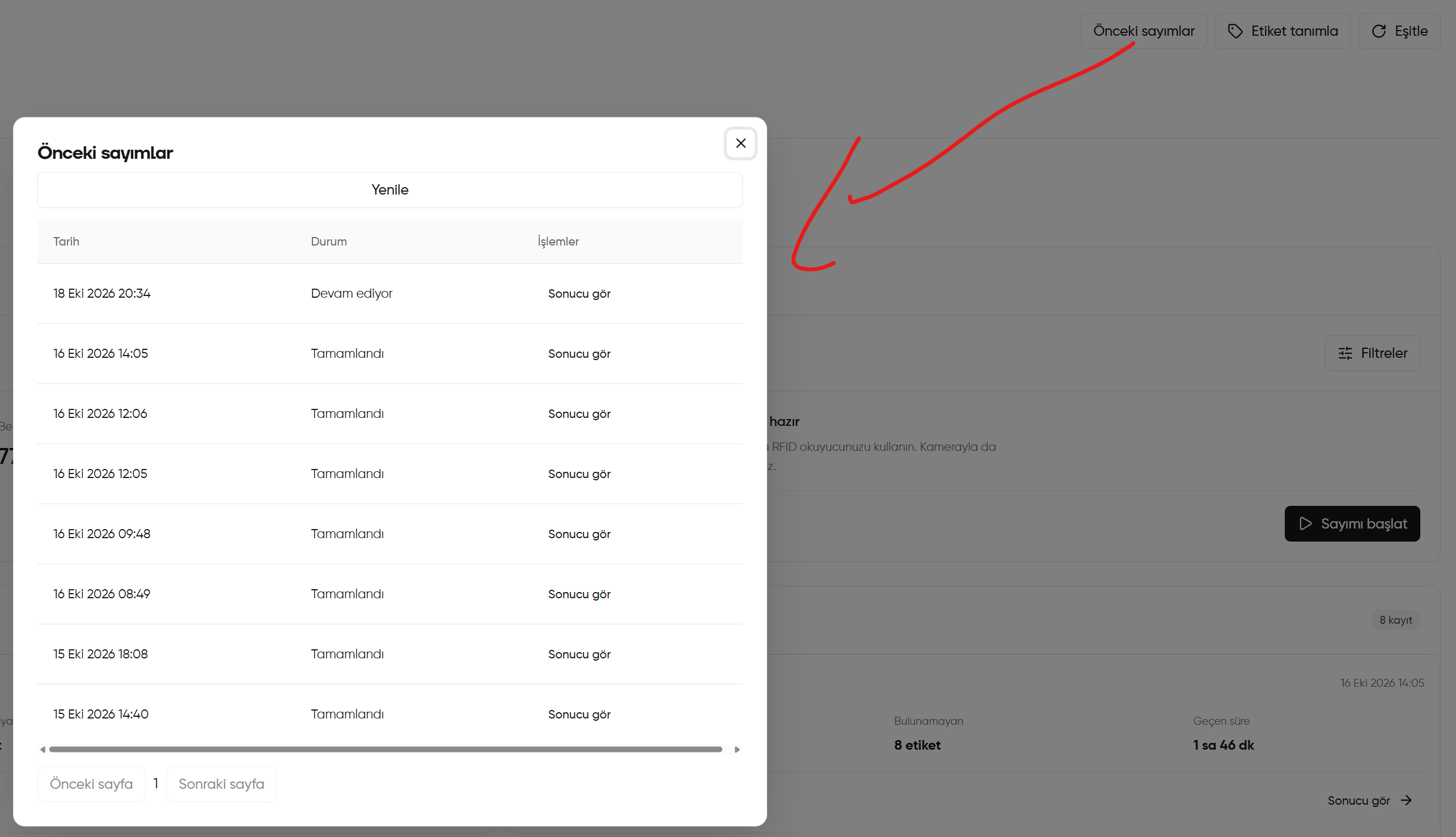
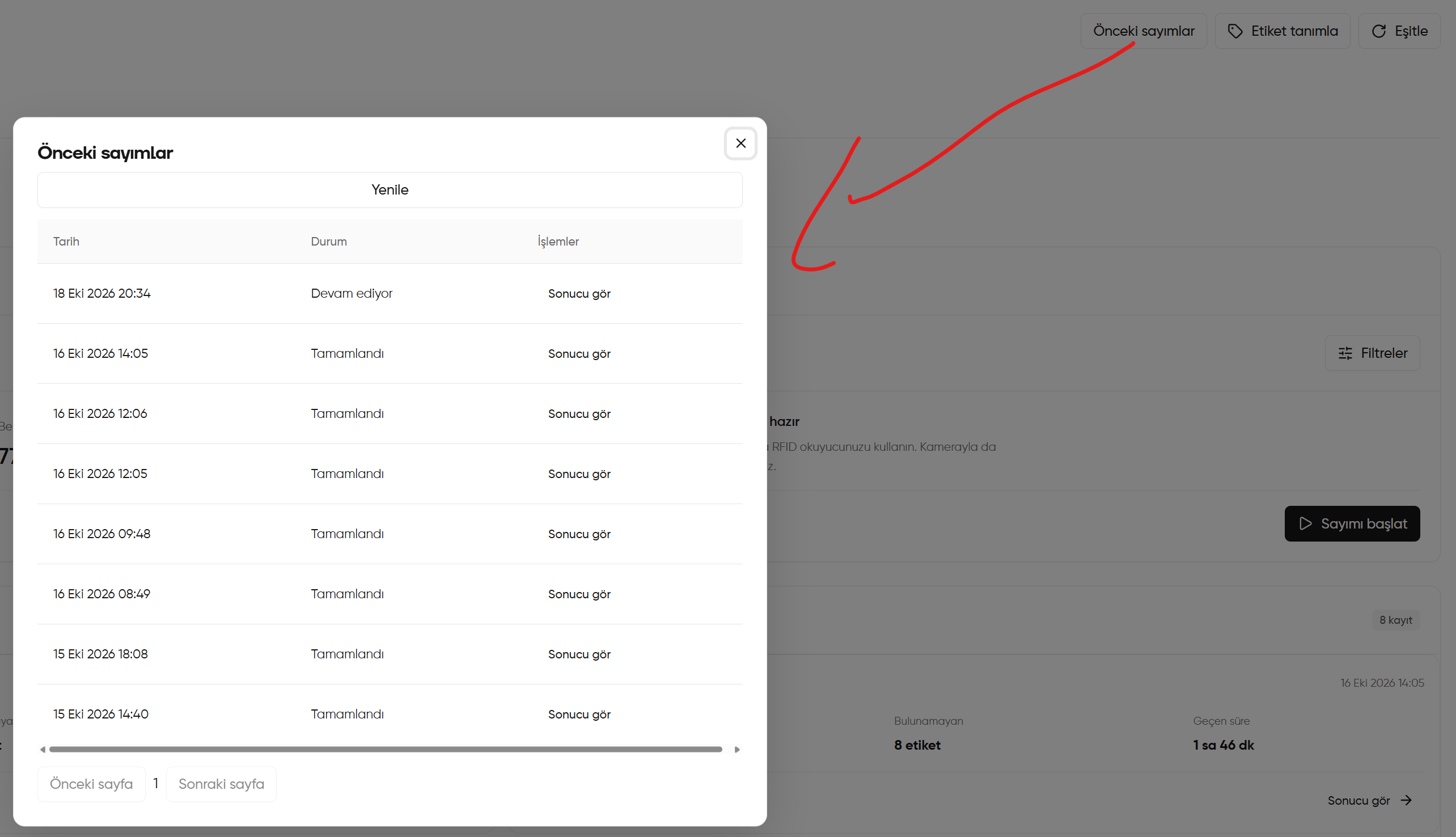
- Click Previous counts (Önceki sayımlar) at the top right of the count screen. The red arrow in the screenshot points to the window opened by this button.
- Find the record you want to review using the Date (Tarih) and Status (Durum) columns. Distinguish between In progress (Devam ediyor) and Completed (Tamamlandı).
- Open that count’s details with View result (Sonucu gör) in the relevant row.
- Use Refresh (Yenile) to reload the list.
- If there are multiple pages, move between them with Previous page / Next page (Önceki sayfa / Sonraki sayfa). Close the window with × at the top right.
Opening the previous counts window
4. Assigning a tag and moving to the next piece
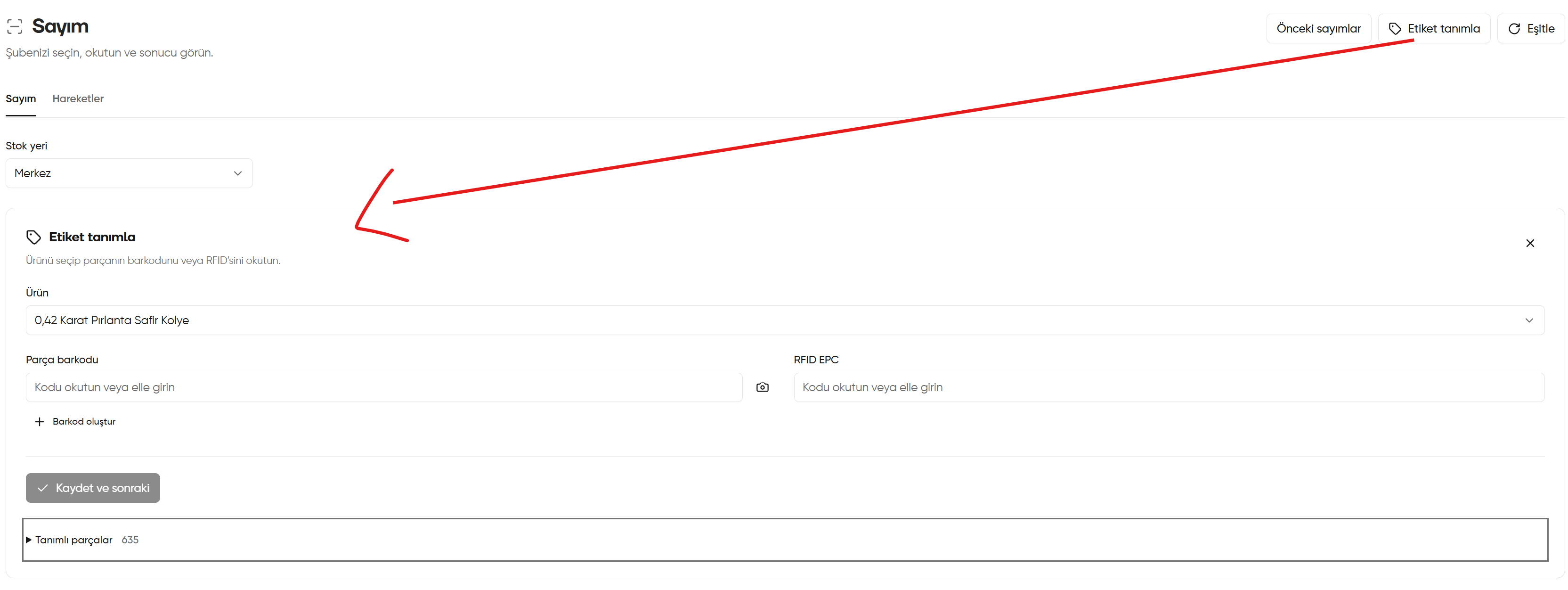
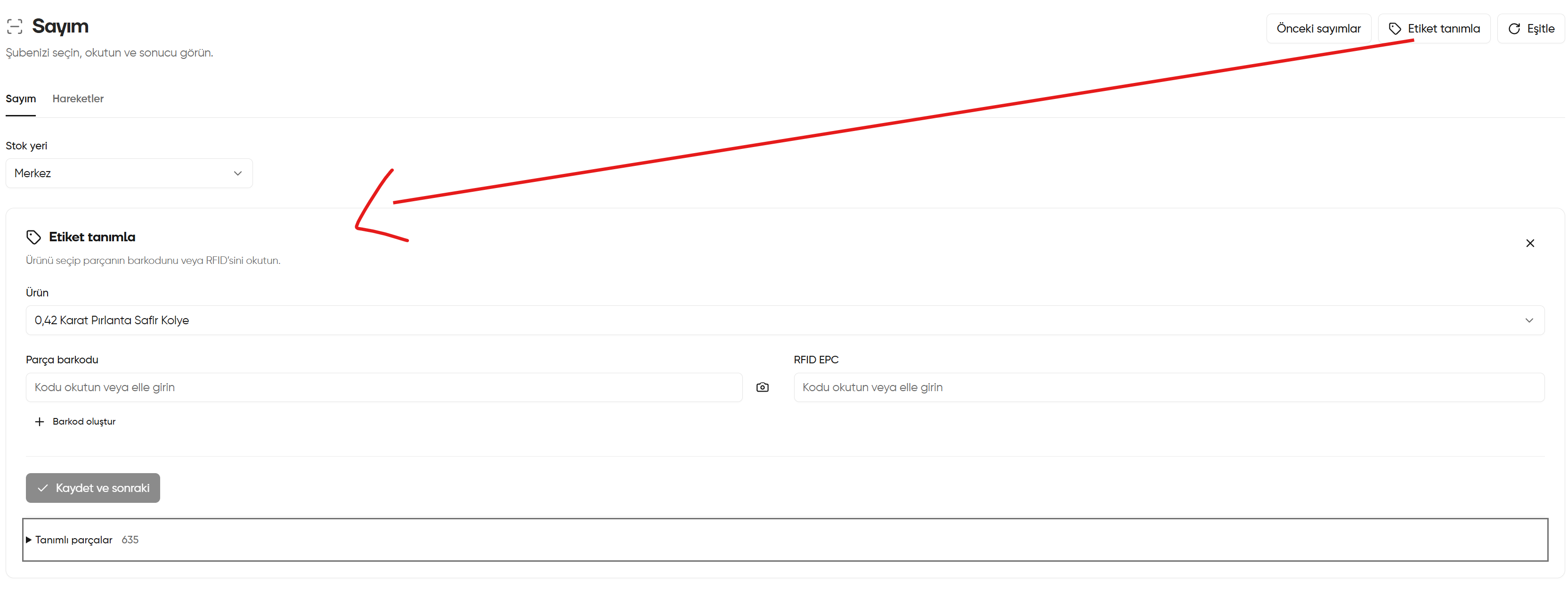
- Click Assign tag (Etiket tanımla) at the top right. The red arrow points to the form that opens.
- Check the Stock location (Stok yeri) selection and select the product whose tag you will assign from Product (Ürün).
- Scan the piece’s code into Piece barcode (Parça barkodu) or enter it manually. The camera icon reads barcodes. You can use Generate barcode (Barkod oluştur) to create a new barcode.
- If you use an RFID tag, enter the code in RFID EPC with a suitable reader or manually.
- Check the product and codes, then click Save and next (Kaydet ve sonraki). If the button is disabled, check the required fields and on-screen warnings.
- Continue with the next piece’s details. Open Assigned pieces (Tanımlı parçalar) to review the records; the number beside it shows how many pieces have tags assigned.
- When finished, close the area with × at the top right of the form.
The camera does not read RFID; the camera icon is for barcodes. Assigning tags and starting a count are separate transactions.
Assigning a tag and moving to the next piece
5. Filtering movements by date and product
- Switch to Movements (Hareketler) on the count screen and check the Stock location (Stok yeri) selection.
- If the tag form is still open, the movement list appears below it. You can close the form or scroll down.
- Click Filters (Filtreler) in the Movements (Hareketler) area.
- Select the Start (Başlangıç) and End (Bitiş) dates. For a one-day review, both fields can be the same day; change the dates for a wider range.
- Select the relevant product from Product (Ürün) or leave All (Tümü) selected.
- Click Apply filters (Filtreleri uygula) and review the listed records.
- Use Refresh (Yenile) to reload the list or Download CSV (CSV indir) to export the records.
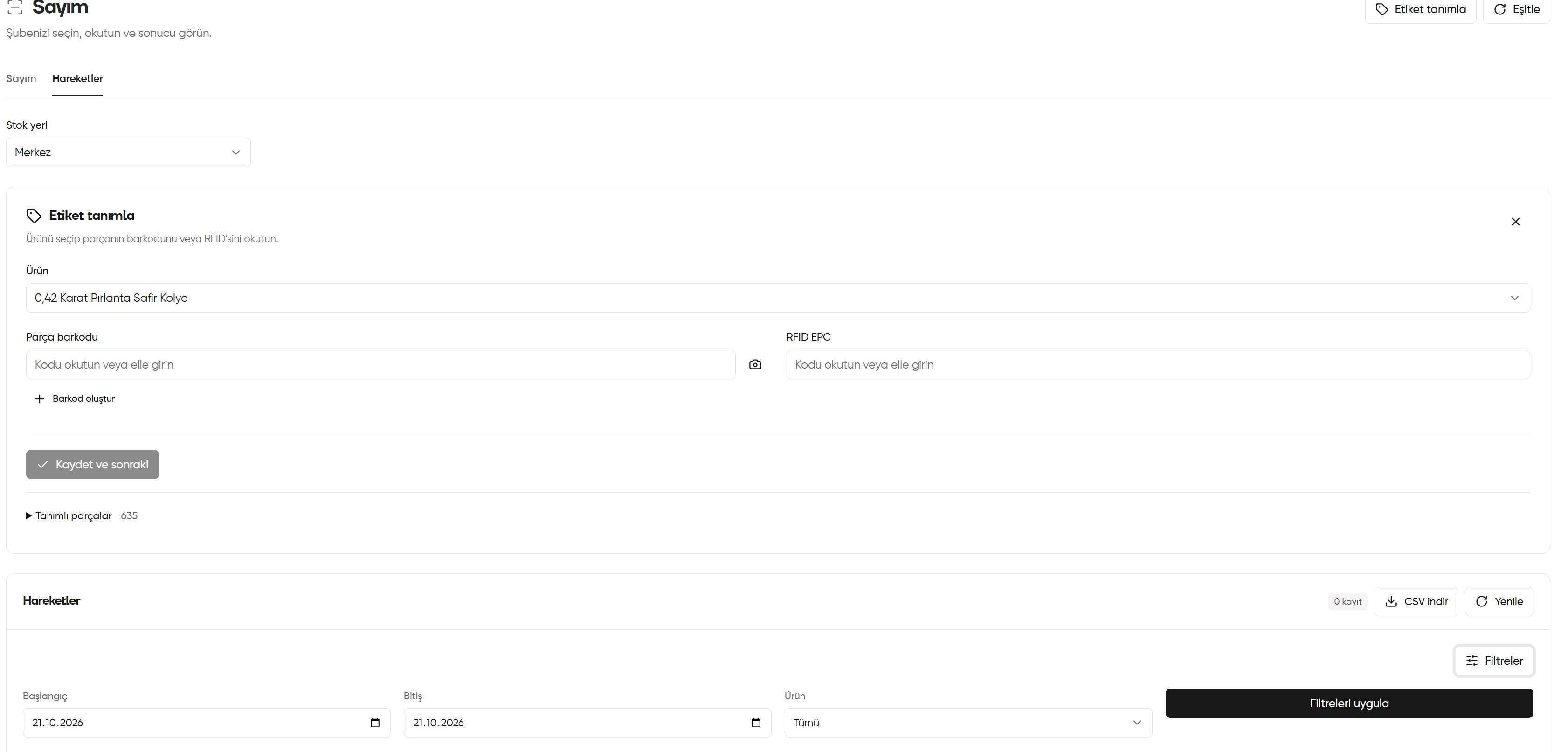
Filtering movements by date and product
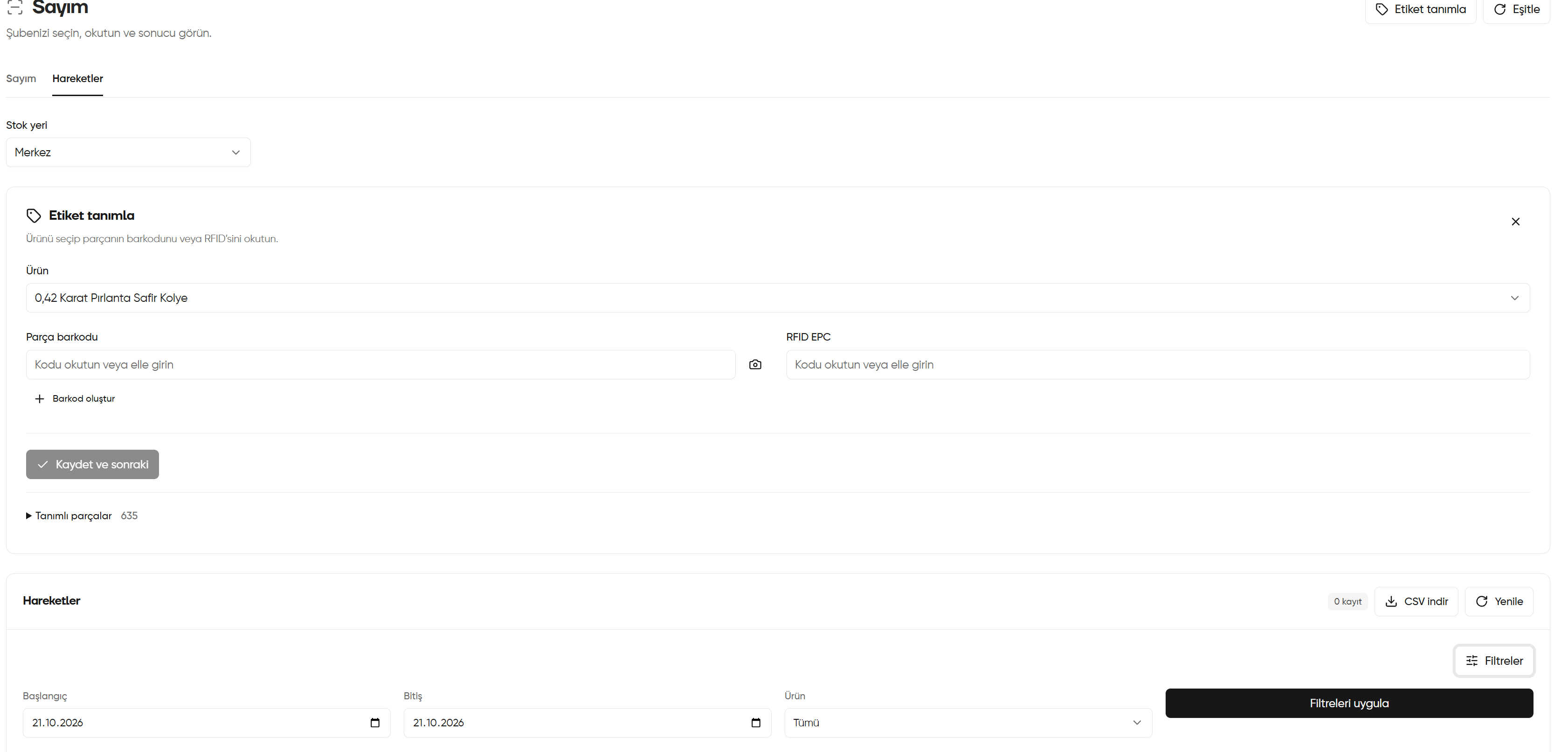
6. Assessing the movement summary and empty list
Click Summary and information (Özet ve bilgiler) to expand or collapse the area. It is expanded in the screenshot, showing No records yet — No movements occurred in the selected period and filters (Henüz kayıt yok — Seçili dönem ve filtrelerde gerçekleşmiş hareket yok). This message does not mean the entire history is empty. If you expect records:- Check that the correct Stock location (Stok yeri) is selected.
- Widen the date range in Filters (Filtreler) and, if needed, set Product (Ürün) to All (Tümü).
- Click Apply filters (Filtreleri uygula); then reload the list with Refresh (Yenile) if needed.
- If records are pending on the device, follow Synchronising device records and check the result again.
Refresh (Yenile) reloads the list; Sync (Eşitle) transfers pending records from the device. They are different transactions.

Assessing the movement summary and empty list
