

This translation is awaiting language review. Application screenshots and interface labels are in Turkish. The downloadable PDF is also in Turkish.
Sale total and remaining amount
The summary at the top left shows three amounts to track as you add payments:
In the example, the sale total is 35.180,00 TL and the entered payment is 0,00 TL, so the remaining amount is also 35.180,00 TL. Check this summary again each time you add a payment.
Customer, sales channel and cart
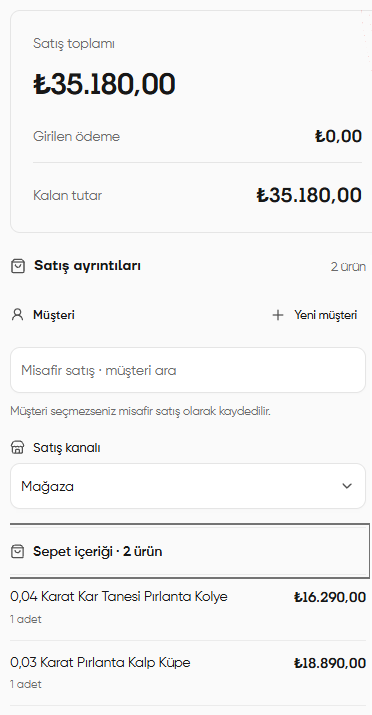
- In Sale details (Satış ayrıntıları), search for and select the registered customer in Customer (Müşteri).
- If the customer is not registered, use New customer (Yeni müşteri). If you do not select a customer, the transaction is saved as a guest sale (misafir satış).
- Check Sales channel (Satış kanalı) and select the channel where the sale takes place. Store (Mağaza) is selected in the screenshot.
- In Cart contents (Sepet içeriği), check product names, quantities and line amounts. To change the products, use Return to cart (Sepete dön) at the bottom of the screen.
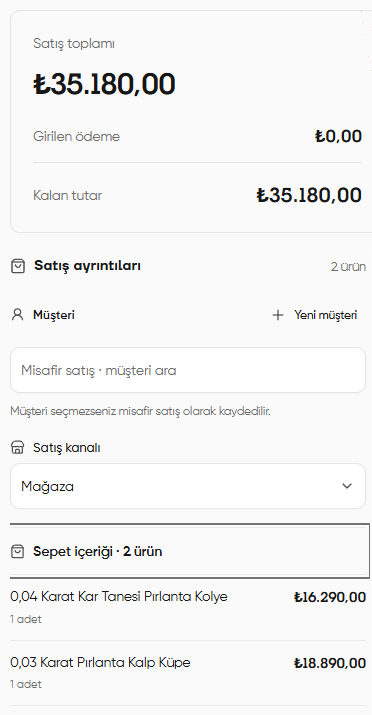
Customer selection, sales channel and cart contents
Delivery and contact details
Scroll down in the left panel and open Delivery / contact (Teslimat / iletişim). In Delivery information (Teslimat bilgisi), select the delivery method appropriate for the sale. Immediate handover in store (Mağazada anında teslim) is selected in the screenshot. If additional fields appear for your chosen method, complete and check them.Payment collection and delivery are separate details. Receiving payment does not mean the product has been handed over to the customer; choose the delivery option appropriate for the sale as well.
Cart discount
- Open Cart discount (Sepet indirimi).
- In Sale total (TL) (Satış toplamı (TL)), enter the total the customer will pay after the discount. Do not enter a discount percentage or the amount to subtract in this field.
- Check the maximum discount (en fazla indirim) and minimum amount (en düşük tutar) limits shown below the field.
- Click Apply (Uygula). Check the sale total and remaining amount at the top again.
The %100 discount limit in the screenshot belongs to the sample account. Use the limit shown on screen for your own account.
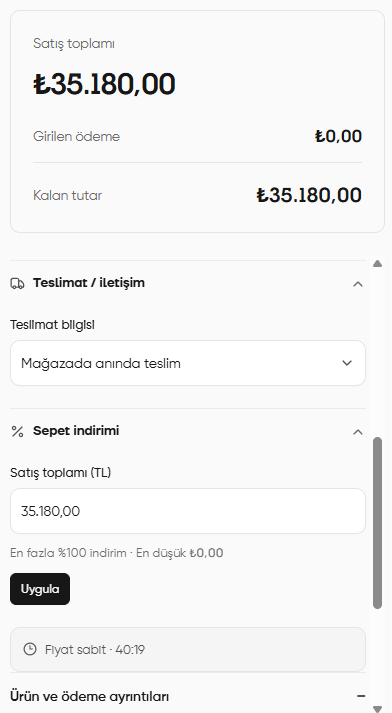
Delivery selection, cart discount and price lock duration
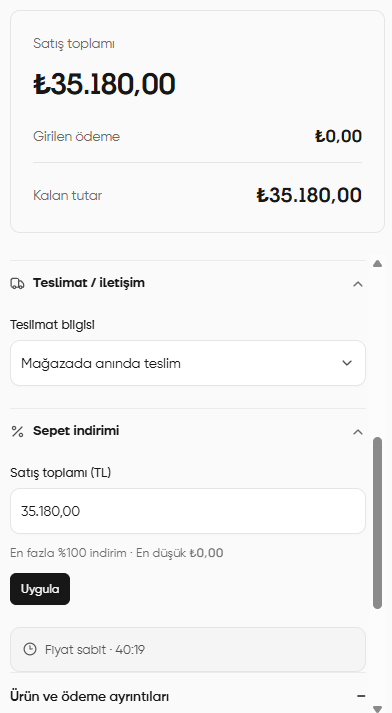
Price duration and product details
The Price locked (Fiyat sabit) indicator shows how much time remains while the price is held fixed. The duration in the screenshot is an example; follow the current time shown on screen during your transaction. Open Product and payment details (Ürün ve ödeme ayrıntıları) to review each product’s quantity, unit price and line total. Compare the summary fields below:- Transaction amount (İşlem tutarı): The total amount of the sale transaction.
- Payment / offset (Ödeme / mahsup): The total payment or offset entered against the transaction.
- Remaining difference (Kalan fark): The difference between the transaction amount and the payment / offset.
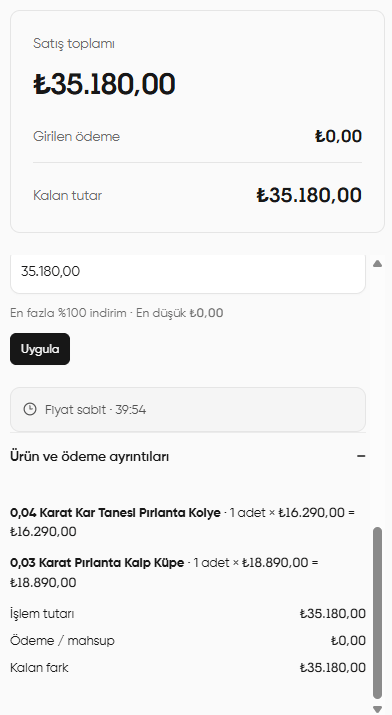
Product price calculation and payment details
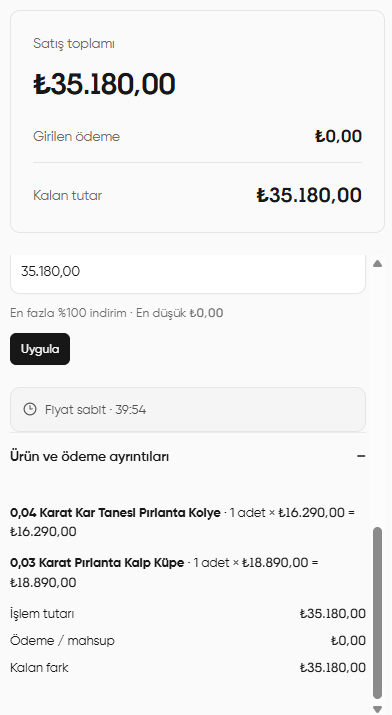
Adding a payment
Select the appropriate method under How was payment received? (Nasıl ödeme alındı?) on the right:
When adding a cash payment, the remaining amount is filled in automatically. If the amount you received from the customer by this method is different, change it. For bank and other payment types, also complete the information on the relevant card. You can split a sale across multiple payment methods; add each method and amount separately.
For example, a sale of 35.180,00 TL can be entered as 10.000,00 TL cash and the remaining 25.180,00 TL as a bank payment. Check Entered payment (Girilen ödeme) and Remaining amount (Kalan tutar) after each addition. Use About the collection limit (Tahsilat sınırı hakkında) to read the explanation of the collection limit.
Cash payment example
- Click Cash (Nakit) among the payment methods at the top right. The cash payment card opens.
- Check Amount received (TL) (Alınan tutar (TL)). Enter the amount received from the customer; you can also use the on-screen number keys.
- In Collection cash account (Tahsilat kasası), choose the cash account where the money will be recorded. Central Cash Account (Merkez Kasa) is selected in the screenshot.
- Check Entered payment (Girilen ödeme) and Remaining amount (Kalan tutar) at the top left. In the screenshot, all 35.180,00 TL has been entered as cash, so the remaining amount is 0,00 TL.
- When Payment ready. You can complete the sale. (Ödeme hazır. Satışı tamamlayabilirsiniz.) appears at the bottom, perform your final checks and click Complete sale (Satışı tamamla).
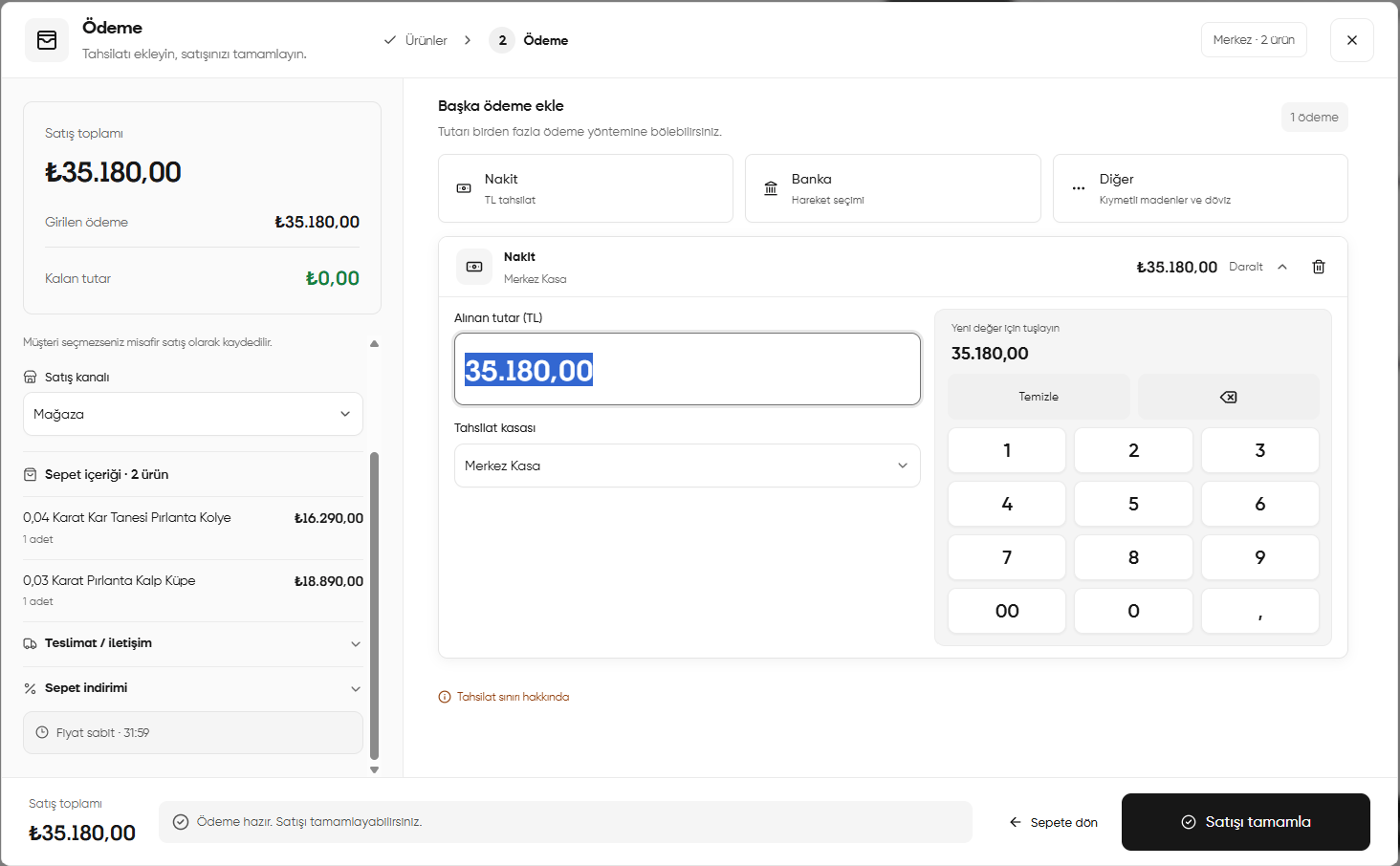
Adding a cash payment: amount received, collection cash account and completing the sale
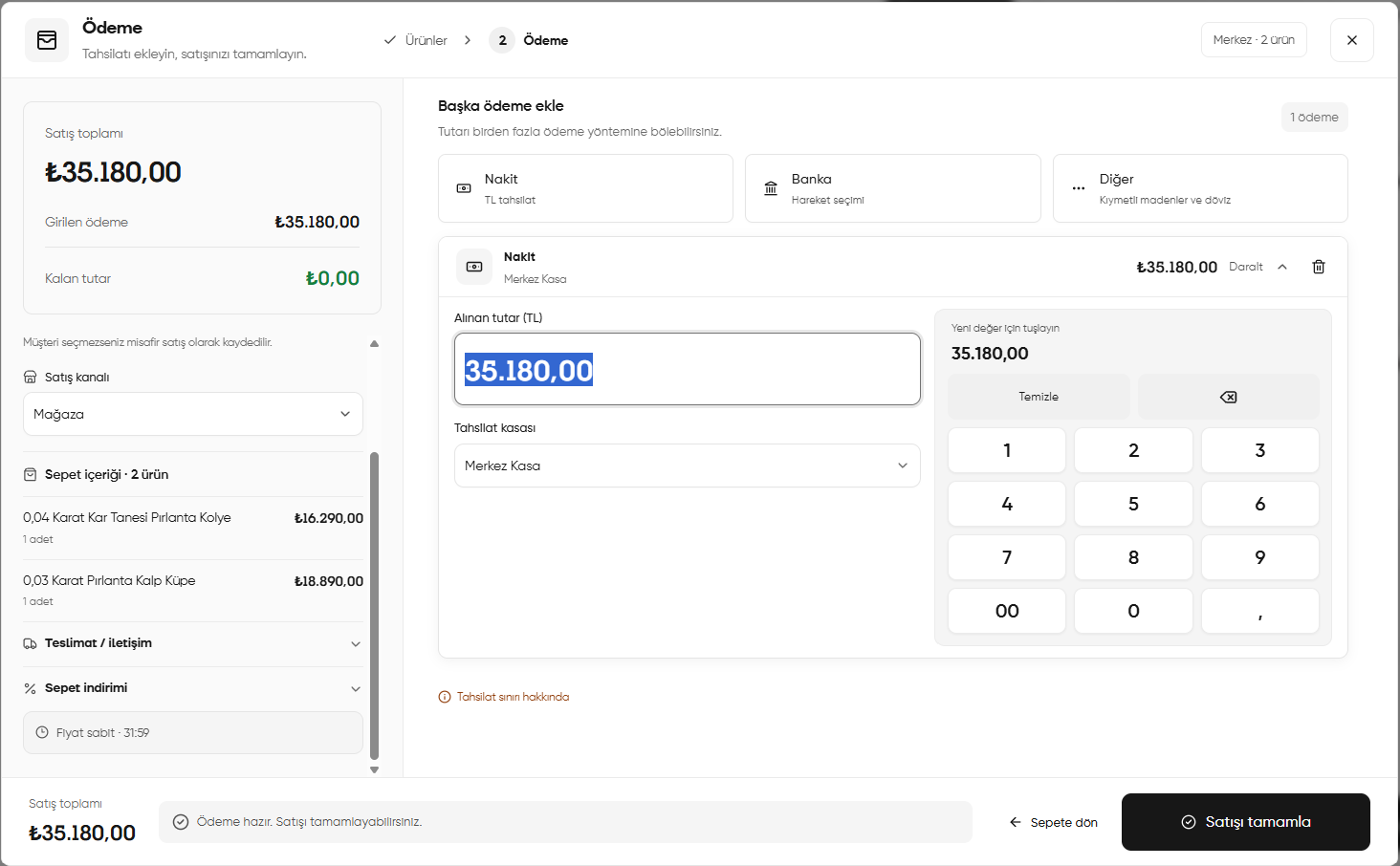
Adding a payment by selecting a bank transaction
With this method, you match a payment to the sale by selecting an incoming transaction from the bank.- Click Bank (Banka) at the top. The Bank transaction (Banka hareketi) card opens. If the card is collapsed, use Edit (Düzenle) to open its details.
- Check Bank account where the collection will be recorded (Tahsilatın kaydedileceği banka hesabı) and choose the appropriate account.
- In Select bank transaction (Banka hareketi seç), search for the incoming payment using Sender / description / identity number (Gönderen / açıklama / kimlik numarası). If needed, narrow the results with Date and bank filter (Tarih ve banka filtresi); click Refresh list (Listeyi yenile) to see new transactions.
- In Incoming payments (Gelen ödemeler), check the sender, date, bank, description and Available (Kullanılabilir) amount, then select the correct transaction.
- In Applied to this sale (TL) (Bu satışa uygulanan (TL)), check the amount of the selected transaction to use for this sale. Only the portion allocated to this sale is used.
- Check Entered payment (Girilen ödeme) and Remaining amount (Kalan tutar) at the top left. If an amount remains, add another payment using an appropriate method.
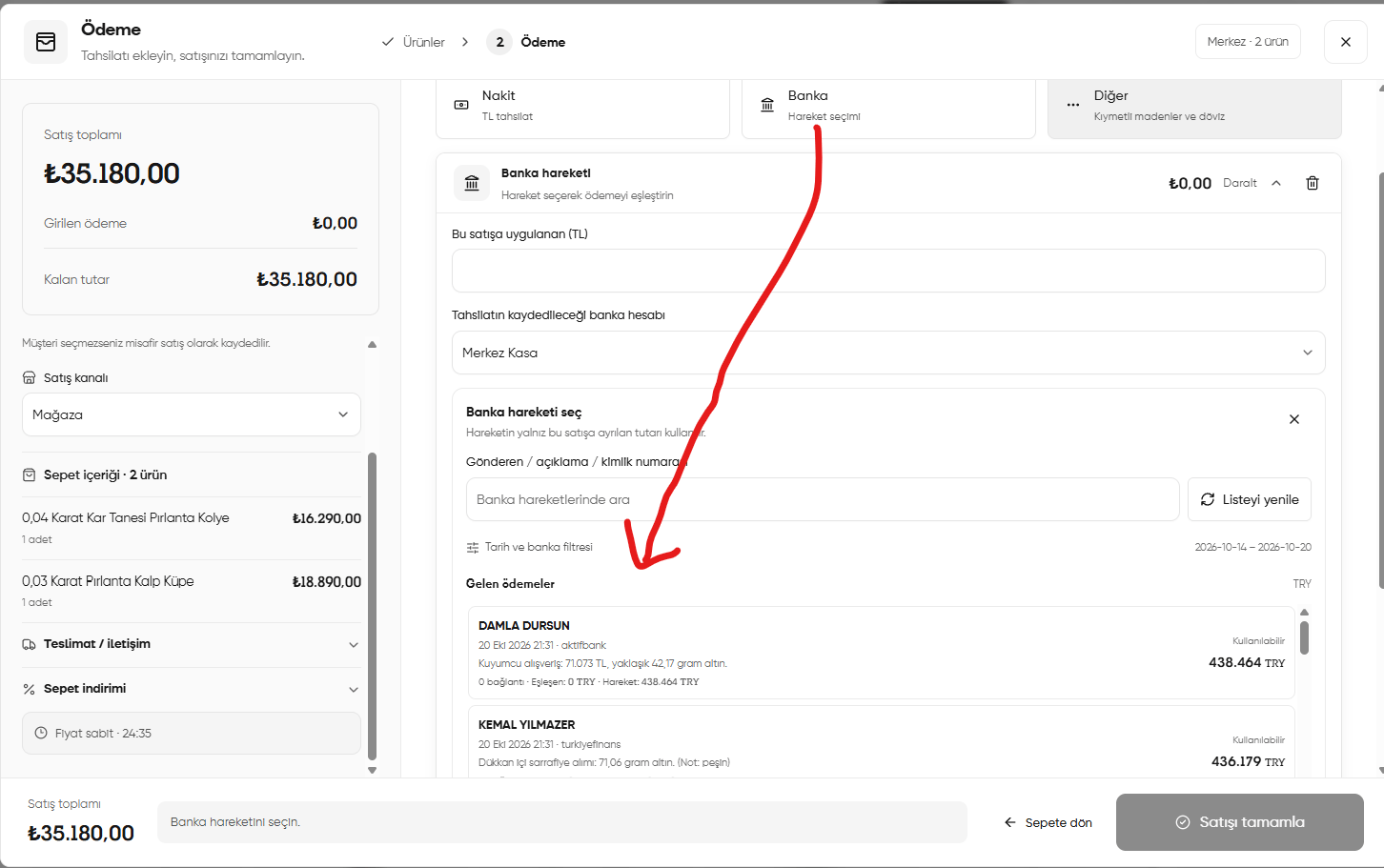
Bank payment: finding and selecting an incoming transaction and setting the amount applied to the sale
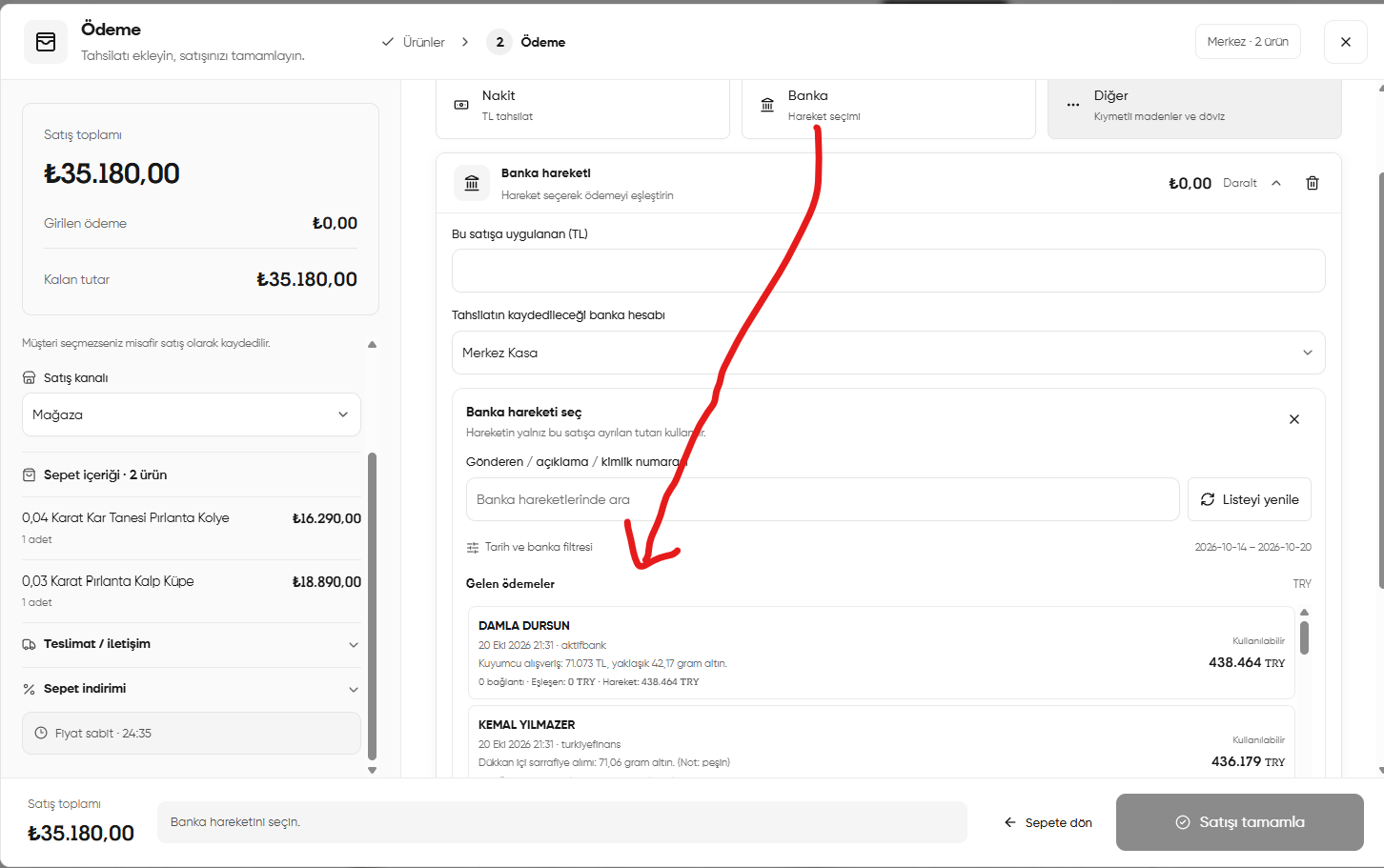
As no bank transaction has been selected yet in the screenshot, Select a bank transaction (Banka hareketini seçin) appears at the bottom. Opening the bank payment card alone does not match the payment.
Other payment options
Clicking Other (Diğer) opens two options: Precious metals / foreign currency (Kıymetli maden / döviz) and Manually record payment received into a bank account (Banka hesabına gelen ödemeyi elle kaydet). Select the one appropriate for the payment you received.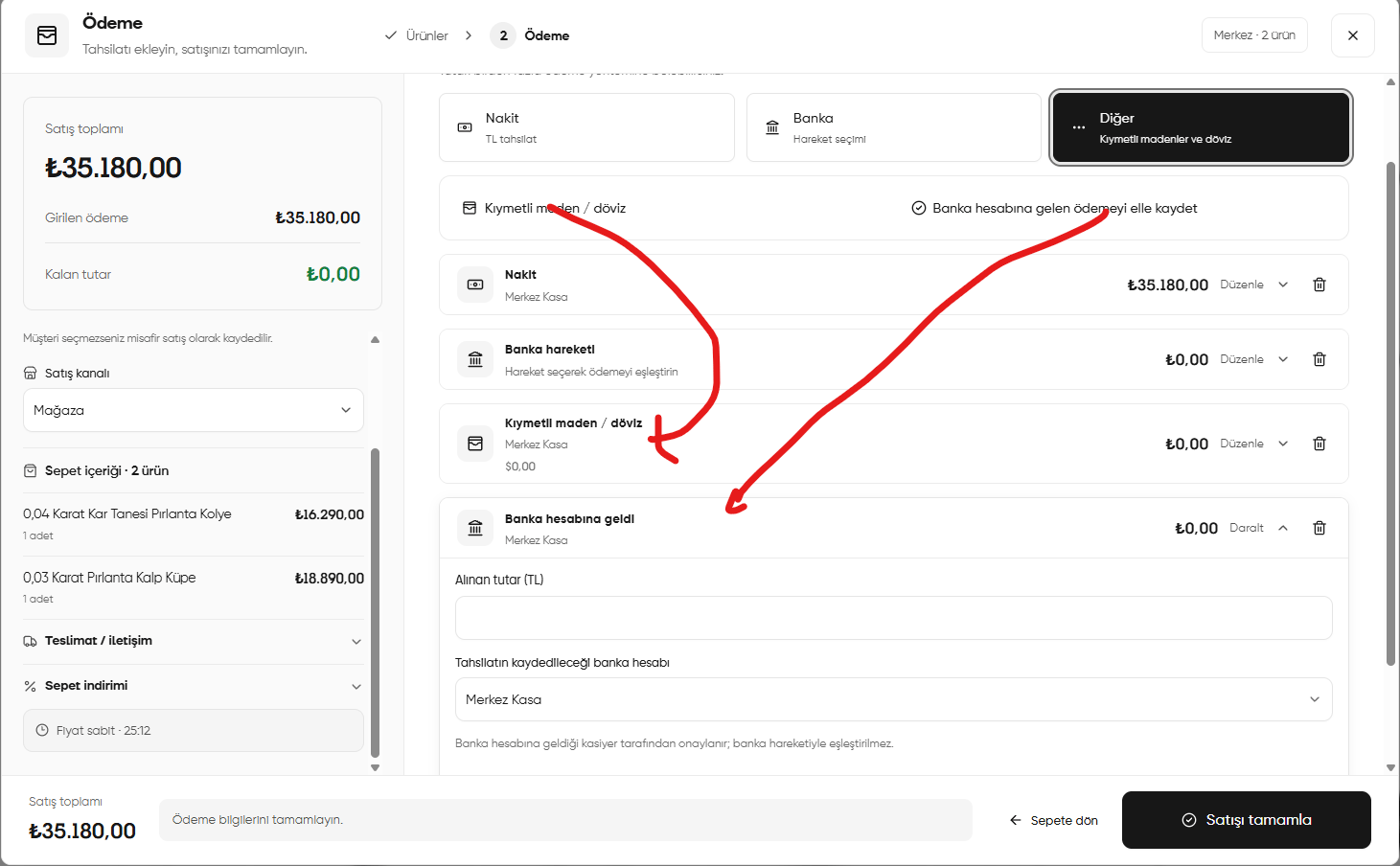
Other payment options and manually recording a payment received into a bank account
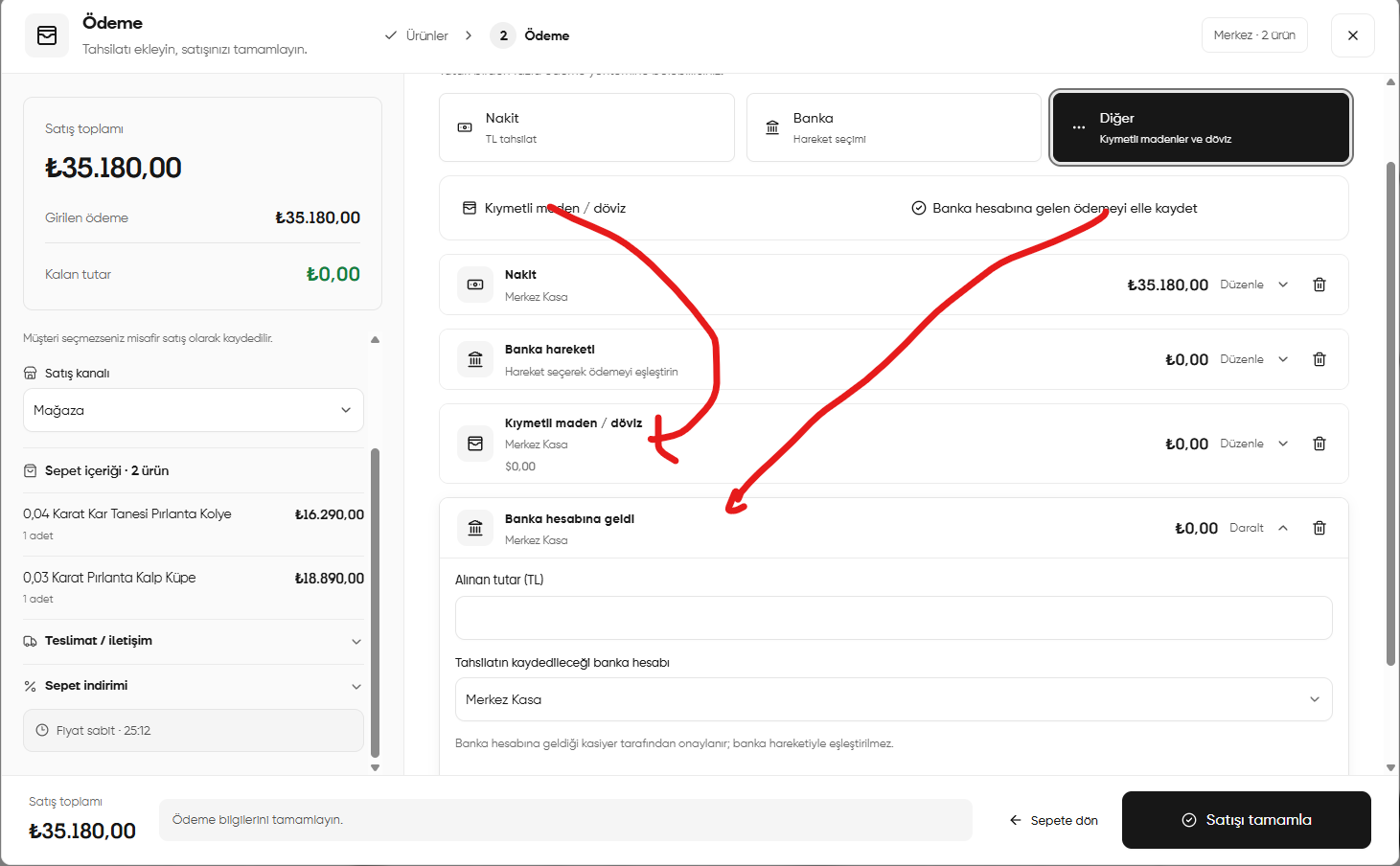
Payment in precious metals or foreign currency
- Click Other → Precious metals / foreign currency (Diğer → Kıymetli maden / döviz).
- Open Edit (Düzenle) on the added Precious metals / foreign currency (Kıymetli maden / döviz) card and complete the details of the payment you received.
- Check the amount shown on the card and the cash account where the collection will be recorded. Track the remaining sale amount in TL in the summary at the top left.
- If you added a payment card you will not use, remove it with the trash icon on its right.
Manually recording a payment received into a bank account
This option lets you, as the cashier, manually record a payment after checking that it has arrived in the bank account.- Click Other → Manually record payment received into a bank account (Diğer → Banka hesabına gelen ödemeyi elle kaydet).
- In the Received into bank account (Banka hesabına geldi) card that opens, enter the incoming payment amount in Amount received (TL) (Alınan tutar (TL)).
- Choose the relevant account under Bank account where the collection will be recorded (Tahsilatın kaydedileceği banka hesabı). The account name in the screenshot is an example; use the account that received the payment.
- Check the entered payment and remaining amount. After completing the details, continue with the other sale checks.
The Bank (Banka) method matches the payment to a selected bank transaction. With Received into bank account (Banka hesabına geldi), the cashier confirms that the money has reached the account; the entry is not matched to a bank transaction. Do not add the same collection using both methods.
If a warning appears even though the remaining amount is zero
In the Other payment options screenshot above, the cash payment covers the sale amount and the remaining amount is 0,00 TL. However, Complete the payment details (Ödeme bilgilerini tamamlayın) appears at the bottom because the other payment cards added have not been completed. Check every payment card you added. Fill in the missing details on cards you will use; remove cards added by mistake with the trash icon. Before completing the sale, make sure both the amounts and payment details are ready.Completing the sale
- Check the customer, sales channel, delivery and product details one last time.
- If you applied a discount, check the current total.
- Verify that the payments you added match the amounts received. If Add payment for the remaining amount (Kalan tutar için ödeme ekleyin) appears, add a payment covering the remaining amount.
- When the details are ready, click Complete sale (Satışı tamamla) and check the result on screen.
Adding a payment line alone does not complete the sale. Use Complete sale (Satışı tamamla) to finish the transaction.
Sale completed notification
When the sale is completed successfully, the payment screen closes and you return to the retail sales screen. A Sale completed. (Satış tamamlandı.) notification appears at the bottom right. Its Sale and payment saved. (Satış ve ödeme kaydedildi.) message indicates that the transaction has been saved. The sales cart empties and you can select products for a new sale.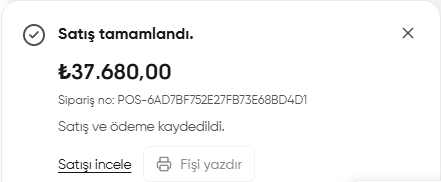
Sale completed notification: amount, order number and transaction links
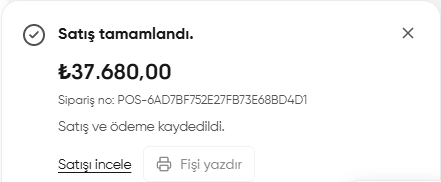
- Check the sale amount. The notification shows the total of the completed sale. The 37.680,00 TL in the screenshot is the sample amount for that sale.
- Check the order number. This number lets you find the record later and distinguish it from other sales.
- Open the saved sale’s details using View sale (Satışı incele).
- To obtain a receipt, use Print receipt (Fişi yazdır). The button appears disabled in the screenshot; it must be available to print.
- To close the notification, click the × icon at its top right. Closing the notification does not delete the saved sale.
The Payment ready (Ödeme hazır) message means the sale is ready to be completed. The Sale completed (Satış tamamlandı) notification confirms that the sale and payment have been saved. Check the transaction result in this notification.