This translation is awaiting language review. Application screenshots and interface labels are in Turkish. The downloadable PDF is also in Turkish.
1. Opening the Actions menu
- Find the precious asset or currency you want to work with in Exchange rates and prices (Kur ve fiyatlar).
- Click Actions (İşlemler) on the right of the row. This menu is highlighted in red in the image.
- Choose as needed:
- Change history (Değişiklik geçmişi): Review past prices, change records and the chart.
- Edit definition (Tanımı düzenle): Edit the price source, fixed or automatic method, calculation and display settings.
- Switch to manual pricing (Manuel fiyata geç): Enter buying and selling prices manually.
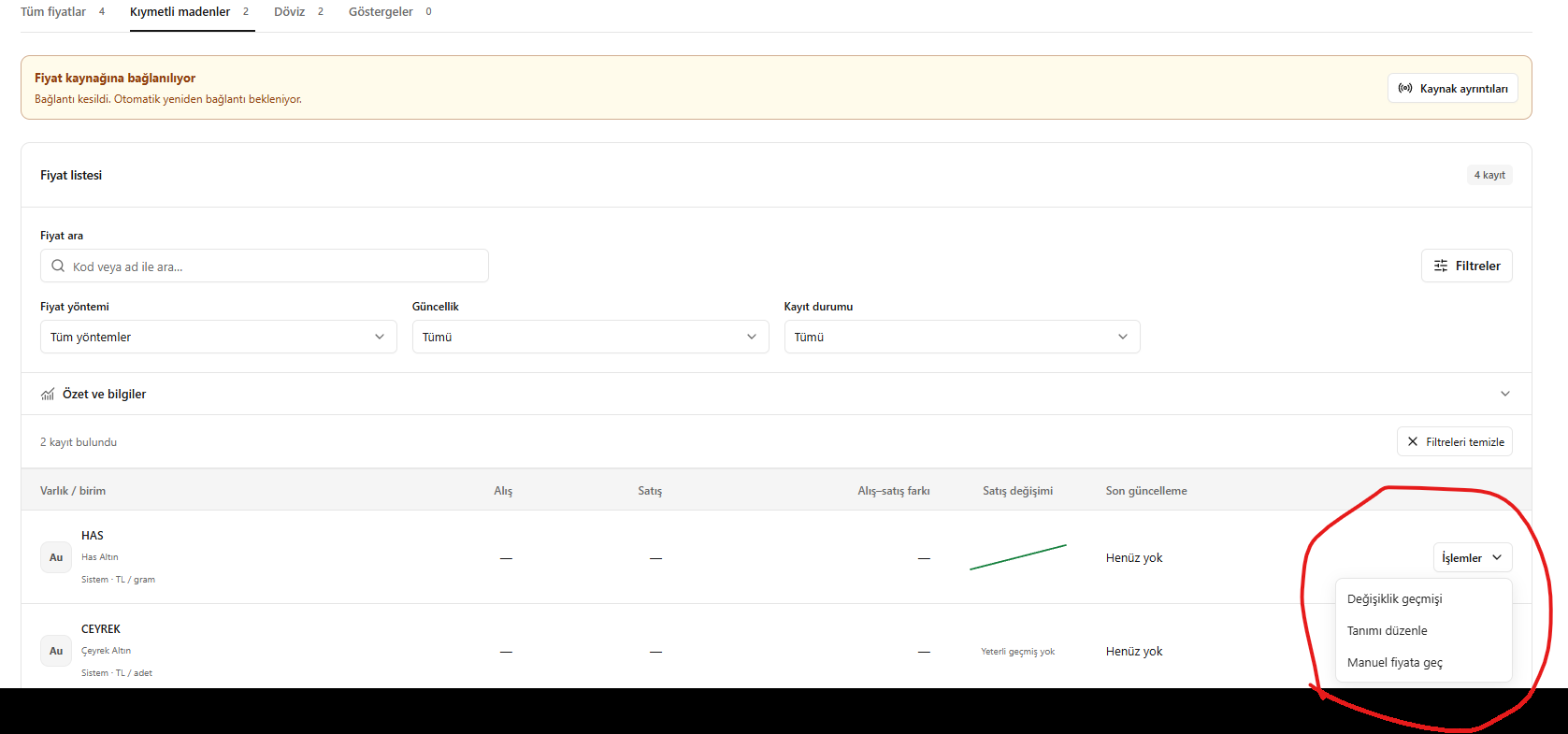
Actions menu on the right of the price row
2. Reviewing change history
What is this screen for?
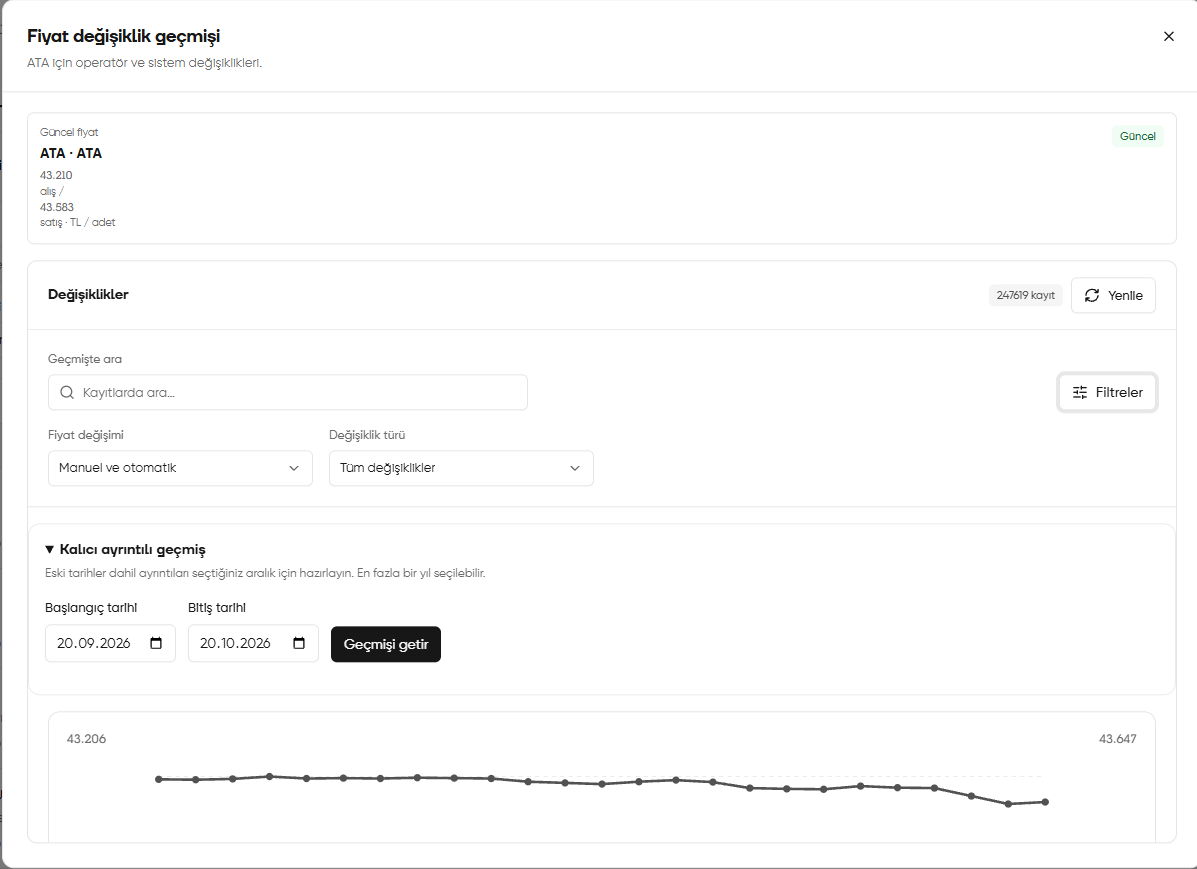
Price change history (Fiyat değişiklik geçmişi) lets you review operator changes and system updates for a selected precious asset or currency. ATA is selected in the image; your screen displays the name of the definition you are working with. This window is for reviewing history. Selecting dates or clicking Fetch history (Geçmişi getir) does not change the current price.1. Open the relevant price’s history
In Exchange rates and prices (Kur ve fiyatlar), open change history from Actions (İşlemler) in the relevant row. Check the explanation below the window title to confirm that you opened the correct asset’s history.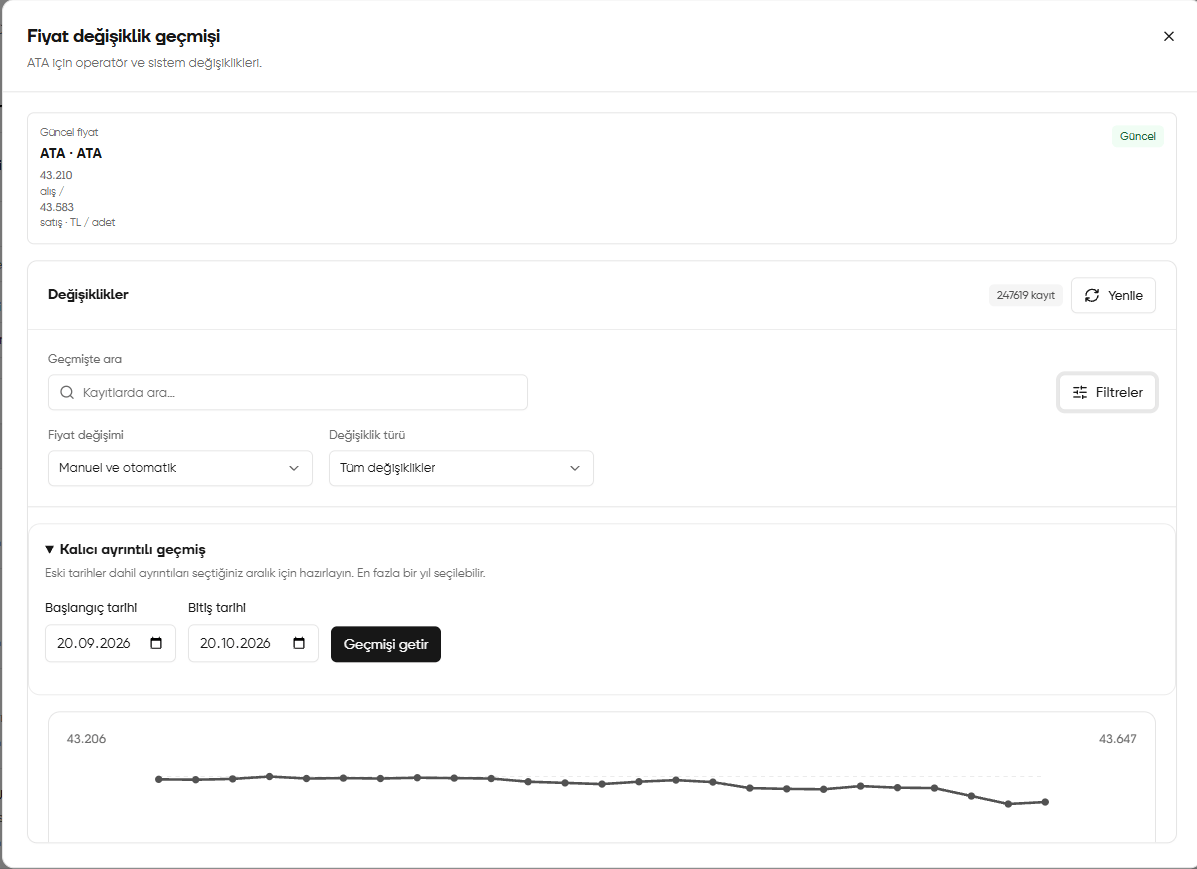
Current ATA price, change filters and detailed history
2. Read the current buying and selling prices
The Current price (Güncel fiyat) card at the top contains the buying and selling values currently displayed for the selected definition. For ATA · ATA in the image:- Buying (Alış): 43.210 TL
- Selling (Satış): 43.583 TL
- Unit (Birim): TL / piece
3. Search the change records
Enter a phrase in Search history / Search records… (Geçmişte ara / Kayıtlarda ara…) under Changes (Değişiklikler) and review the listed records. Use Refresh (Yenile) at the top right to reload the list. The record count refers to change records, not products or pieces sold.4. Narrow the review with filters
Open the filter fields with Filters (Filtreler).- Price change (Fiyat değişimi): Used to review manual or automatic changes. Manual and automatic (Manuel ve otomatik) in the image includes both sources. Manual changes are made by an operator; automatic changes are updates applied by the system.
- Change type (Değişiklik türü): Select the type to review. All changes (Tüm değişiklikler) does not narrow the results by type.
5. Fetch detailed history for a date range
Open Persistent detailed history (Kalıcı ayrıntılı geçmiş) to review a specific period, including older dates.- Enter the first day of the period in Start date (Başlangıç tarihi).
- Enter the last day in End date (Bitiş tarihi).
- Check that the start date does not follow the end date. The on-screen explanation permits a range of up to one year.
- Click Fetch history (Geçmişi getir) and wait for the records to be prepared.
- Review the displayed history for the selected date range.
6. Evaluate the chart and details
The line chart below helps you follow changes in the displayed prices. When reviewing an exact date or amount, check any chart annotations and detailed records; do not infer an exact price solely from the height of the line. If no records appear, check that you opened the correct definition, then check the search text, filters and date range. An empty result does not mean there have never been price changes in the full history. When finished, close the window with × at the top right.Reading the price chart together with records
- Open price change history.
- Review the green buying-price and grey selling-price lines on the chart.
- Narrow the records by manual or automatic changes and change type.
- Assess the chart together with the records below it.
Waiting for a current price does not mean no historical records exist.
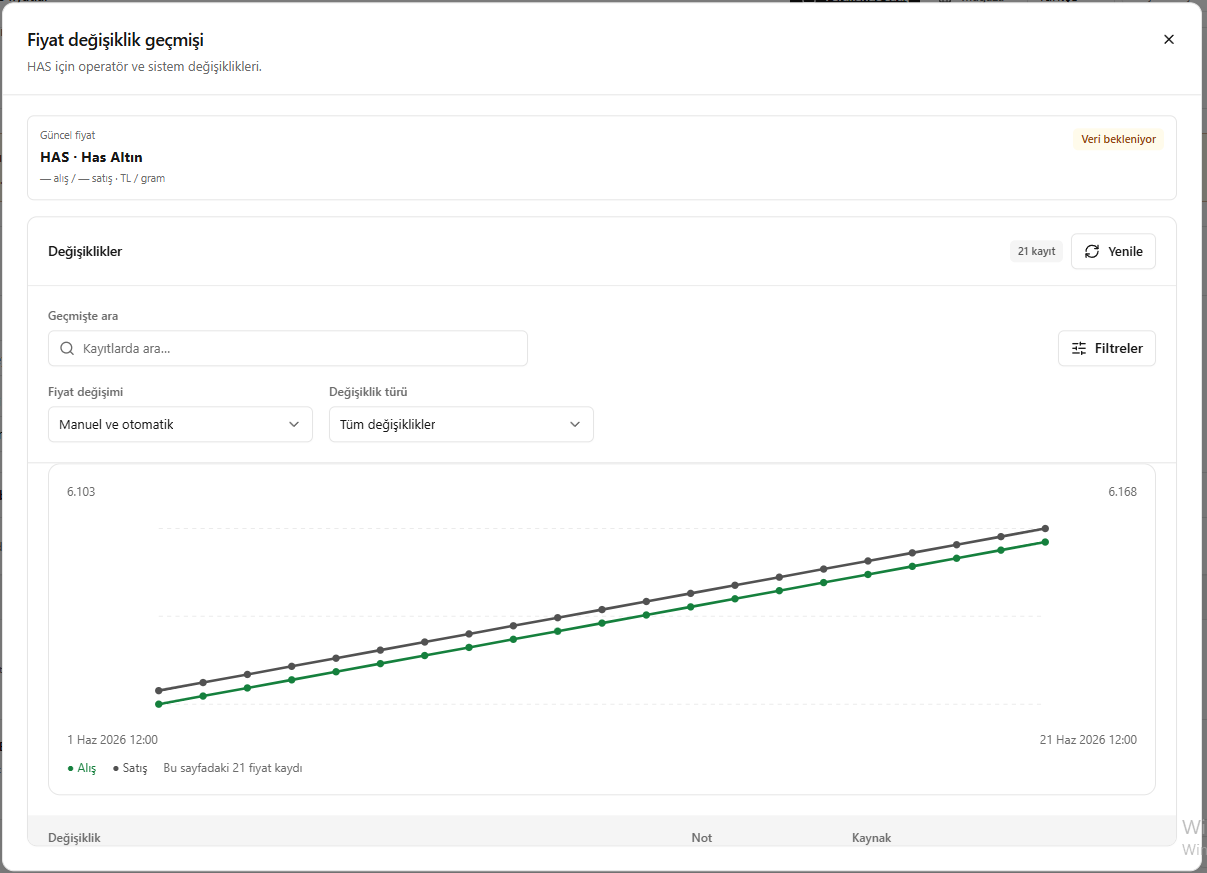
Reading the price chart
3. Editing the price definition
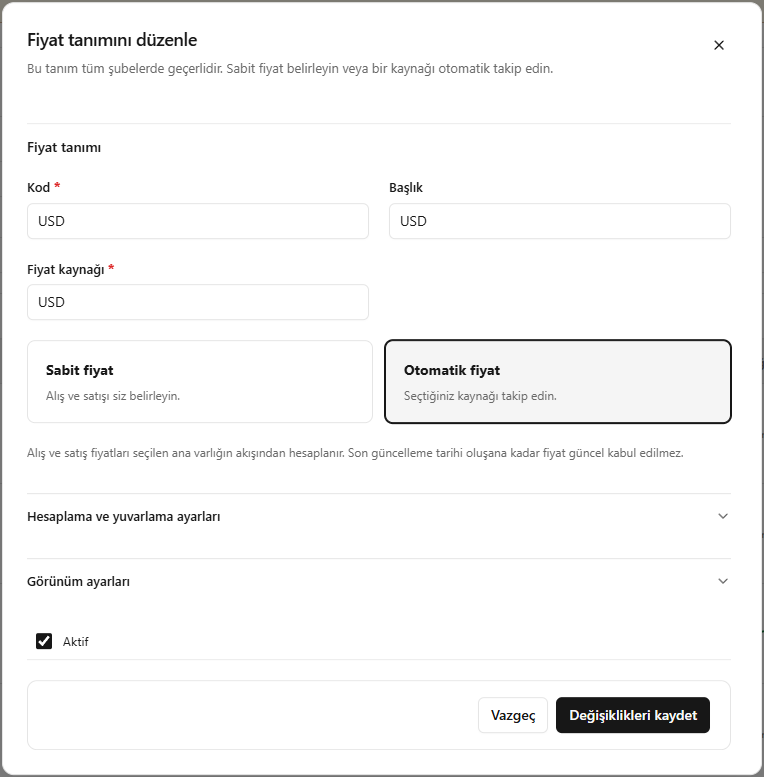
Select Actions → Edit definition (İşlemler → Tanımı düzenle).- Check Code (Kod) and Title (Başlık) to confirm that you are editing the correct definition. The image shows the USD definition.
- Check Price source (Fiyat kaynağı). This field determines which source is followed by the automatic method.
- Select the method:
- Fixed price (Sabit fiyat): You set the buying and selling values.
- Automatic price (Otomatik fiyat): The selected source’s feed is followed and buying and selling prices are calculated accordingly.
- Open Calculation and rounding settings (Hesaplama ve yuvarlama ayarları) and Display settings (Görünüm ayarları) if needed. The fields are explained below.
- Check Active (Aktif) and review all changes before finishing.
This price definition applies to all branches. According to the on-screen explanation, when the automatic method is selected the price is not considered current until a last-update date is available.
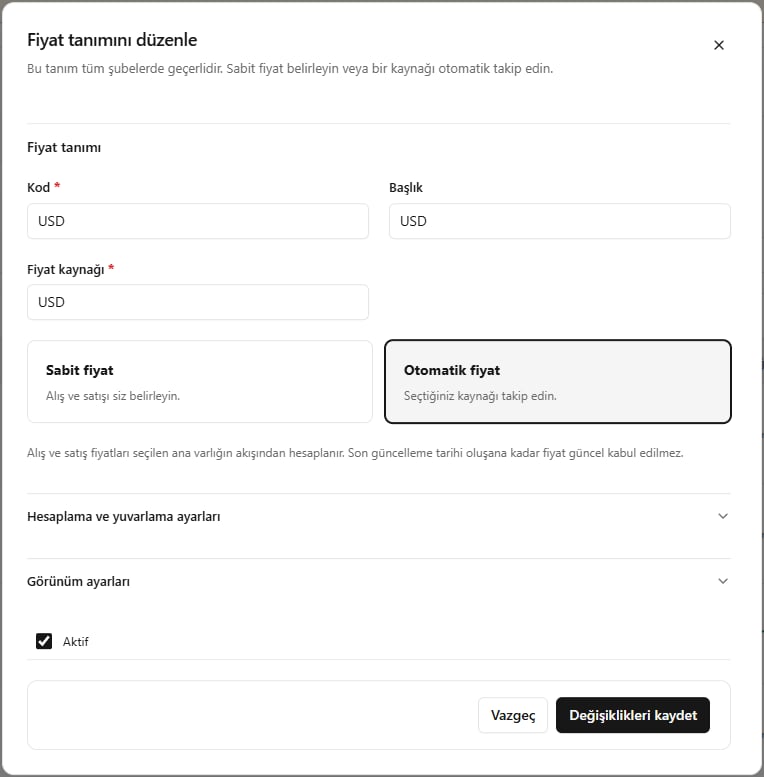
Selecting the source and fixed or automatic method in the price definition
Calculation, rounding and display fields
These fields continue the Edit definition (Tanımı düzenle) window.
After completing the required fields, click Save changes (Değişiklikleri kaydet). Use Cancel (Vazgeç) to exit without saving. After saving, check the method and current values in the price list.
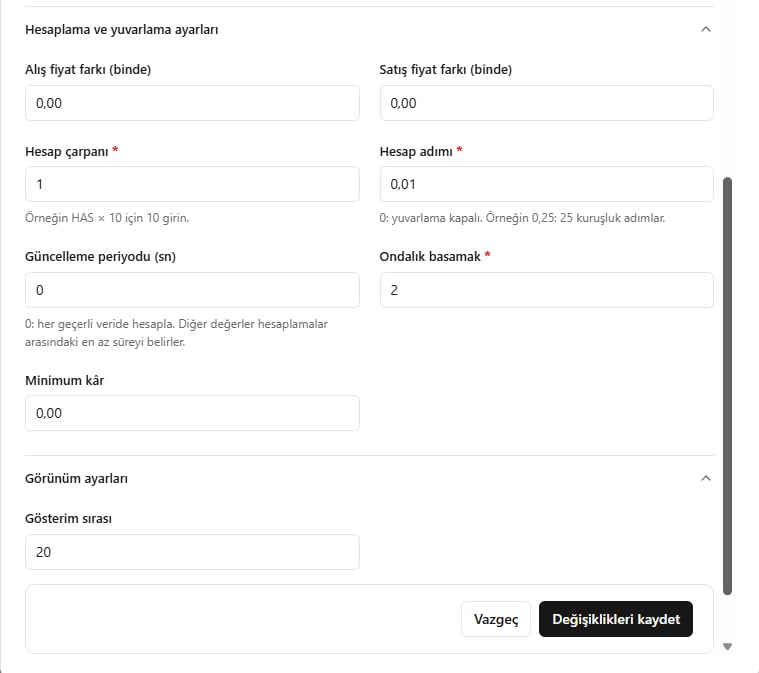
Calculation and display settings in the Edit definition window
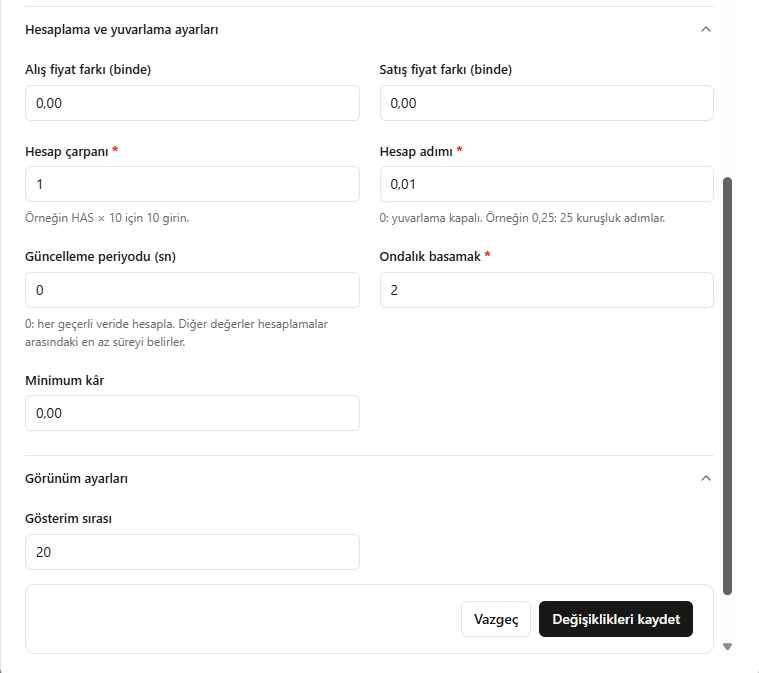
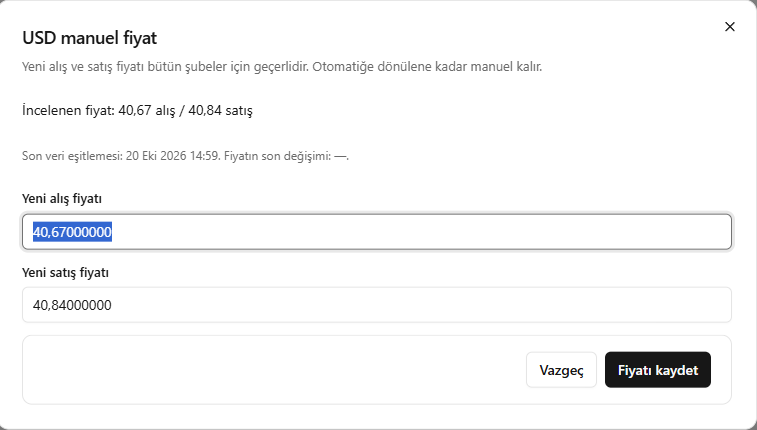
4. Setting buying and selling prices manually
- Open Actions → Switch to manual pricing (İşlemler → Manuel fiyata geç) in the relevant row.
- Check the window title to confirm that the correct precious asset or currency is selected.
- Read the buying and selling values in Price under review (İncelenen fiyat) and any last data synchronization or change time.
- Enter the values you want to apply separately in New buying price (Yeni alış fiyatı) and New selling price (Yeni satış fiyatı).
- Check the amounts and click Save price (Fiyatı kaydet). Use Cancel (Vazgeç) to abandon the operation.
- Return to the price list and check the saved values.
The new buying and selling prices apply to all branches. Pricing remains manual until you return to automatic pricing. Reviewing history does not change the price; Save price (Fiyatı kaydet) in this form applies new values.
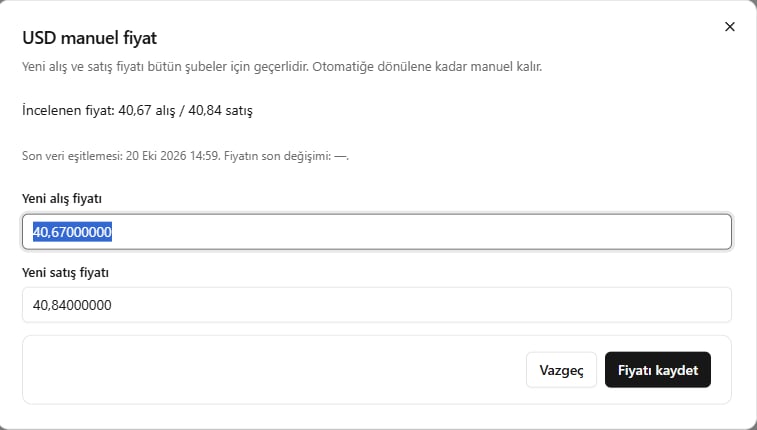
New buying and selling values in the manual price window